

WooCommerce

Two Minute Reports' WooCommerce connector lets you access and analyze your data directly in Google Sheets or Google Data Studio. Build custom reports, monitor key metrics, and make data-driven decisions - all without writing any code.
What you can report on
- Orders, revenue, and average order value
- Product and category-level sales performance
- Customer purchase history and repeat order rates
- Refunds, coupons, and discount usage
- Tax, shipping, and net revenue breakdowns
Prerequisites
- A WordPress site with WooCommerce installed
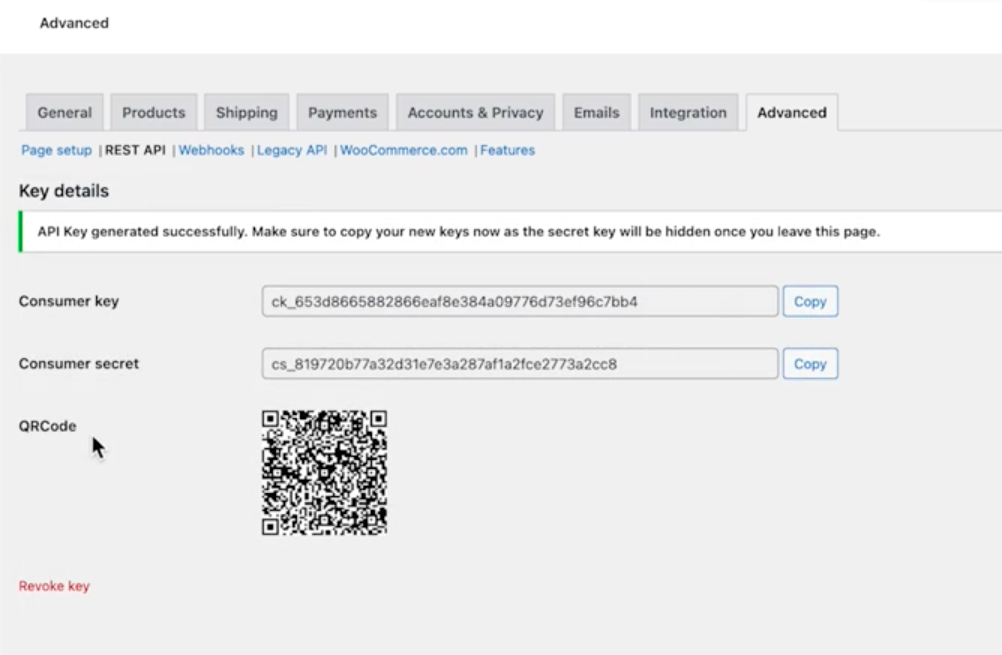
- A WooCommerce REST API Consumer Key and Consumer Secret (generate under WooCommerce → Settings → Advanced → REST API)
- A store that accepts REST API requests from outside. If a security plugin, a WAF or your host restricts access by IP address, see IP whitelisting
How to get your credentials
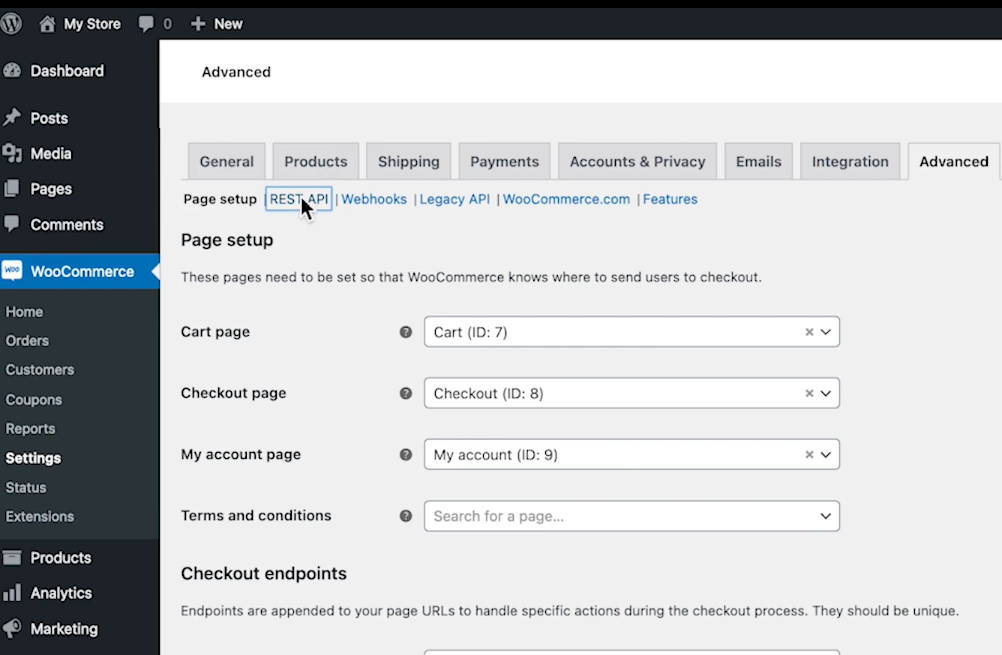
- Sign in to your WordPress admin dashboard → WooCommerce → Settings → Advanced → REST API
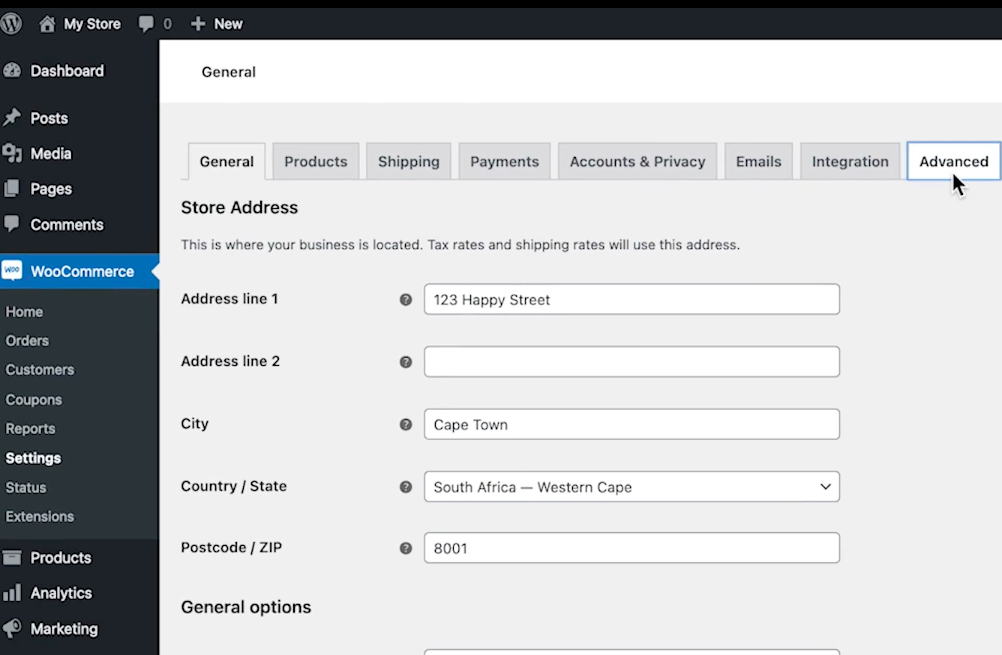
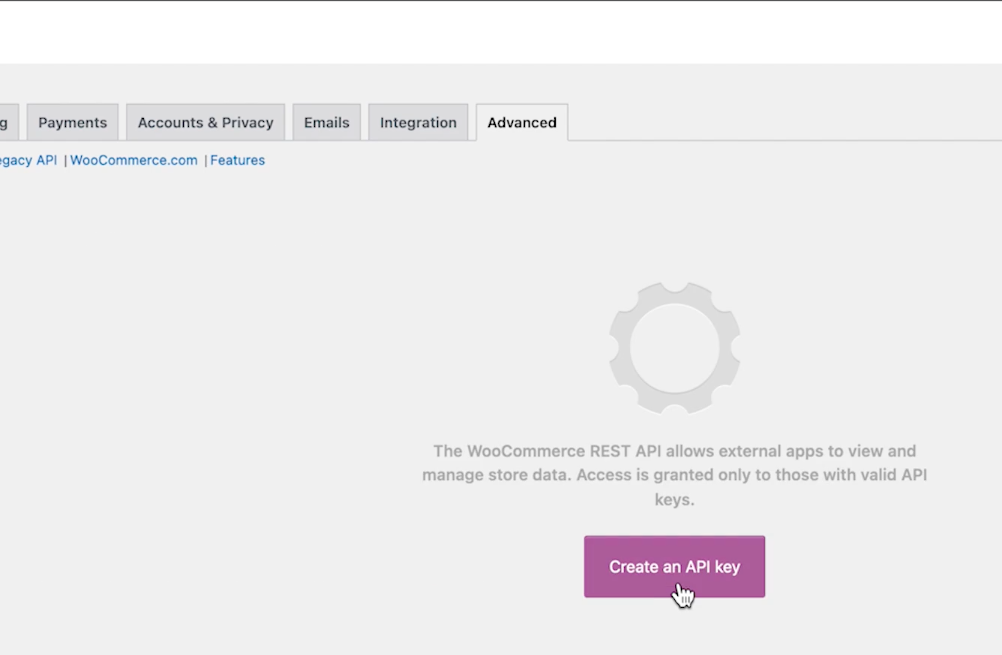
- You'll see the Keys/Apps section. Select Create an API key
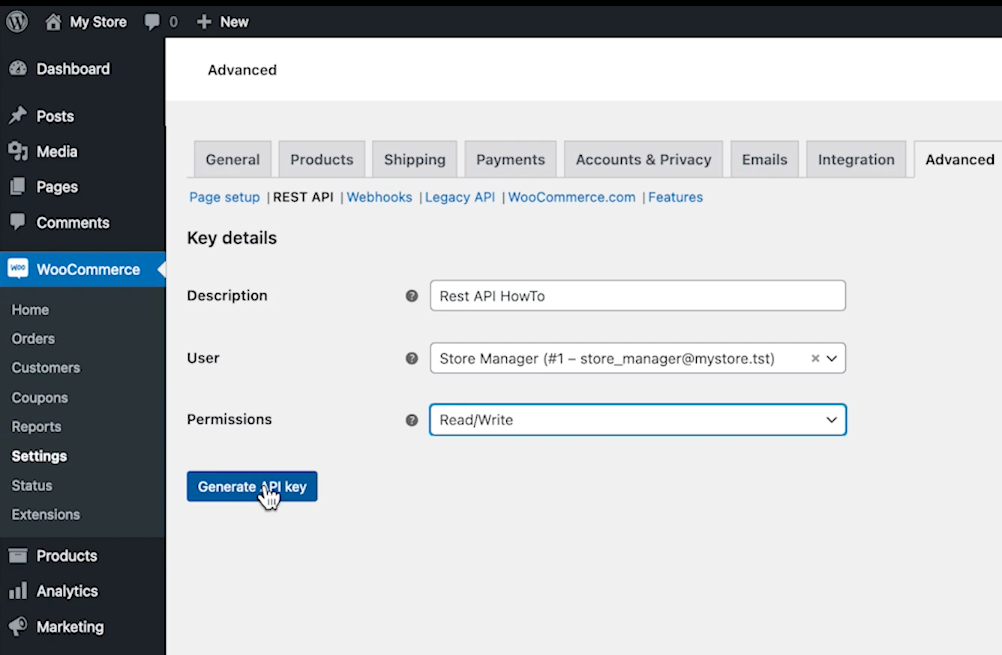
- Fill in:
- Description — a label for this key (e.g. "Two Minute Reports")
- User — the WordPress user who owns the key
- Permissions — select Read/Write
- Select Generate API key
- Your Consumer Key and Consumer Secret are displayed — copy and save them immediately
How to create a connection
- Go to https://hub.twominutereports.com/connections
- Select New Connection
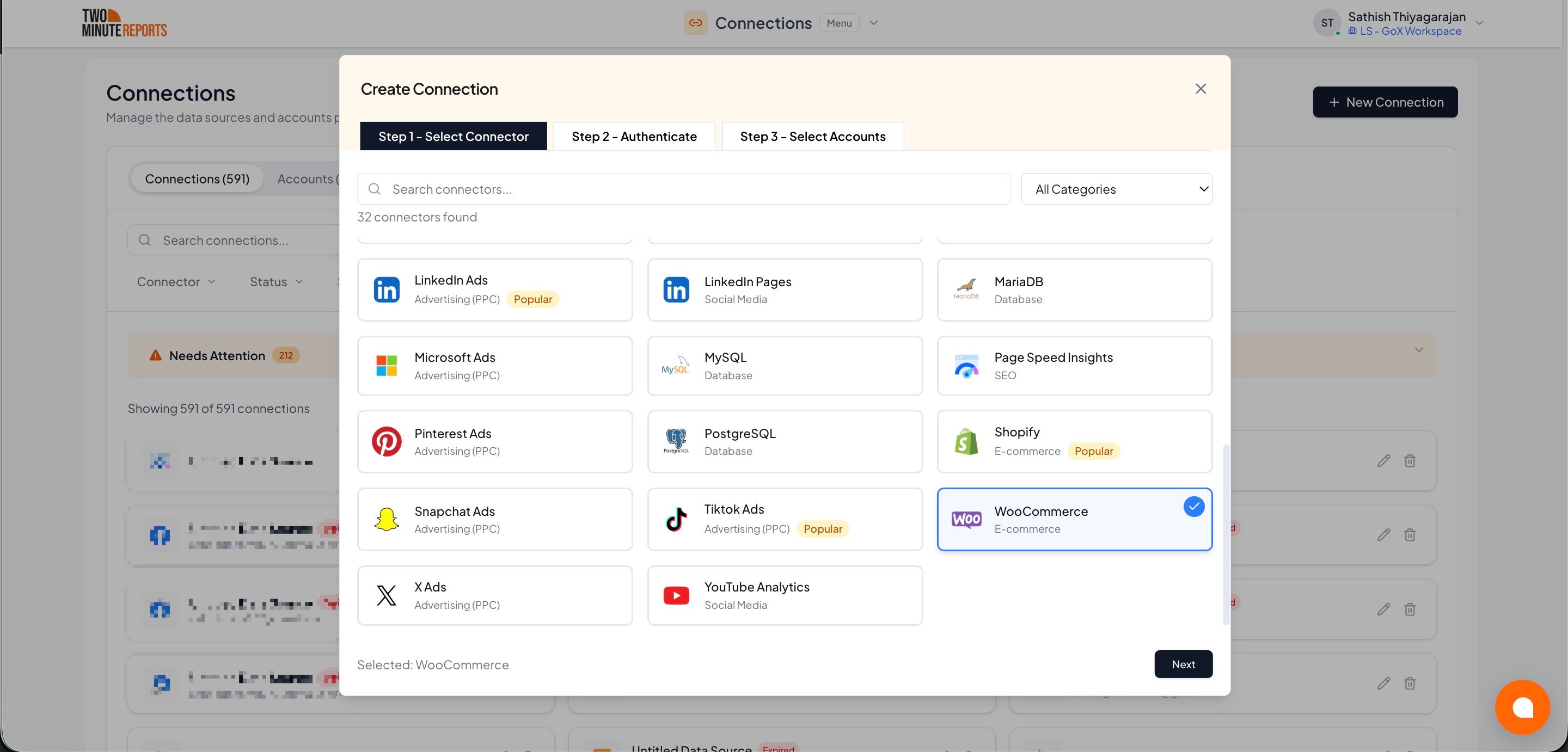
- Select WooCommerce from the list of connectors
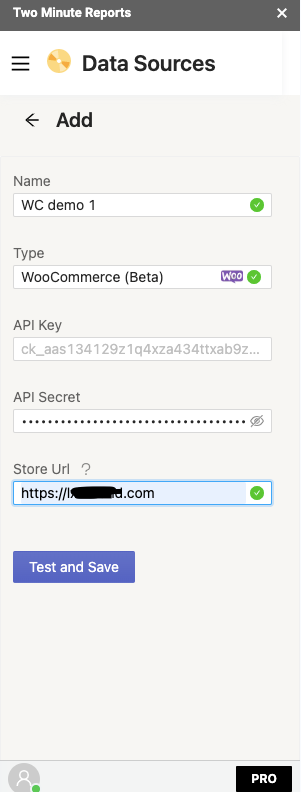
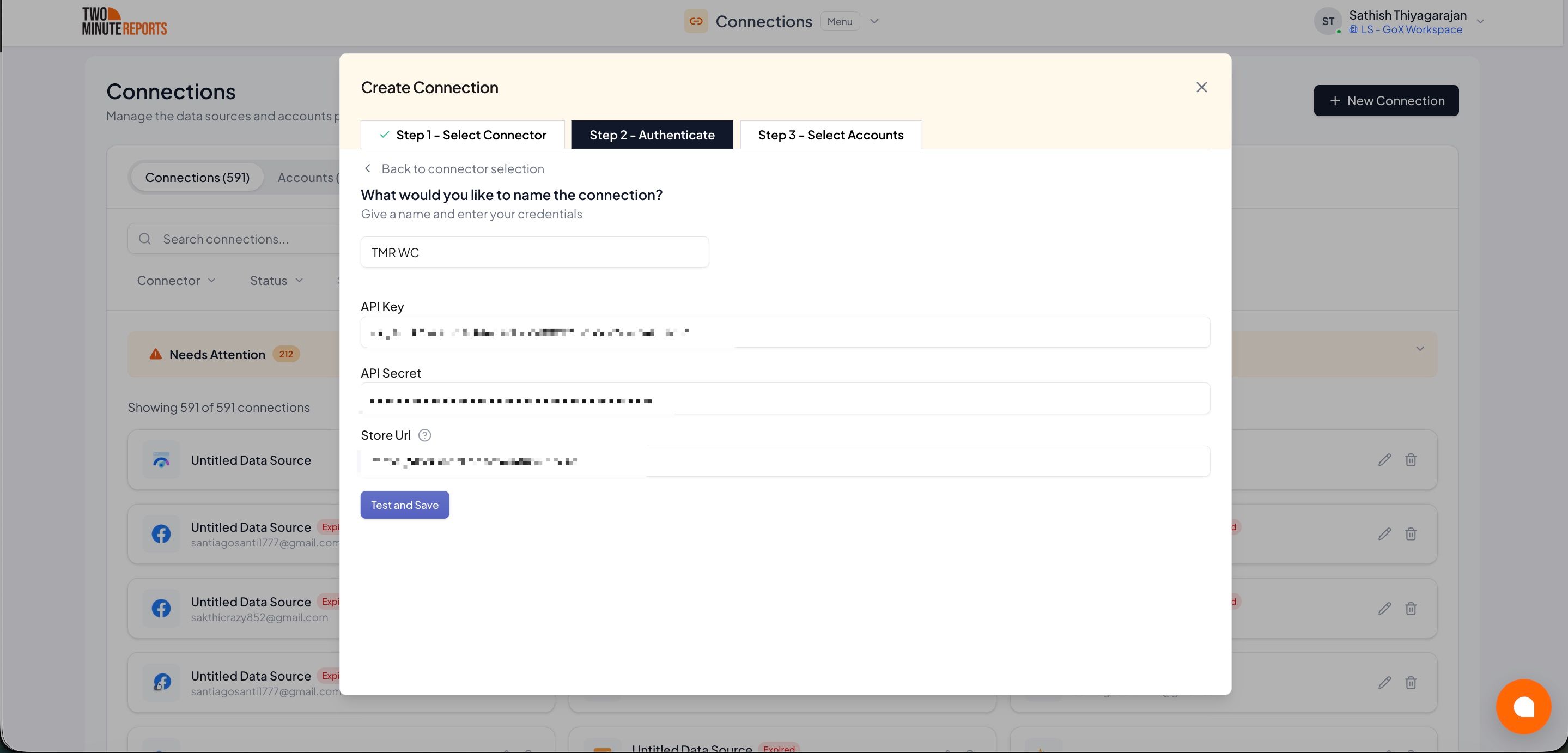
- Name the connection and enter your Store URL, Consumer Key and Consumer Secret, then select Test Connection. If you don't have the key and secret yet, see How to get your credentials
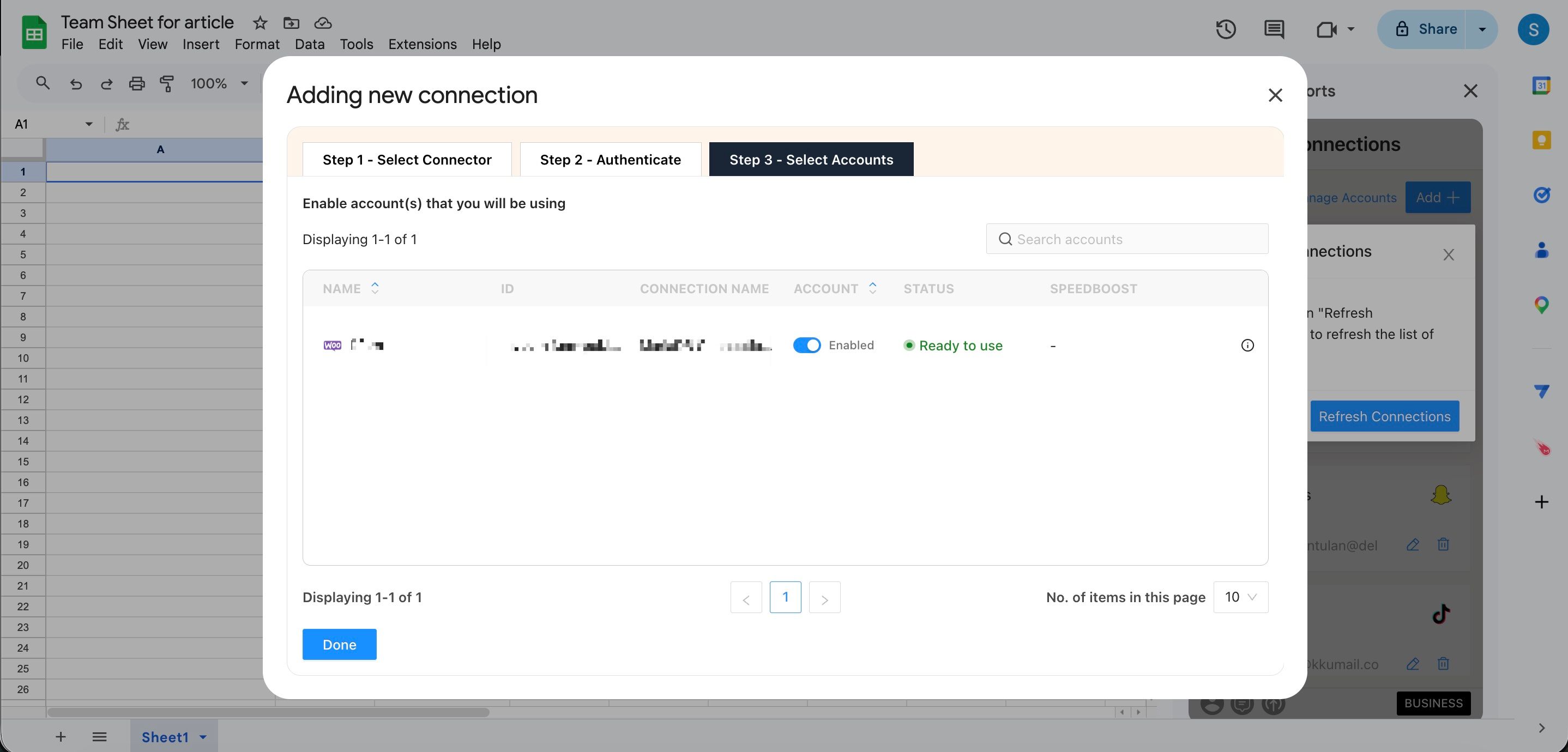
- Enable the accounts you want to report on
How to get WooCommerce data into your reports
To pull WooCommerce data into Google Sheets:
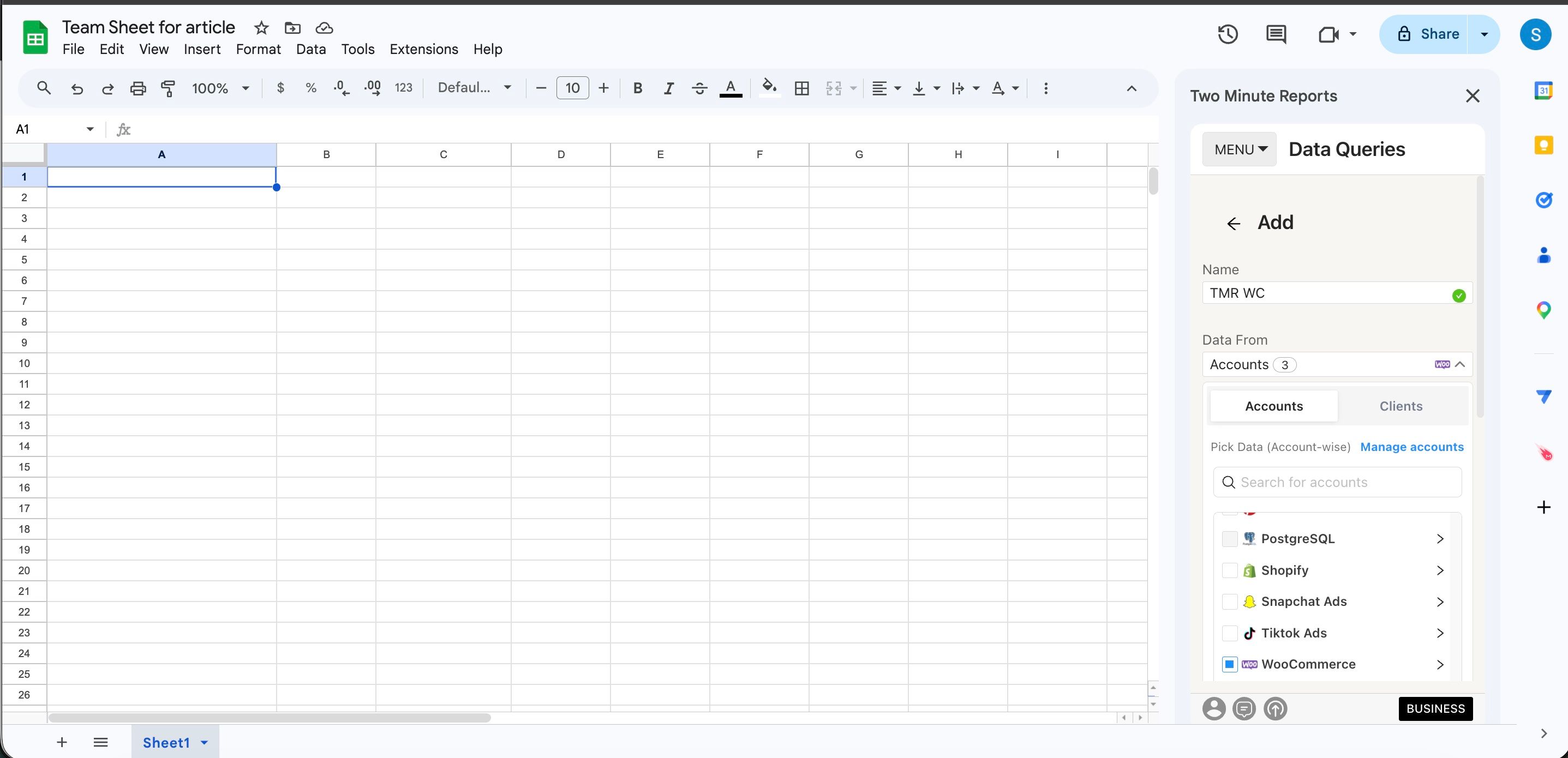
- In the Two Minute Reports sidebar, go to Data Queries and select Add
- Select the accounts you want to analyze (can select multiple)
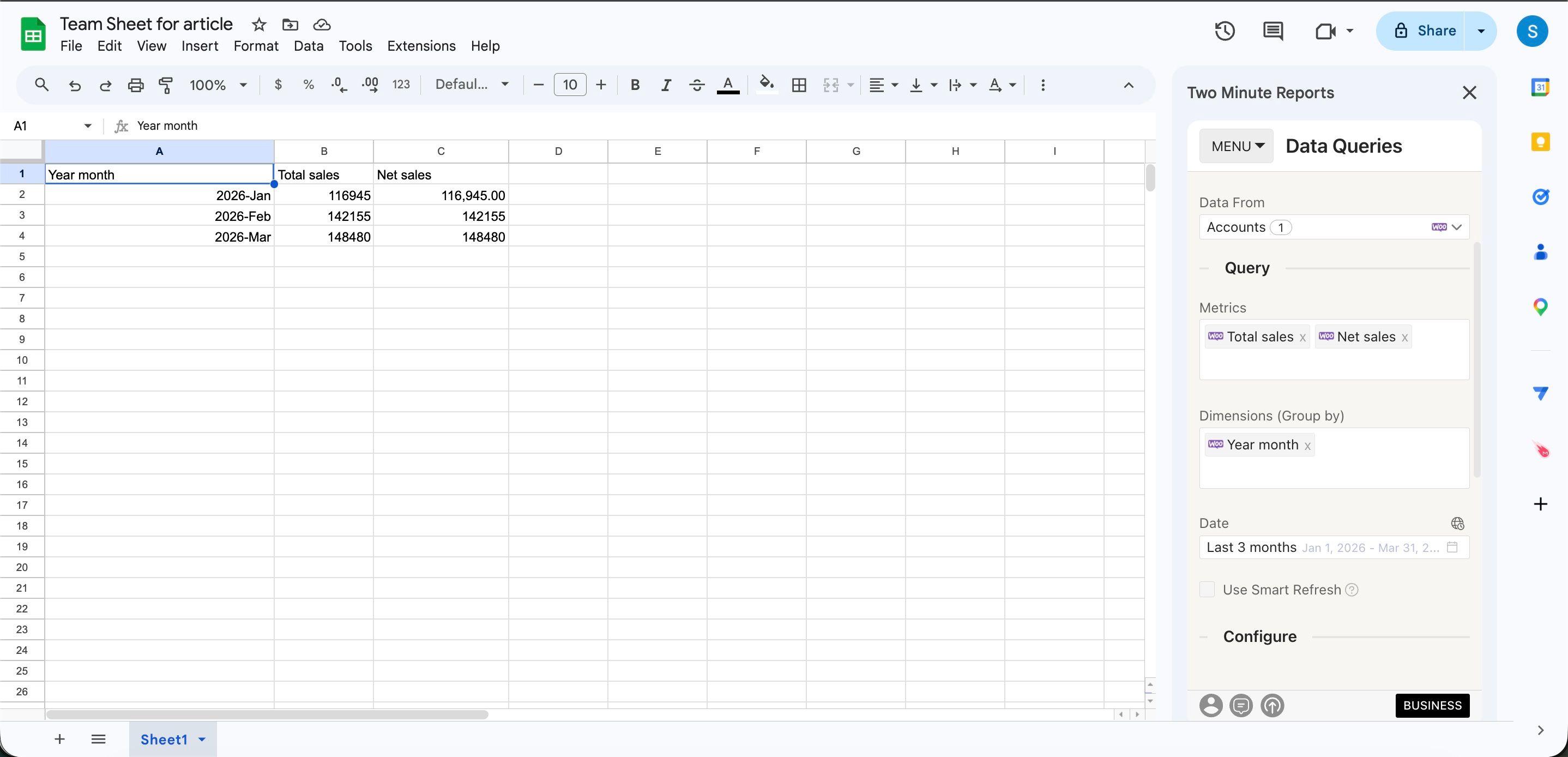
- Choose your metrics and dimensions from available options
- Select the date range for your analysis
- Configure sorting and filtering options as needed
- Select Run Query to populate the data into Google Sheets
To pull WooCommerce data into Google Data Studio:
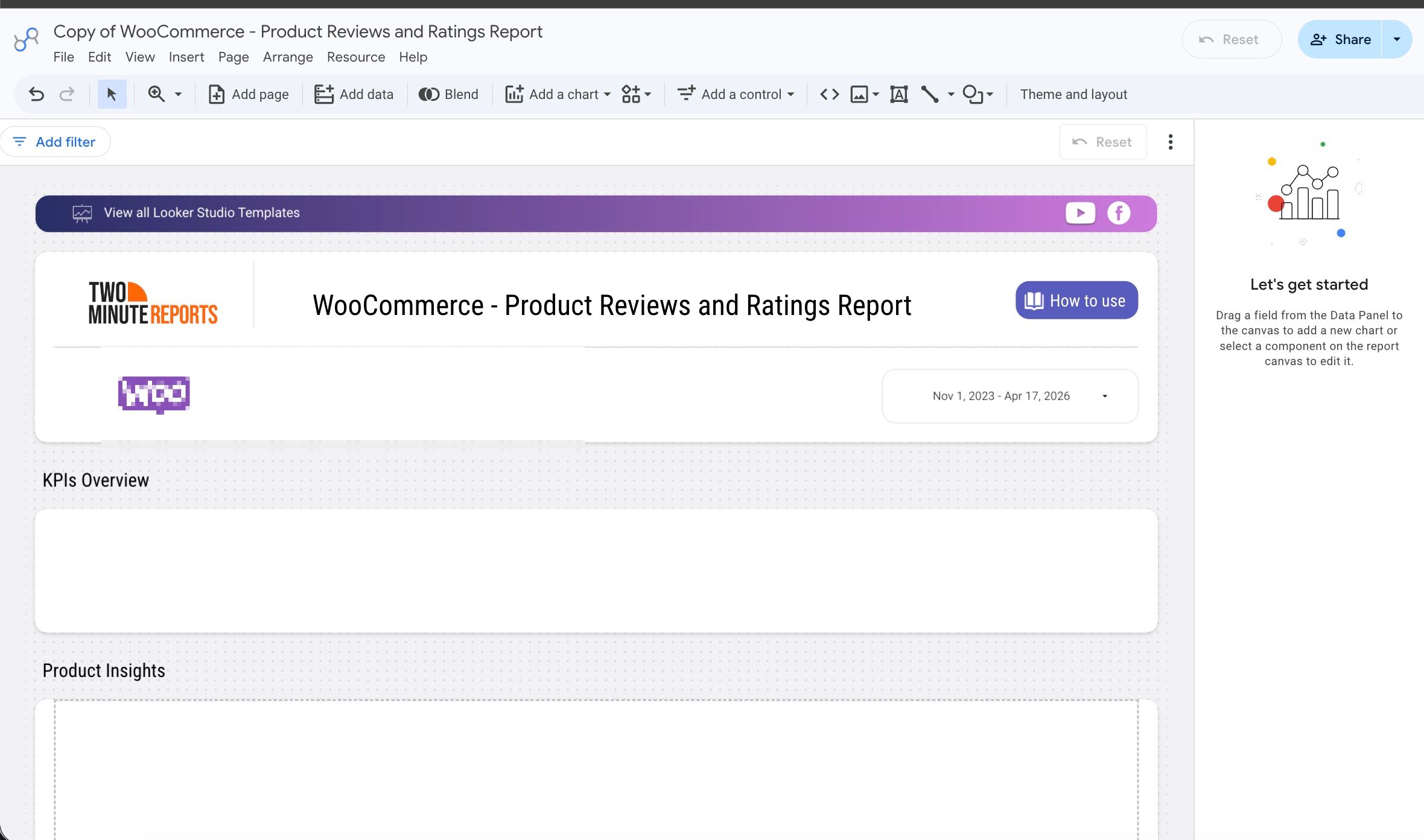
- Select Open in Google Data Studio, then select + Create Report.
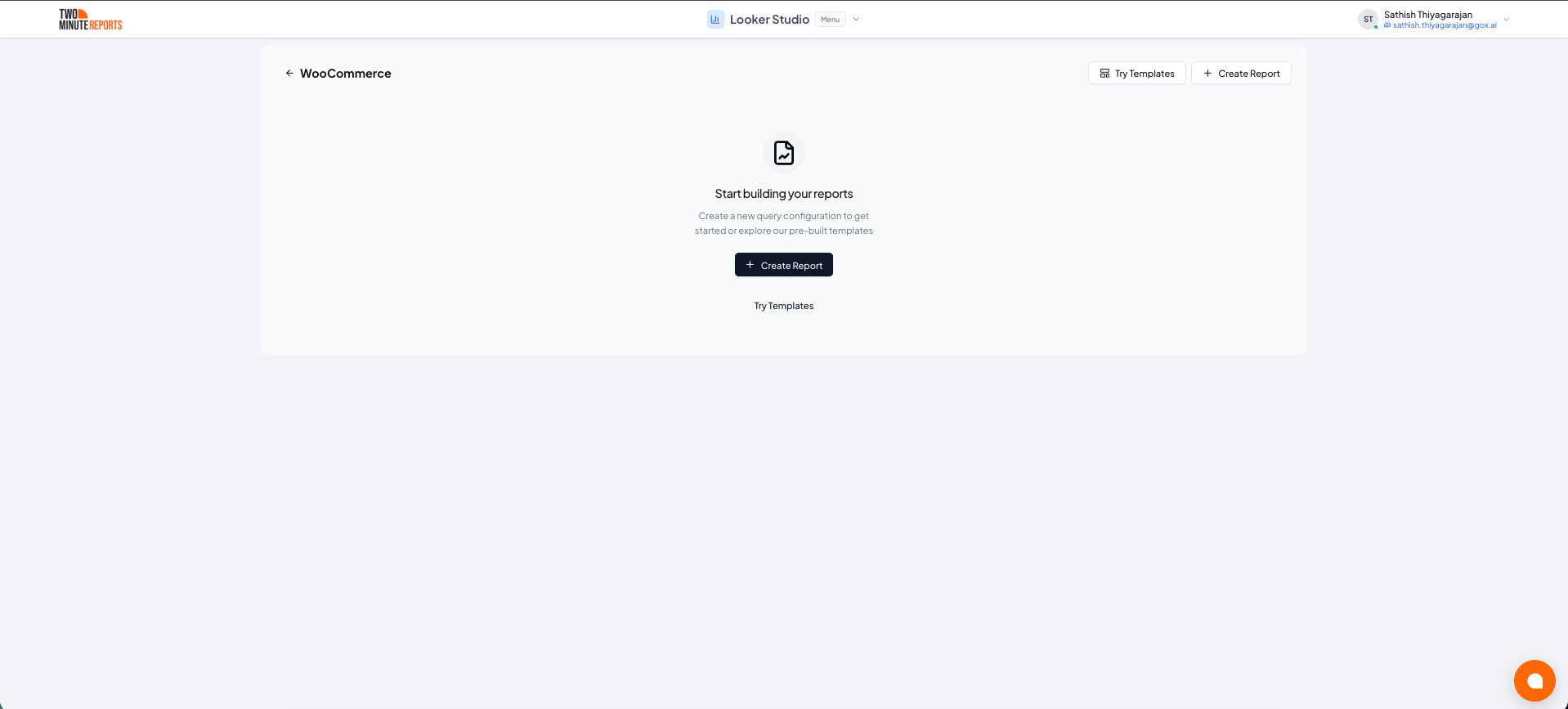
- A query config panel will appear. Do one of the following:
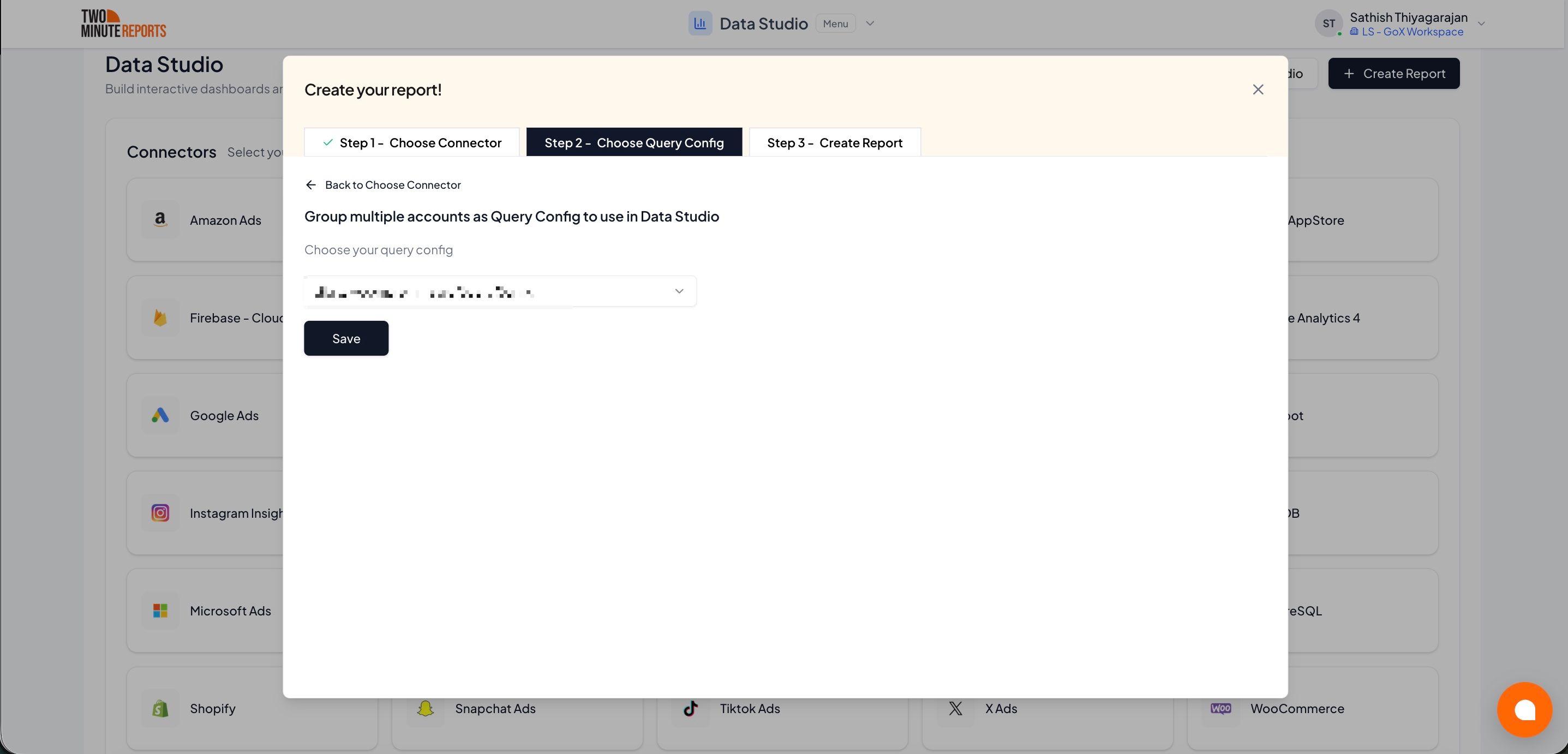
Creating a new query config: Enter a name, select the accounts you want to include from the dropdown, then select Save.
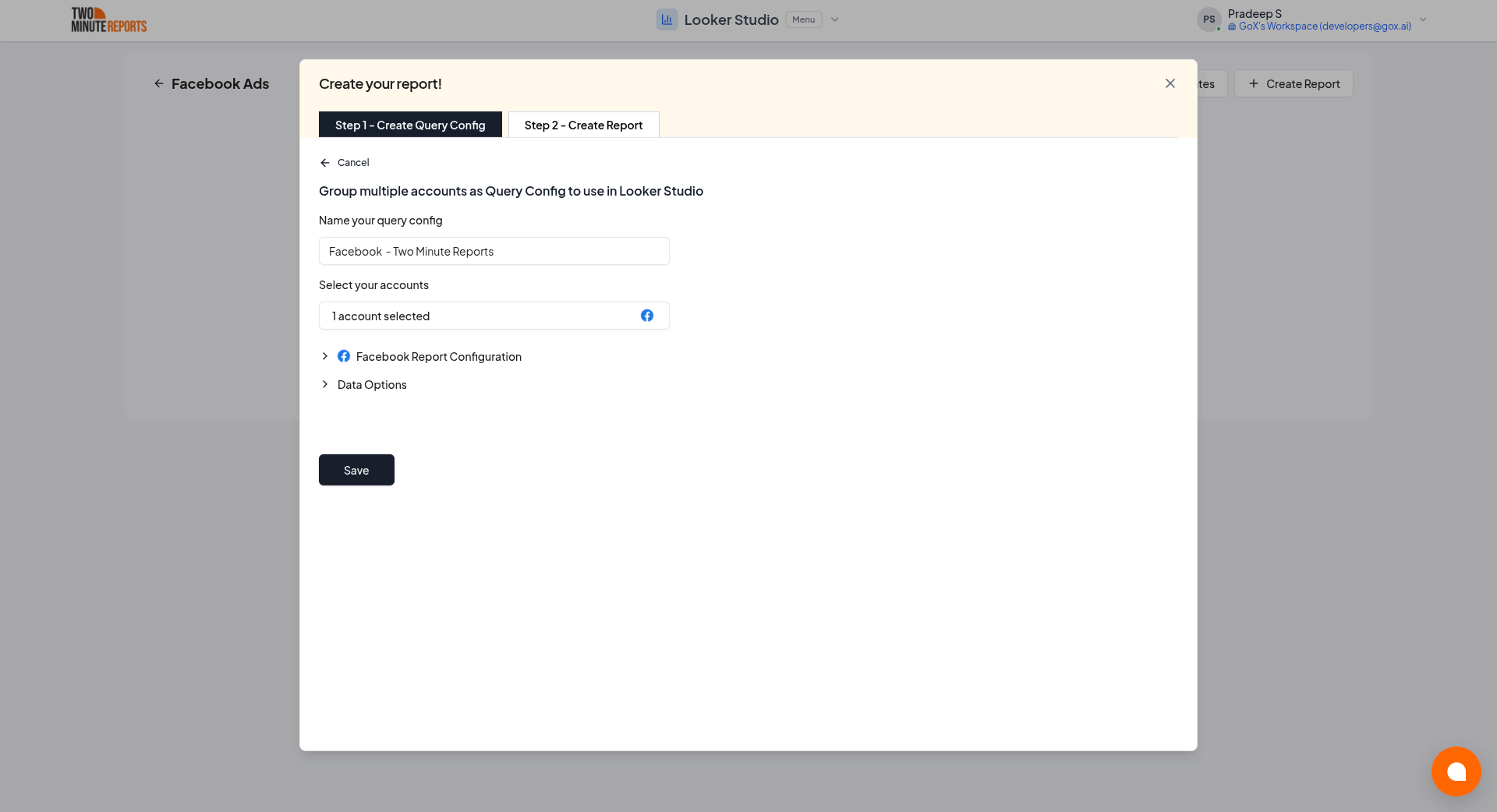
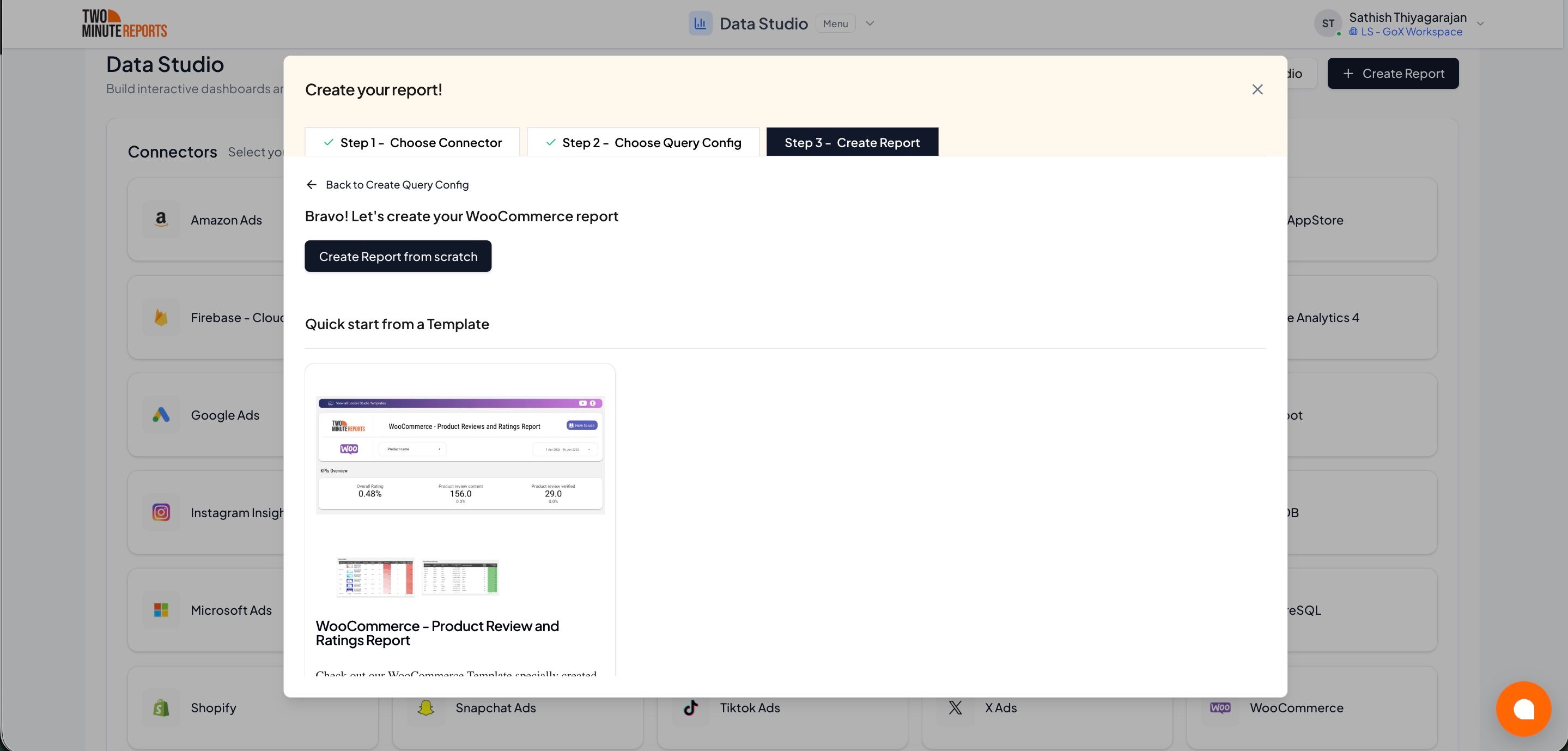
- Choose Create report from scratch to build a custom report, or select one of the pre-built templates to get started quickly.
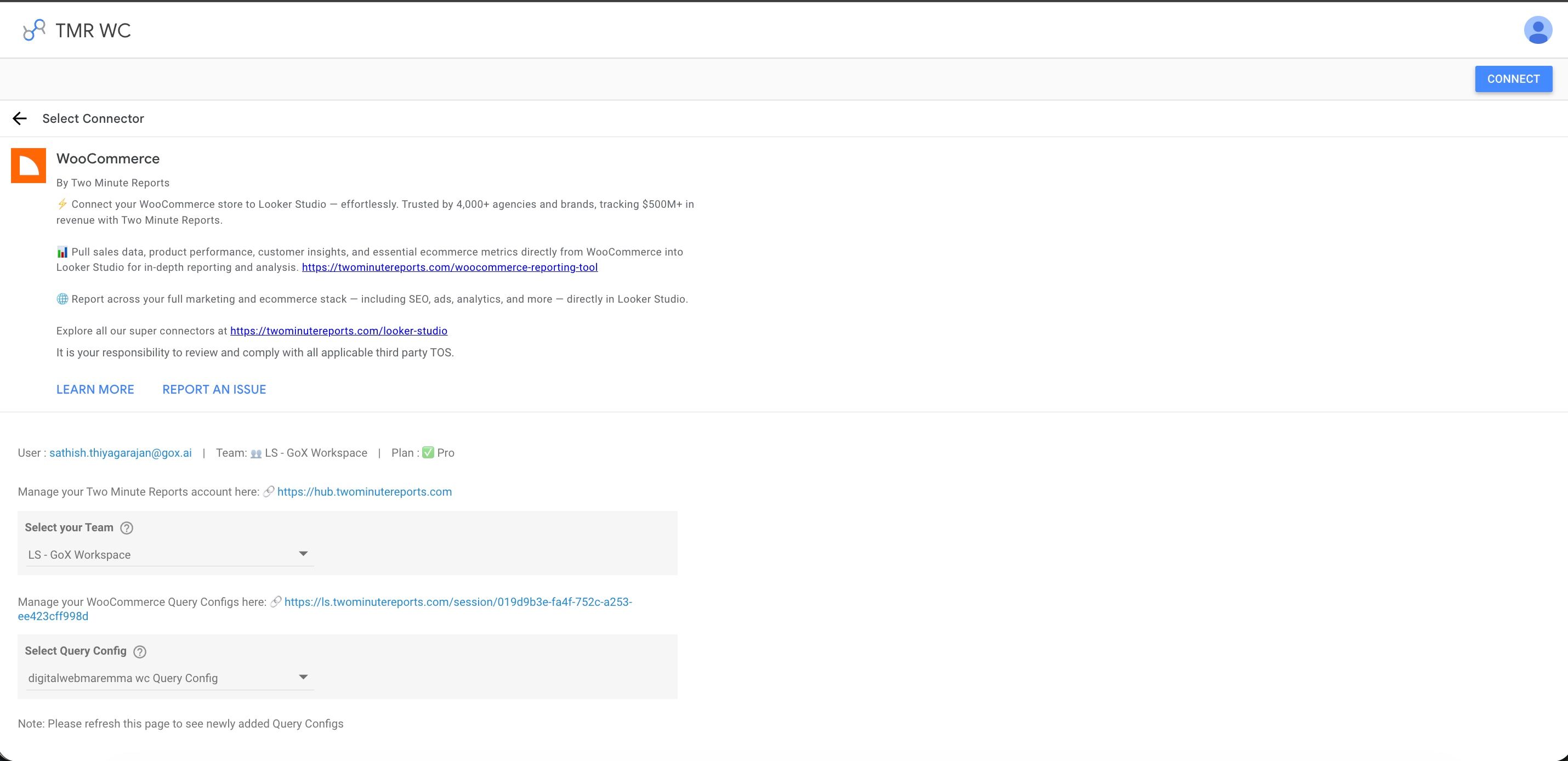
- In the Google Data Studio connector panel, select your team and choose the required query config from the dropdown. Select Connect in the top-right corner.
- You'll land on the Google Data Studio dashboard. Drag and drop the available WooCommerce metrics and dimensions onto your canvas to start analyzing your data.
IP whitelisting
Two Minute Reports reads your store over the WooCommerce REST API, from outside your site. A security plugin (Wordfence, Sucuri, iThemes Security), a WAF such as Cloudflare, or IP rules set by your host will block those requests. The block is usually silent, and often intermittent, which looks like a store that stops returning data for no reason.
Two Minute Reports connects from these fixed IP addresses. Add all 5 to your security plugin, your WAF and your host's firewall before you create the connection. Allowing only some of them gives you a connection that works until a request leaves from one of the others.
49.13.34.182
5.75.217.220
116.203.164.91
95.216.182.151
91.99.28.86
Where you add them depends on what is doing the blocking. A security plugin keeps an allowlist in its firewall settings; a WAF keeps IP access rules; a managed host may need them added from its control panel, or by its support team. If you aren't sure which of the three is refusing the request, add the addresses to all of them.
Still blocked after adding all five? See Connection Blocked by a Firewall or IP Allowlist.