
Summarize this blog post with:
Struggling to track your client’s ad performance in X Ads Manager? With Two Minute Reports, you can automatically pull your X (Twitter Ads) data into Google Sheets, so you can always share the latest performance insights with your clients without the manual grind.
How to connect Twitter Ads to Google Sheets?
You can connect Twitter Ads data to Google Sheets through the Two Minute Reports Hub. It is your centralized workspace for managing all your connections, clients, and destinations. Here’s how to get started:
Step 1: Creating a Connection
1. Go to hub.twominutereports.com and click Connections → Create Connection.
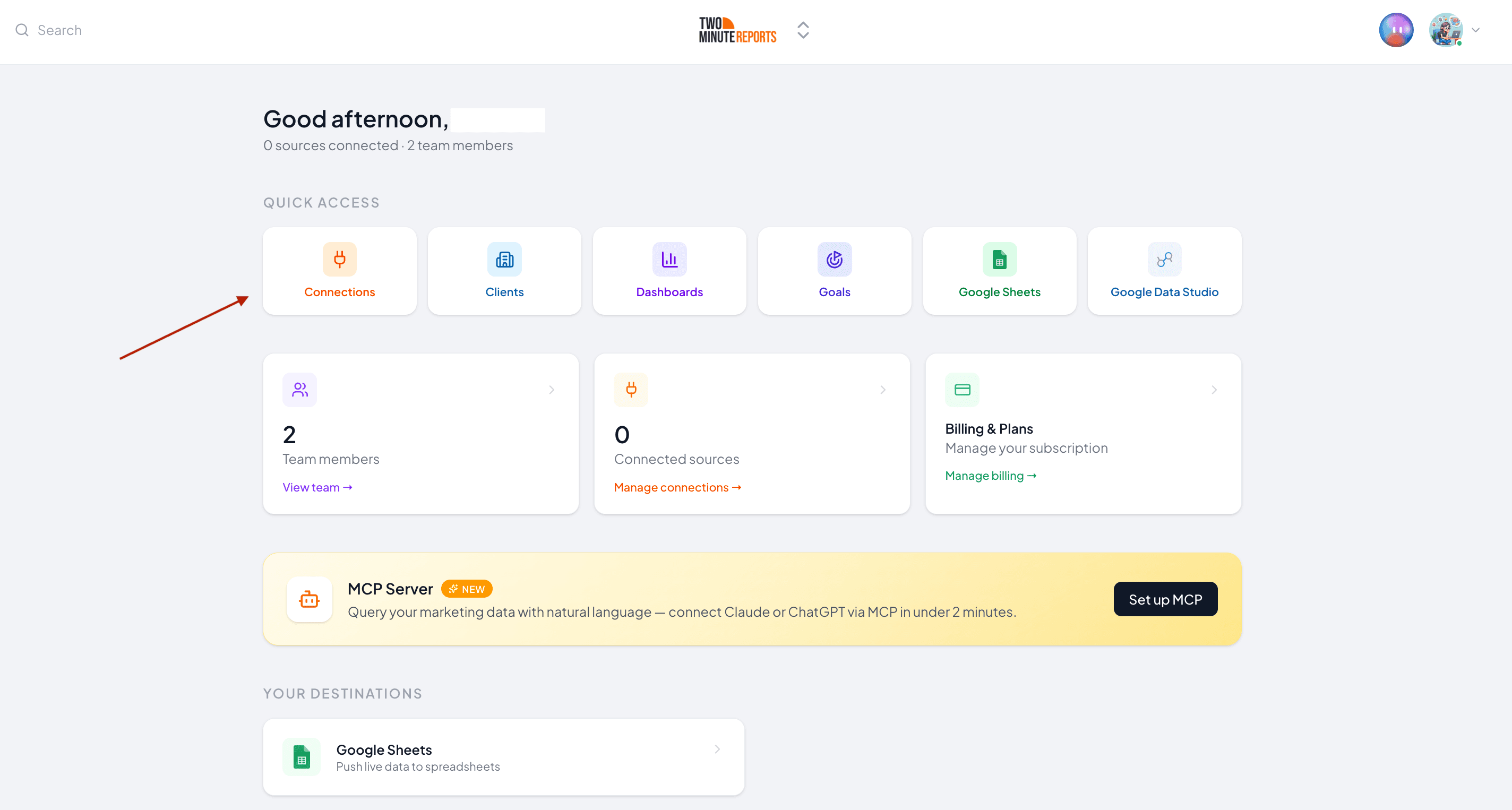
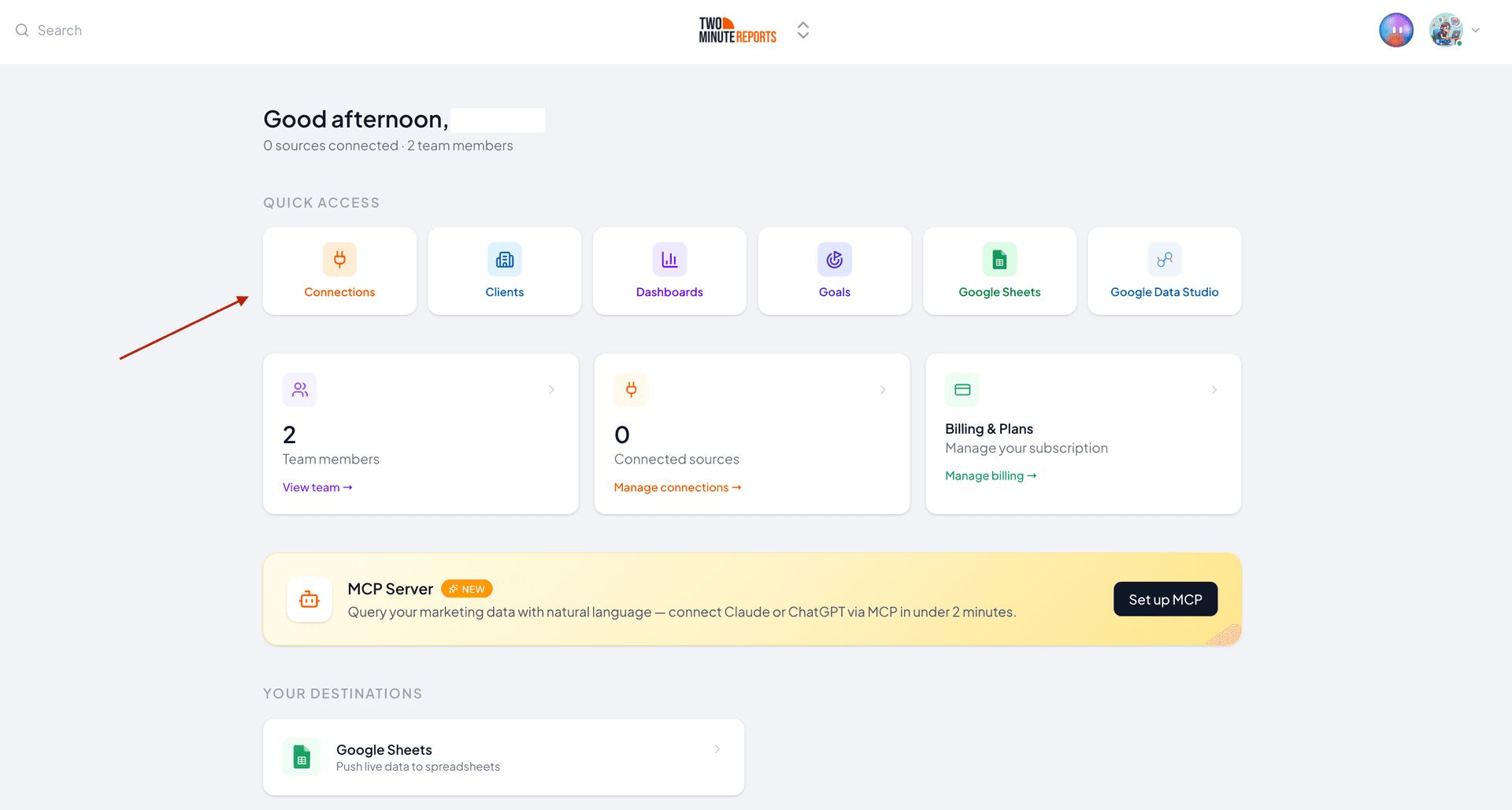
2. Inside the dialog box, complete these three steps:
- Select the Twitter Ads connector from the list of options.
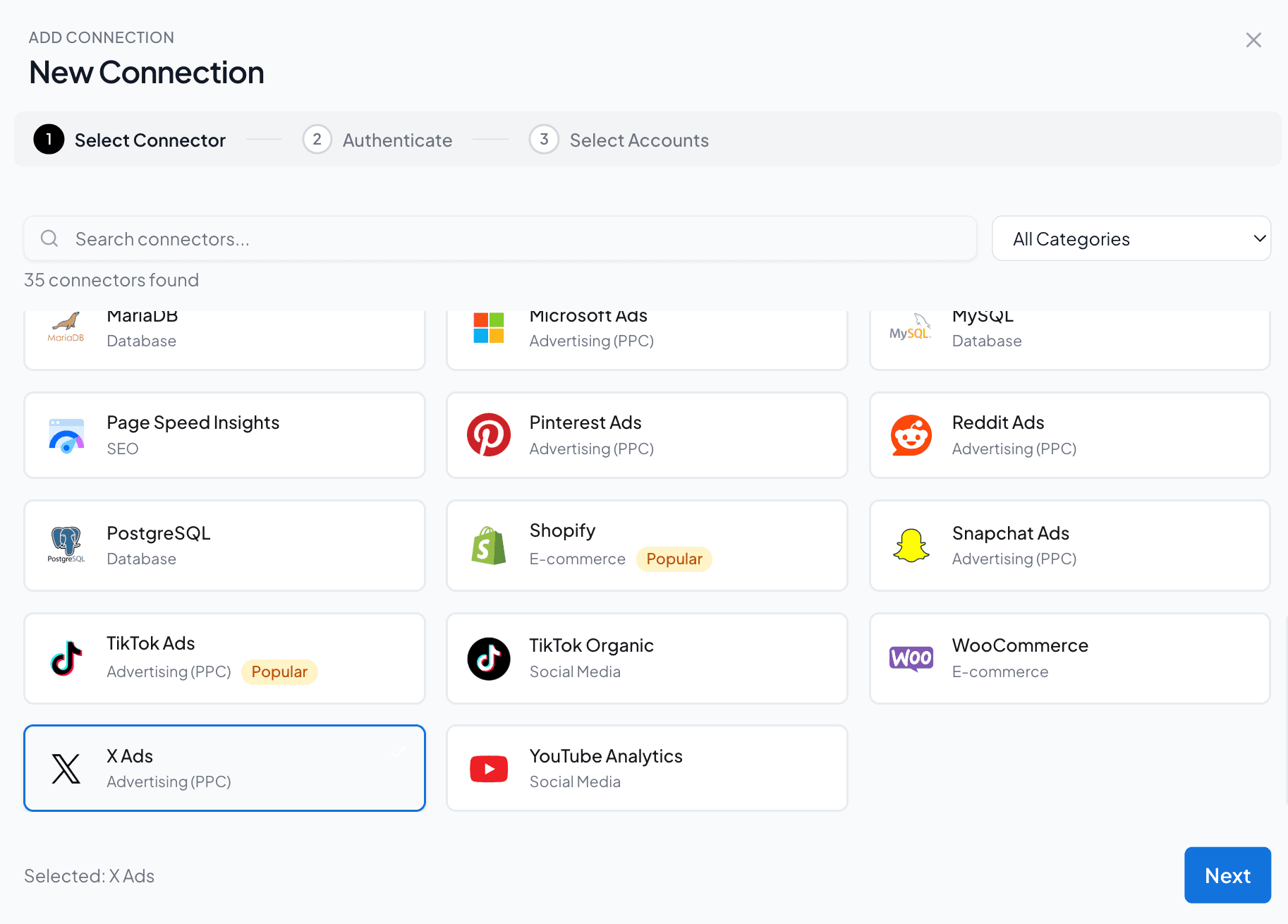
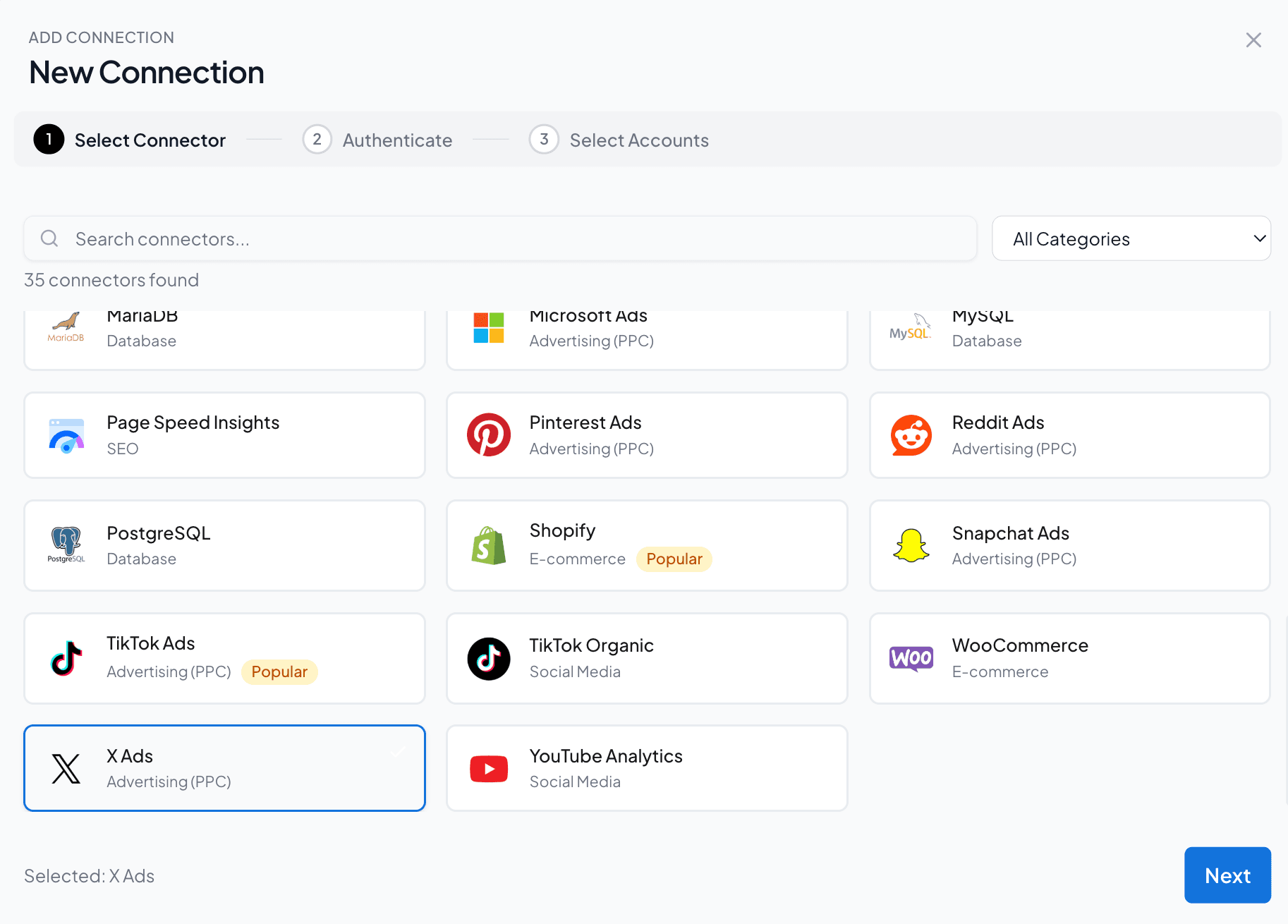
- Enter the name for your Connection and authorize it by logging in with your credentials.
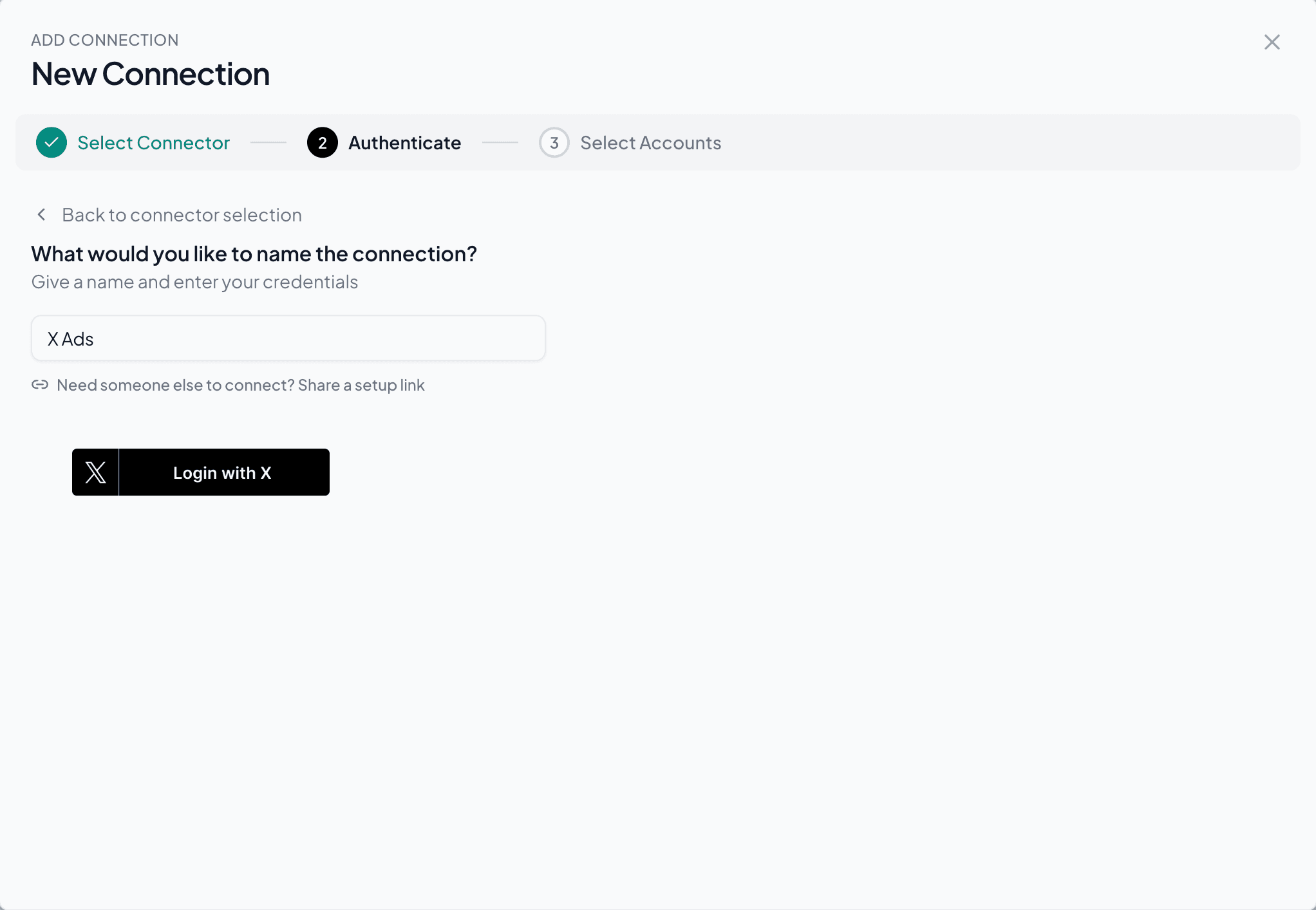
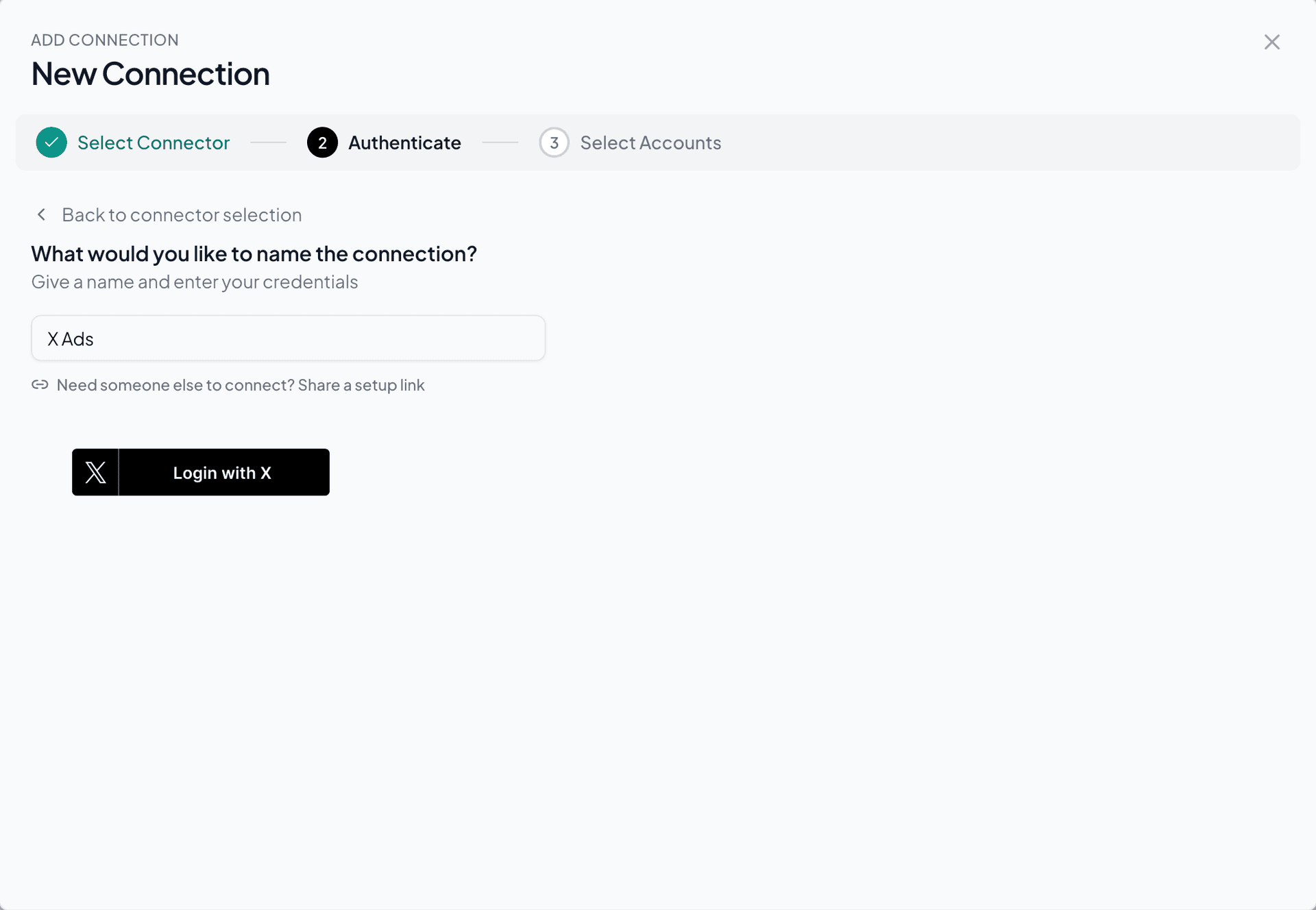
- Enable the Twitter Ads accounts you want to measure performance for. Please note that you can’t query the disabled accounts.
3. Once done, navigate back to the Hub Homepage and click Google Sheets → New Google Sheets Report.
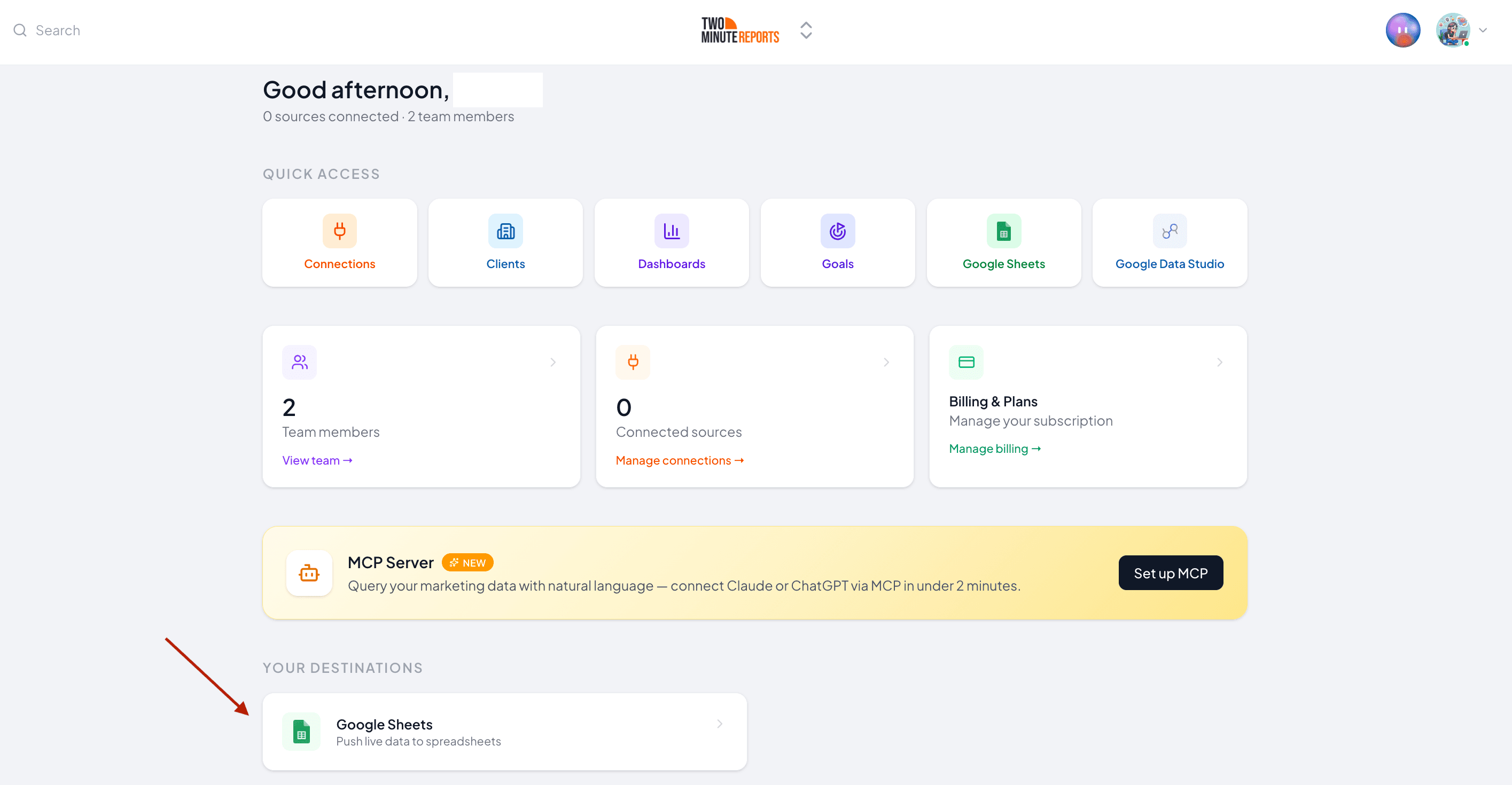
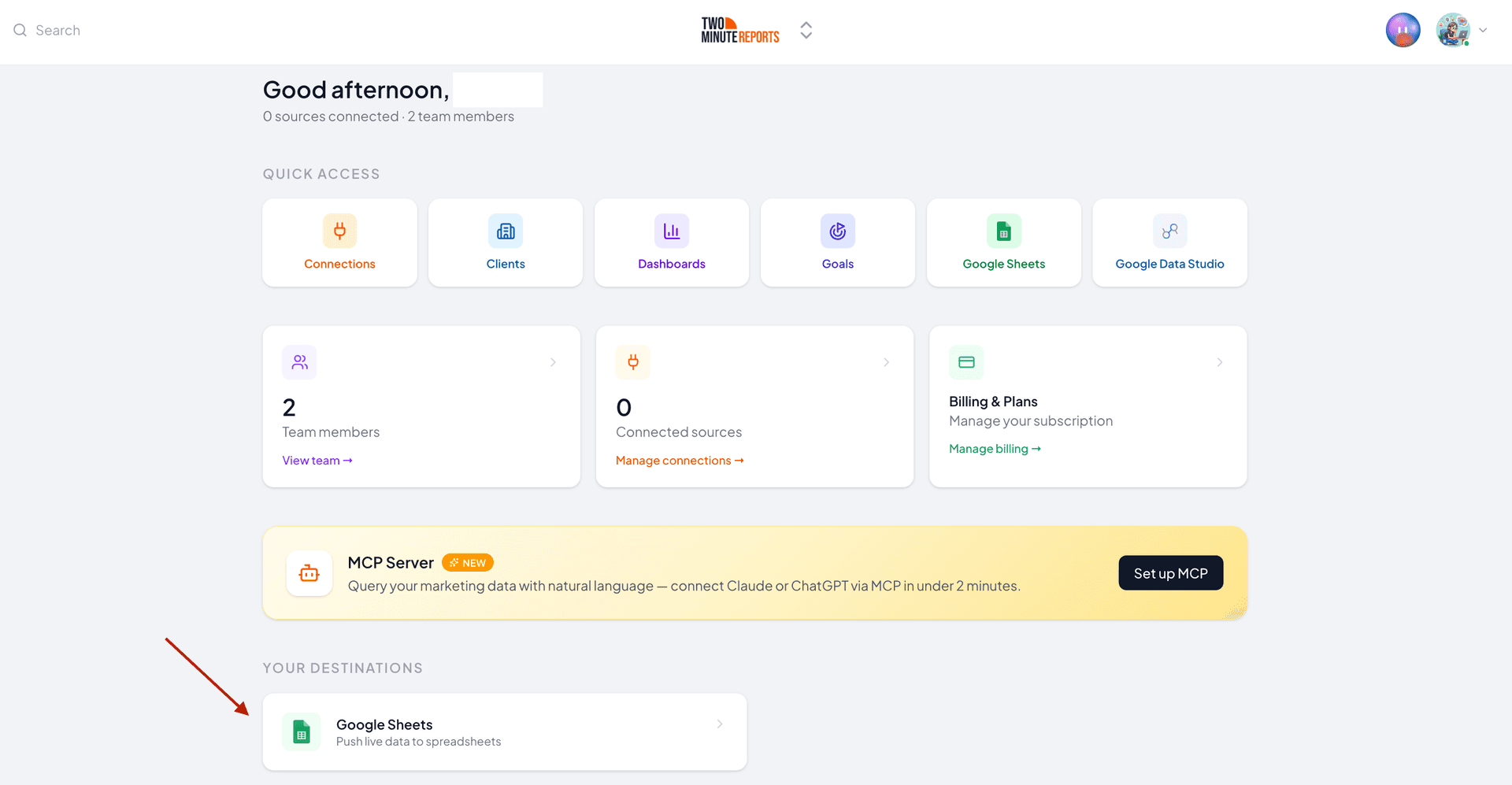
4. Click Use Template and follow the on-screen instructions to launch the Two Minute Reports add-on in your spreadsheet.
Step 2: Configure and Run Your Query
1. Once you’ve installed the add-on, navigate to Menu → Data Queries and click Add.
2. Select the Twitter Ads accounts that you want to include from the sidebar.
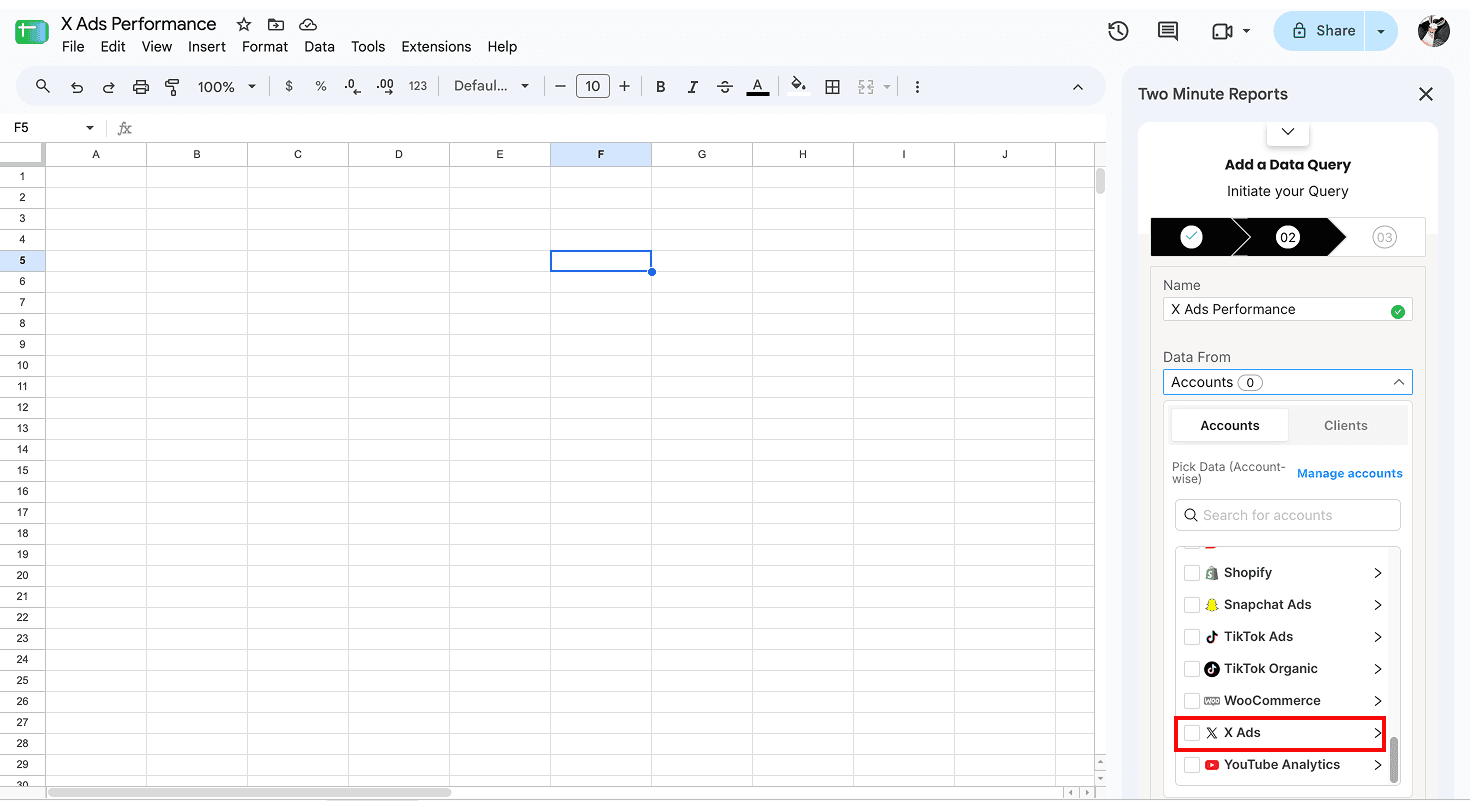
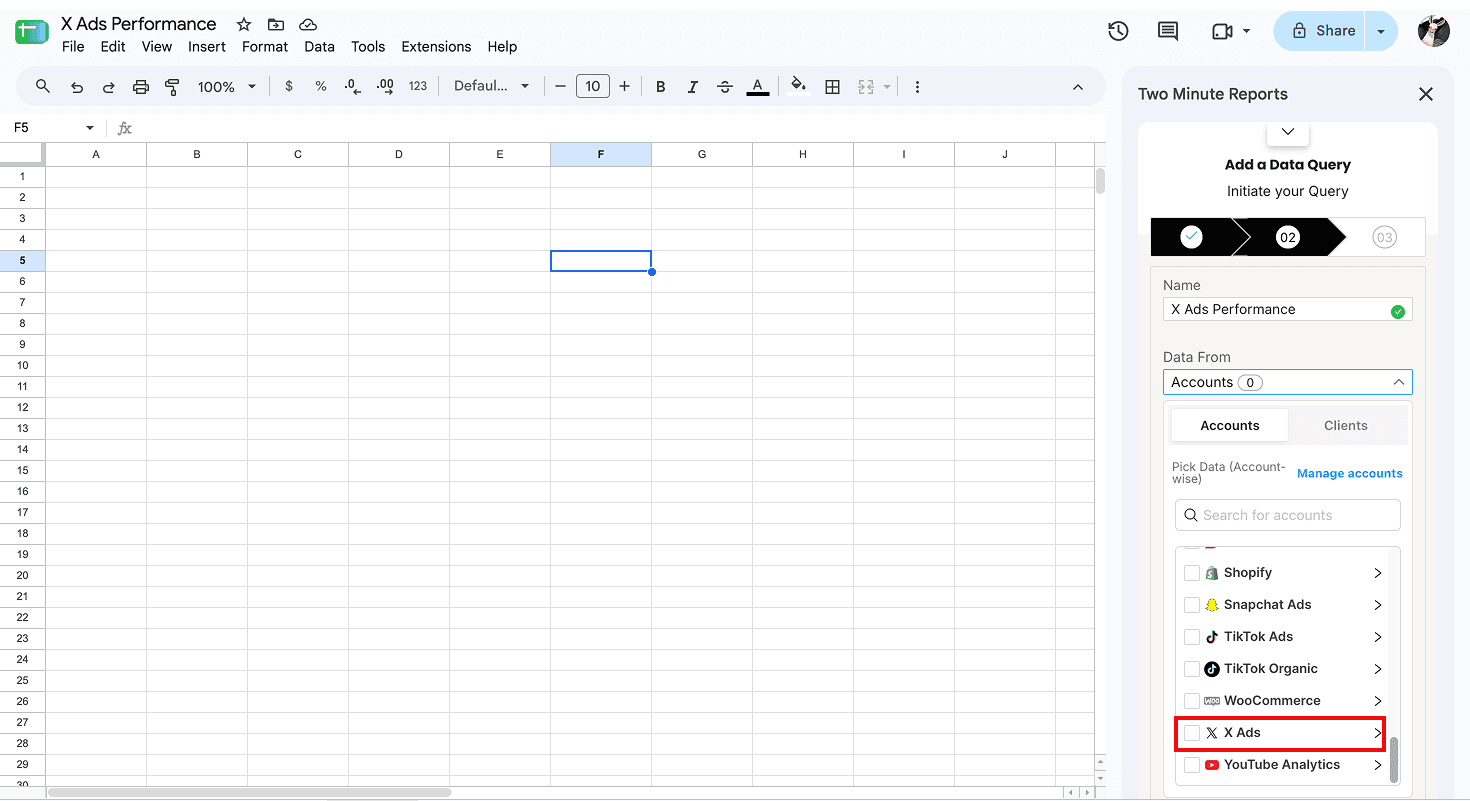
3. If you're managing multiple clients, go to Clients → Manage Clients (in the sidebar), map your Twitter Ads accounts to the relevant clients, and click Save & Close.
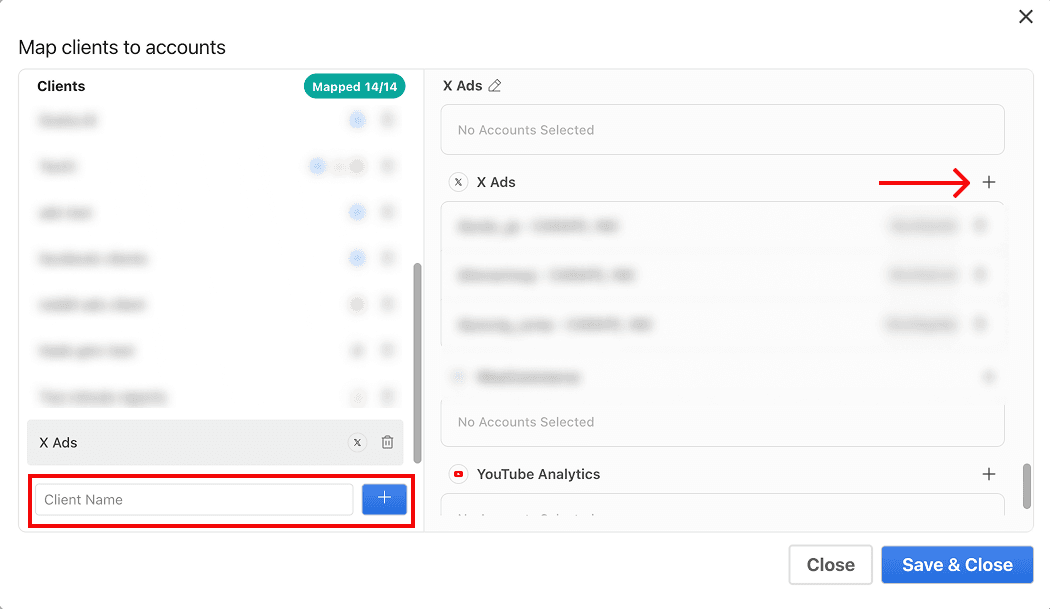
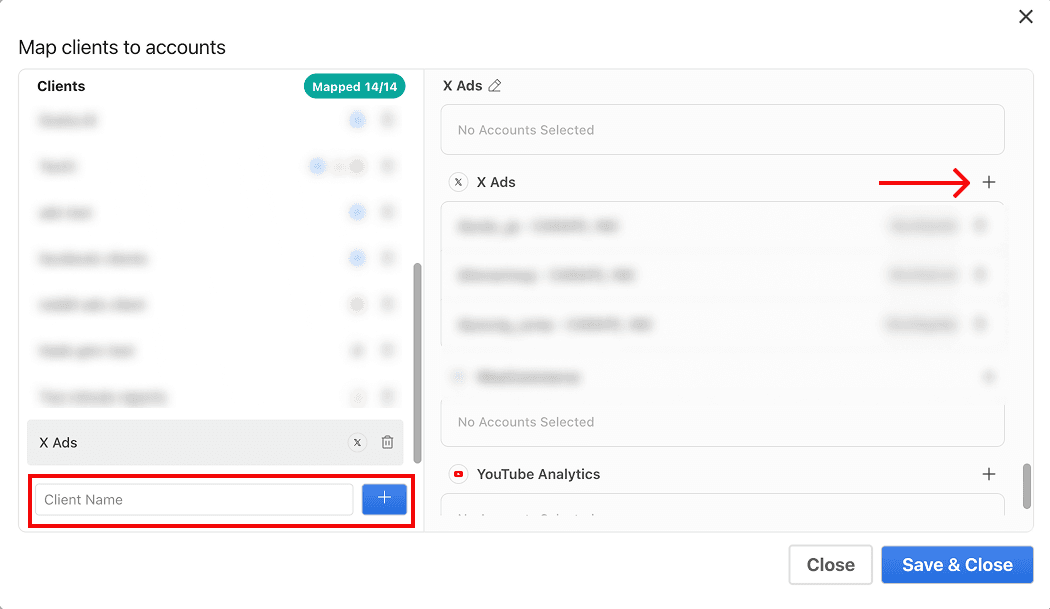
4. Choose relevant Twitter Ads metrics and dimensions and select your date range.
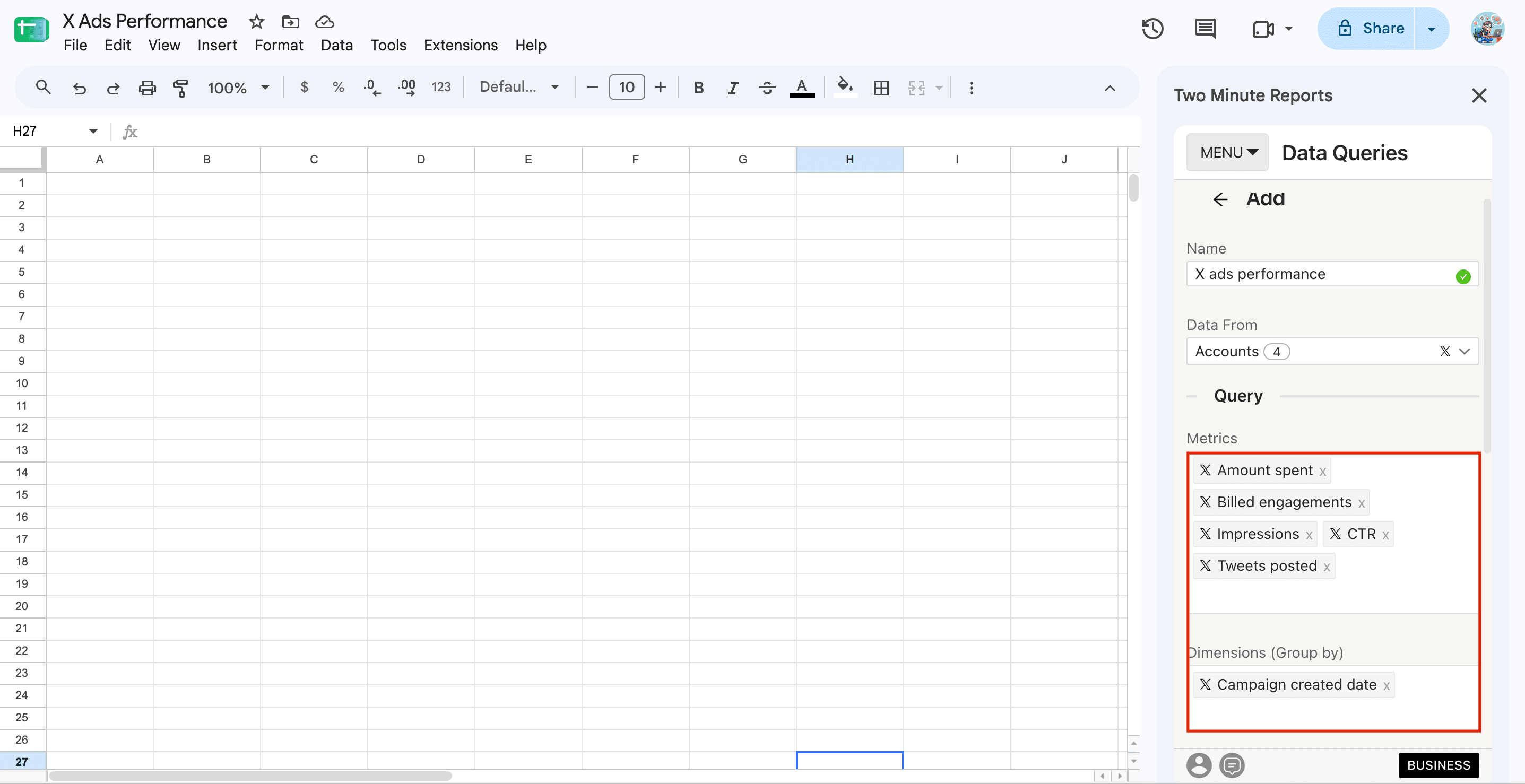
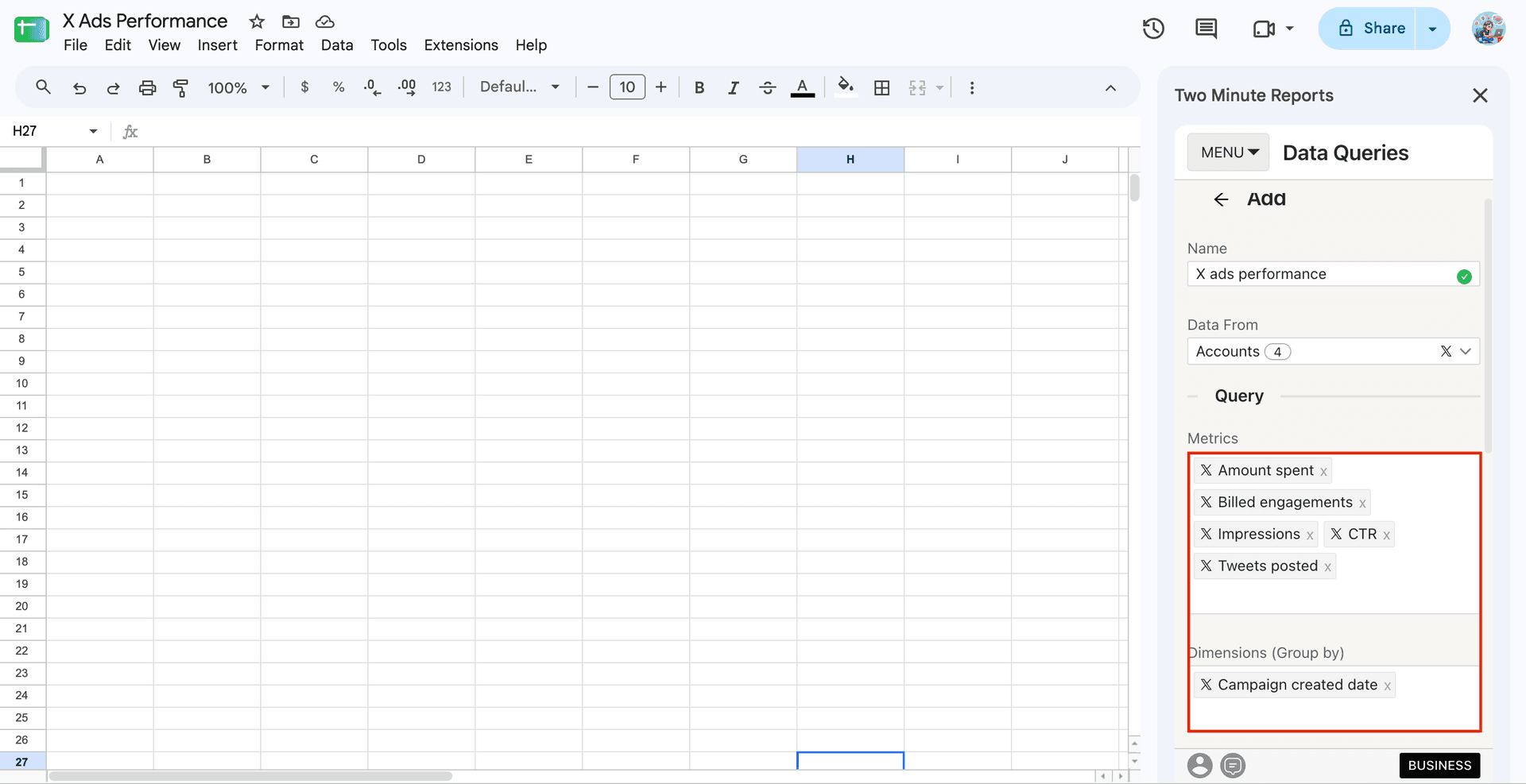
5. Click Run Query to pull the data into your chosen sheet and cell.
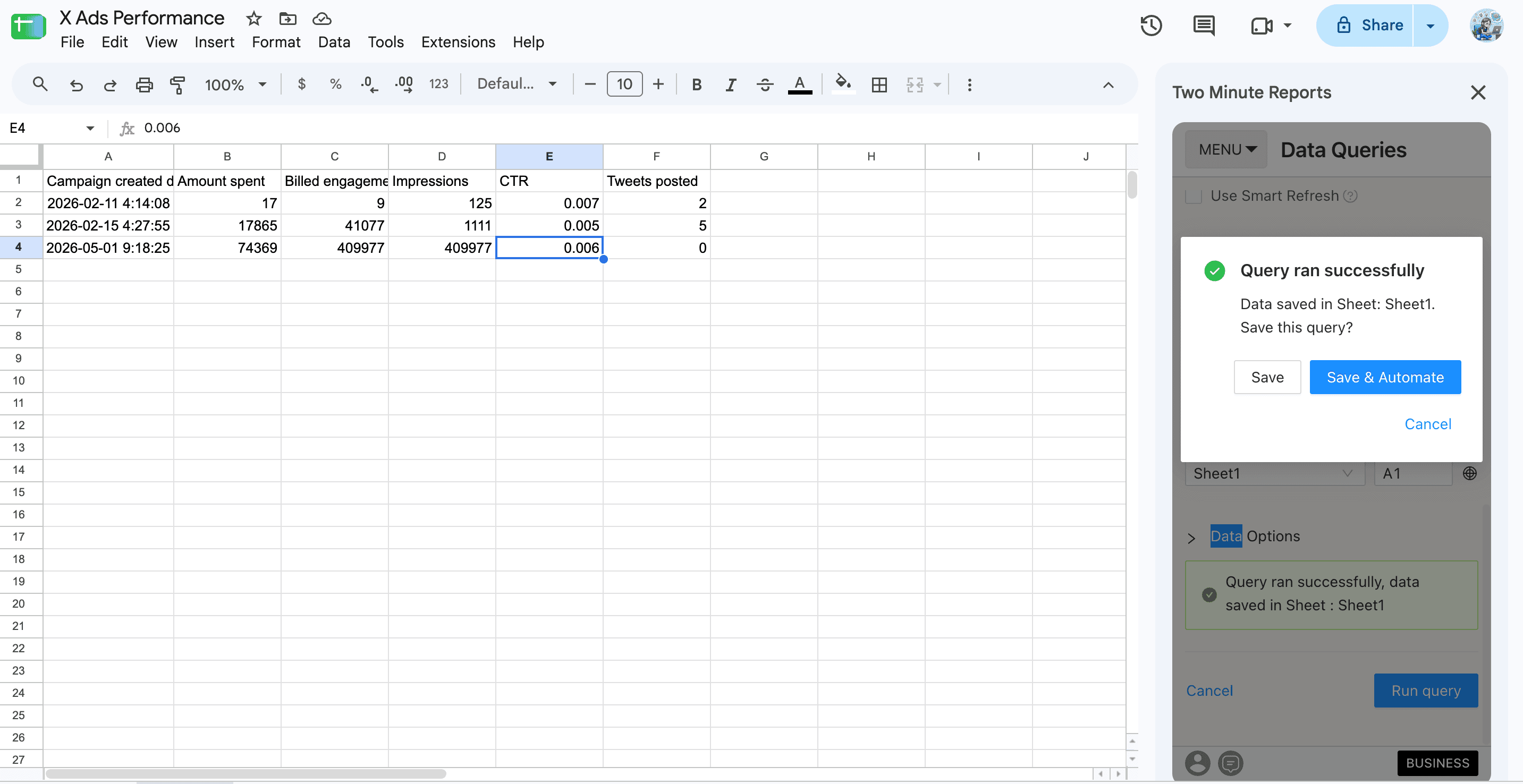
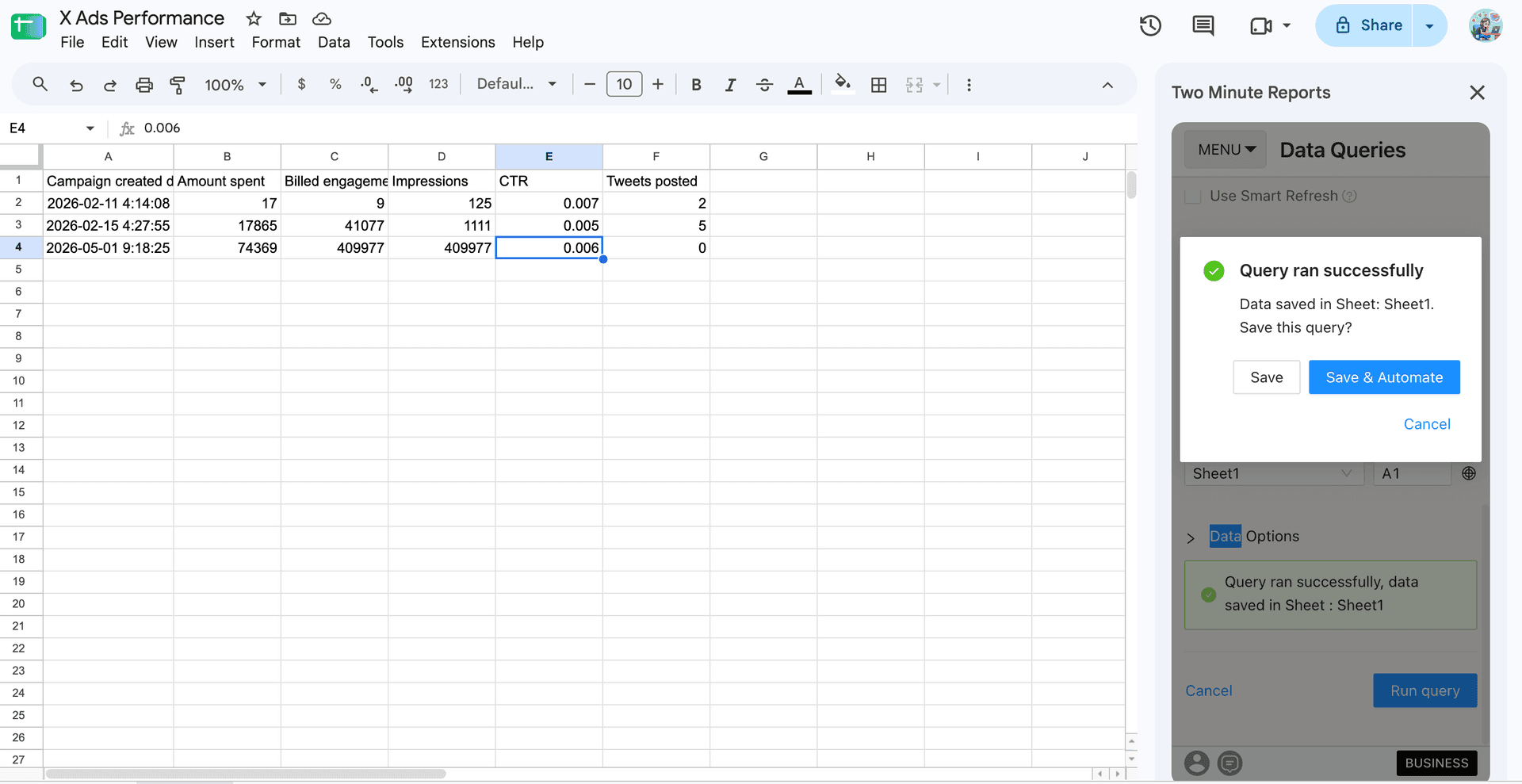
6. The next step is to Save & Automate your query. Then, follow the steps below:
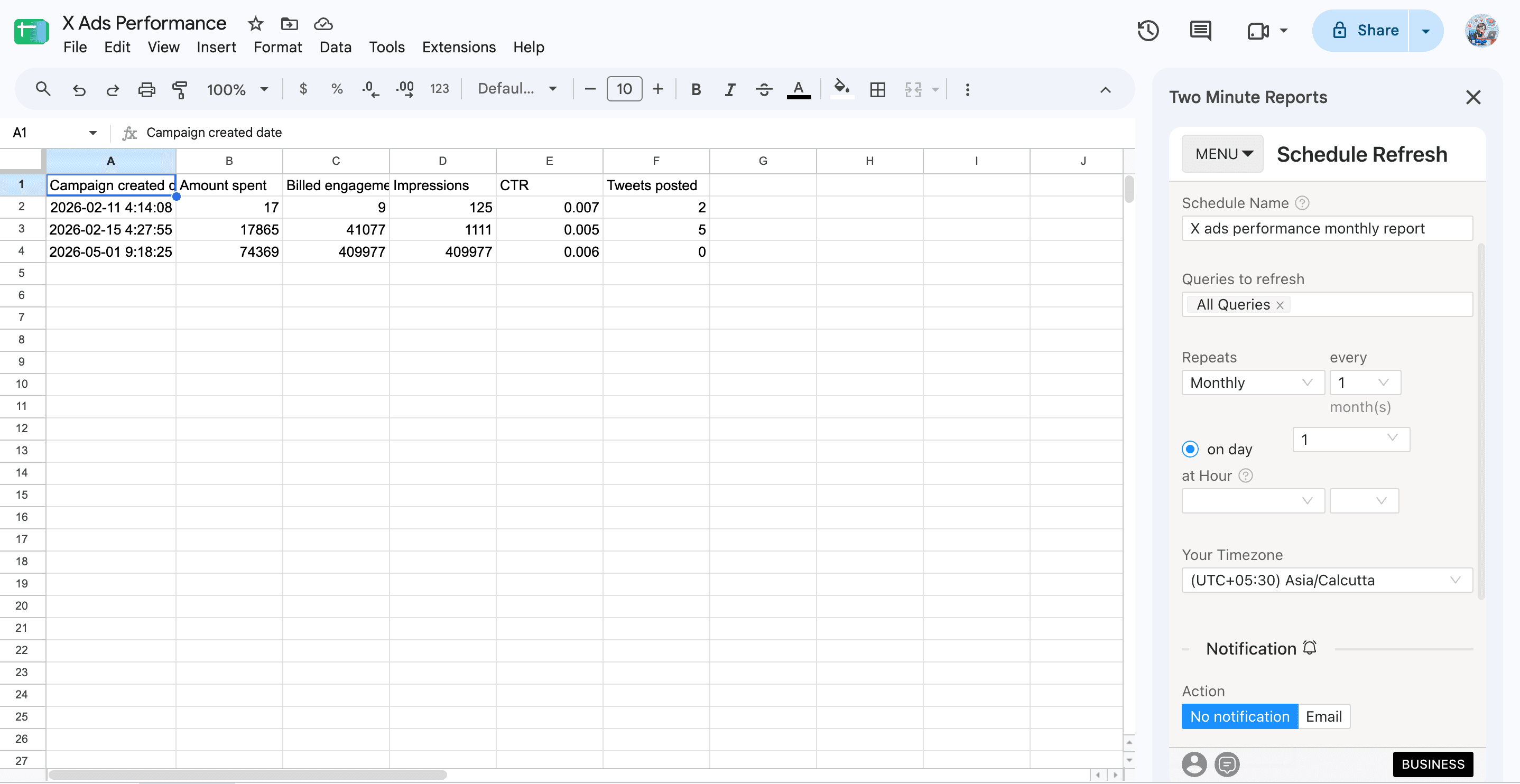
- First, enter your schedule name.
- Next, select the queries to include in this schedule. You can choose multiple queries if you want them to refresh on the same schedule.
- Then, choose how often you want to refresh – hourly, daily, weekly and monthly.
- Specify the exact time and timezone for the refreshes to occur.
Once you are done with the above steps, you can set up your reports to be delivered via email. Here’s how you can:
- To enable email delivery, move the toggle to ‘Email’.
- Next, select the Sheet to report.
- Enter the email addresses of your recipients – your clients, team members or stakeholders.
- Select whether you need to attach the report as a PDF, Excel/CSV or both.
- Write a customized email subject and body message to include with each report.
And that’s it. Your schedule is now saved. From here on, your clients will receive the latest X Ads campaign performance insights at defined intervals.
Prefer to work directly inside Google Sheets? You can also connect Twitter Ads to Google Sheets by installing the Two Minute Reports add-on from the Google Workspace Marketplace, following the steps below:
- Open a spreadsheet. Launch the add-on from Extensions → Two Minute Reports → Launch.
- Click Menu → Connections → Add and select the Twitter Ads connector.
- Authorize your account and enable the accounts you want to query.
- Click Refresh Connections to confirm your accounts appear in the sidebar.
Once connected, follow the same query steps above to start pulling your Twitter Ads data directly into Google Sheets.
Why export X Ads data to Google Sheets?
Marketers and agencies need fast, flexible reporting, and the native X Ads manager just doesn’t cut it. Here’s why moving your X Ads data to Google Sheets can transform your reporting workflow:
Get deeper visibility into X Ads performance
With X Ads data in Google Sheets, you can work with a broader set of performance metrics, including:
- Spend, clicks, impressions, CTR, CPC, and CPM.
- Link clicks, app clicks, and cost per link click
- Likes, retweets, replies and follows
- Video views and views at 25%, 50%, 75% and 100% completion
- Billed engagement and other campaign performance metrics
You can then use Google Sheets formulas, pivot tables, filters, and charts to turn these metrics into reports that fit your reporting needs.
Analyze campaigns, ad groups, and ads in one place
X ads data becomes easier to organize when you can break down performance by the dimensions that matter to your campaigns. In Google Sheets, you can analyze data by:
- Campaign name, ID, and status
- Ad group name, ID, objective and goal
- Ad and Tweet ID
- Campaign and ad group budgets
- Campaign currency and account details
- Date, week, month or year
This makes it easier to compare campaigns, identify changes in performance, and build recurring campaign reports from the same dataset.
Automate your X Ads reporting
Manually downloading and cleaning X Ads data every week adds unnecessary work to your reporting process.
With Two Minute Reports, you can bring your X Ads data directly into Google Sheets and keep your reports refreshed automatically. Set up your report once, choose the metrics and dimensions you need, and use the same reporting workflow for your recurring updates.
You don’t need repeated CSV exports or manual data preparation. Decide your next action with the auto-refreshed X ads insights in your spreadsheet.
Combine X Ads with other platforms
Through data blending, you can combine your X Ads data with other PPC platforms and create a reporting view tailored to your agency and marketing team. Spot which platform performs the best for each audience and make strategy decisions with all your data in one place.
Important metrics used in the X Ads Google Sheets Reports
The X Ads integration with Google Sheets lets you extract key performance metrics to understand how your campaigns perform and drive engagement. Here are some of the most useful X Ads metrics you can track and optimize:
Ready to Connect your X Ads to Google Sheets?
Connecting X Ads to Google Sheets gives you a flexible way to access, analyze and automate your campaign insights. With key X Ads KPIs, you can build reports around the metrics that matter most to your advertising strategy.
With Two Minute Reports, you can streamline the entire process by automatically bringing your X Ads data into Google Sheets, so you can keep your advertising data ready for action whenever you need it.
Frequently Asked Questions
With Two Minute Reports' X Ads reporting tool, you can extract key metrics such as amount spent, impressions, clicks, CTR, retweets, CPM, engagement rate, link clicks, video views, etc. You can also use dimensions such as date, account ID, campaign, ad group and ads to create detailed, data-driven X Ads performance reports.
You can connect X Ads to Google Sheets using the Two Minute Reports Hub. Alternatively, follow the steps below to set it up directly in Google Sheets.
- Download Two Minute Reports (add-on) from the Google Workspace Marketplace
- Launch the Two Minute Reports add-on in the spreadsheet
- Connect your X Ads account to Two Minute Reports
- Create a query with the required metrics and dimensions for your reports
- Run the query and get your X Ads performance insights in your spreadsheet.
Go to Menu → Schedule Refresh, choose the queries you want to refresh, select how often you want to refresh (daily, weekly, etc), enter your recipient's email address(es) and click Save. That’s it. Now your clients will receive the latest X Ads Google Sheets reports automatically delivered to their inbox at defined intervals.
Two Minute Reports supports multiple X Ads accounts. You can pull data from each into a single Google Sheet or separate tabs. Ideal for agencies, freelancers, and marketing teams managing multiple brands or clients.
Yes, you can connect and report on multiple X Ads accounts in the same spreadsheet or dashboard. Perfect for agencies or consultants managing several clients.
Yes. With data blending, you can combine data from multiple sources – X Ads, Google Ads, Meta, LinkedIn, GA4, and more in your Google Sheets report and holistically view cross-channel performance insights.
Yes! You get a 14-day free trial of all features. No credit card required. Perfect for testing your X Ads reporting setup before committing.

Meet the Author
Shabika VenkidachalamShabika, at her core, is a storyteller who believes even data-heavy topics can be infused with heart. At Two Minute Reports, she blends creative writing with user intent to create clear, purposeful content that is deeply human. Away from her desk, she finds inspiration in nature, where creativity flourishes without distractions.