
Summarize this blog post with:
Snapchat has become a popular advertising platform for brands looking to reach younger audiences through engaging, visual content. But as your campaigns grow, keeping track of performance across multiple campaigns and clients can become difficult.
One way to simplify this is to connect Snapchat Ads to Google Sheets with Two Minute Reports. You can bring your campaign data into a spreadsheet, customize your reports, and keep your key performance metrics in one place.
Now let’s explore the two efficient ways to connect your Snapchat Ads data to Google Sheets. By the end, you’ll know how to automate campaign performance reporting and drive smarter decisions.
How to connect Snapchat Ads to Google Sheets?
You can import your Snapchat Ads data to Google Sheets via two methods:
Method 1: Connecting Snapchat Ads to Google Sheets using the Two Minute Reports Hub.
Method 2: Connecting Snapchat Ads to Google Sheets using pre-built templates.
Method 1: Connect Snapchat Ads to Google Sheets using TMR Hub
The Two Minute Reports Hub is your centralised workspace for adding, managing and organizing all your Snapchat Ads clients and accounts in one place. Here’s how to get started.
Step 1: Creating a Connection
1. Go to hub.twominutereports.com and click Connections → Create Connection.
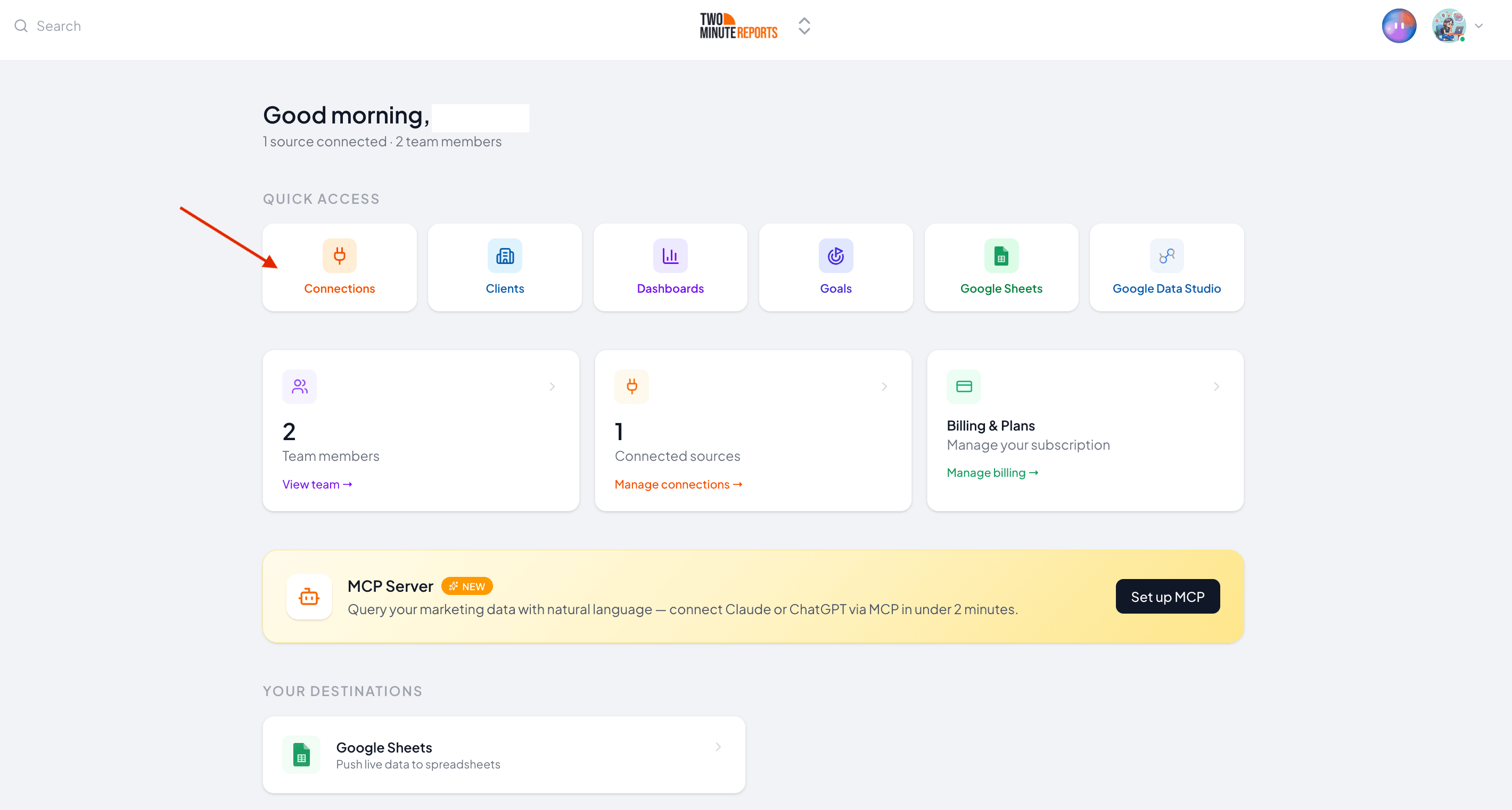
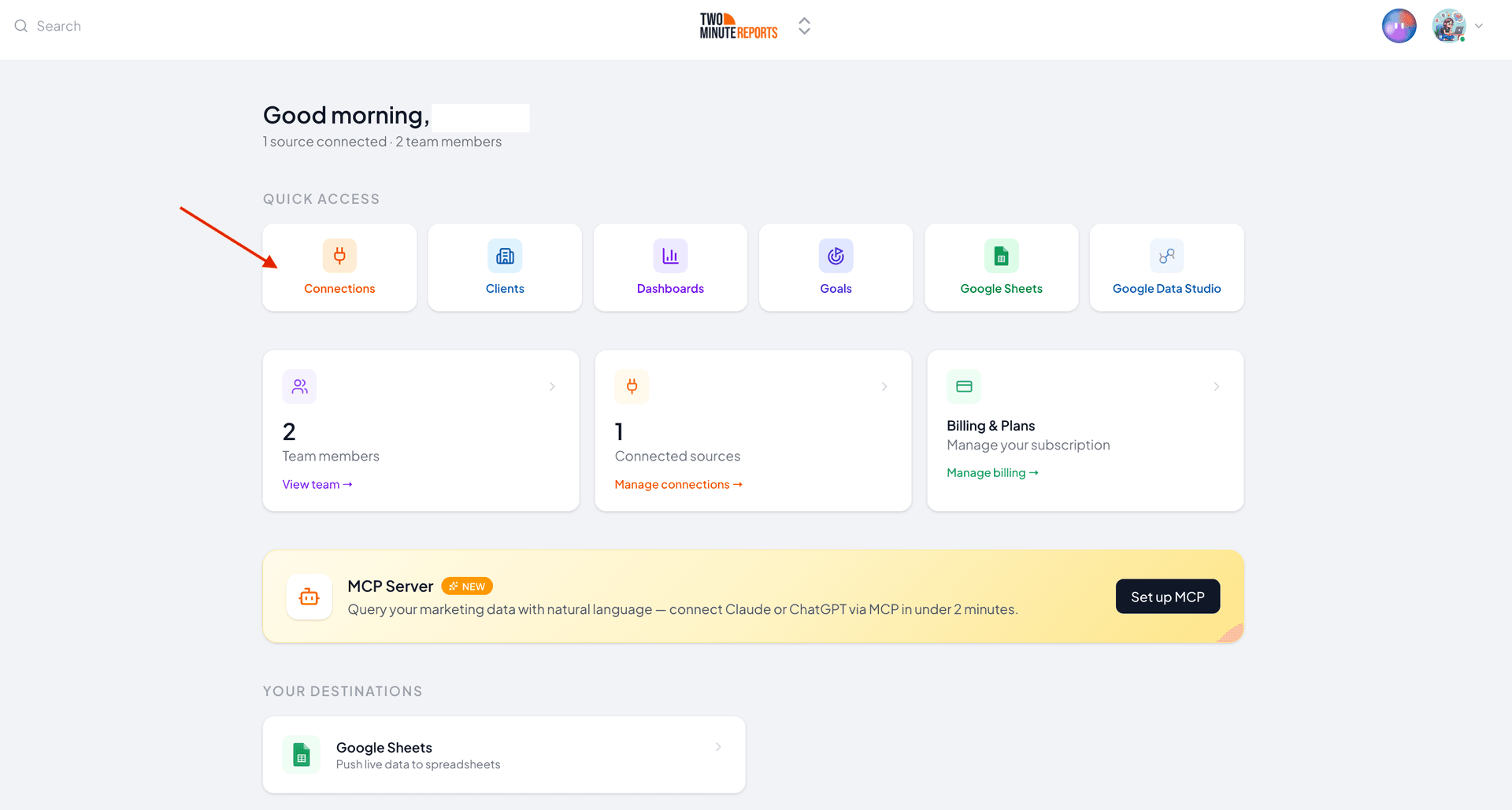
2. Inside the dialog box, complete these three steps
- Select the Snapchat Ads connector from the list of options.
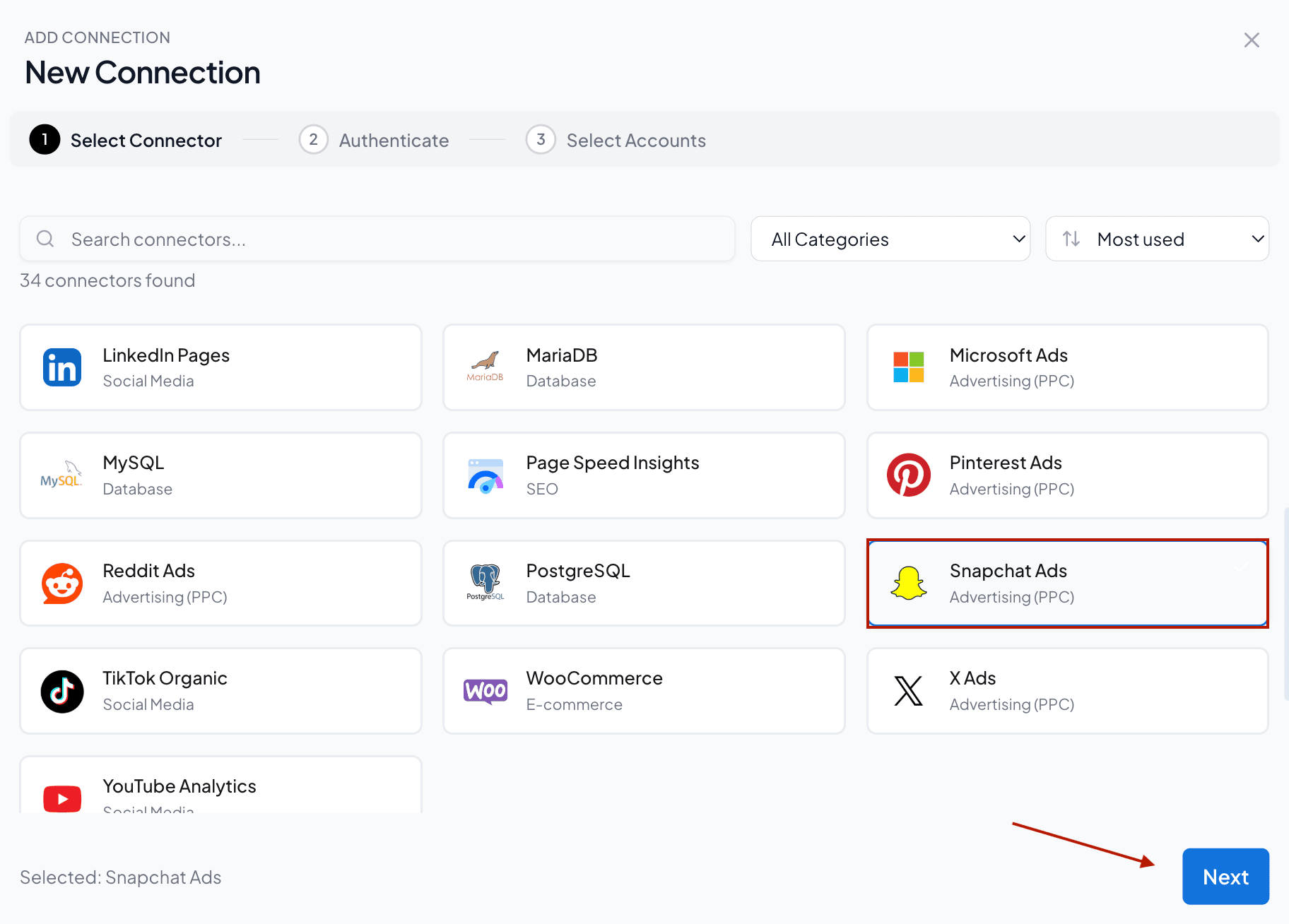
- Authenticate your Snapchat Ads account by specifying the login credentials.
- After authentication, enable the Snapchat Ads accounts you want to track and analyze the performance. Please note that you can’t query disabled accounts.
3. Once done, navigate back to the Hub homepage and click Google Sheets → New Google Sheets report.
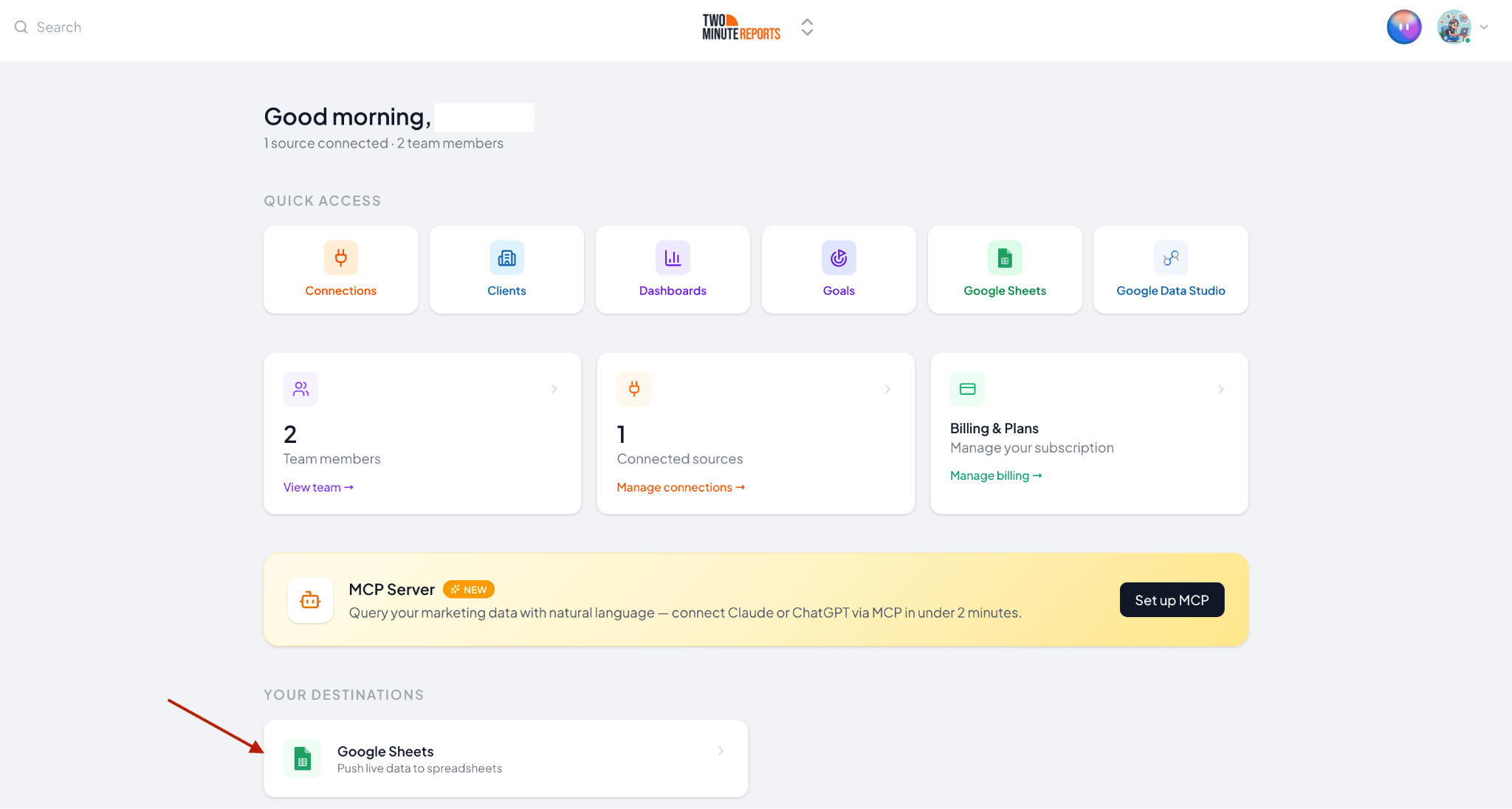
4. Click Use Template and follow the on-screen instructions to launch the Two Minute Reports add-on in your spreadsheet.
Step 2: Configure and Run Your Query
1. Once you’ve installed the add-on, navigate to Menu → Data Queries and click Add.
2. Select the Snapchat Ads accounts you want to include in the sidebar.
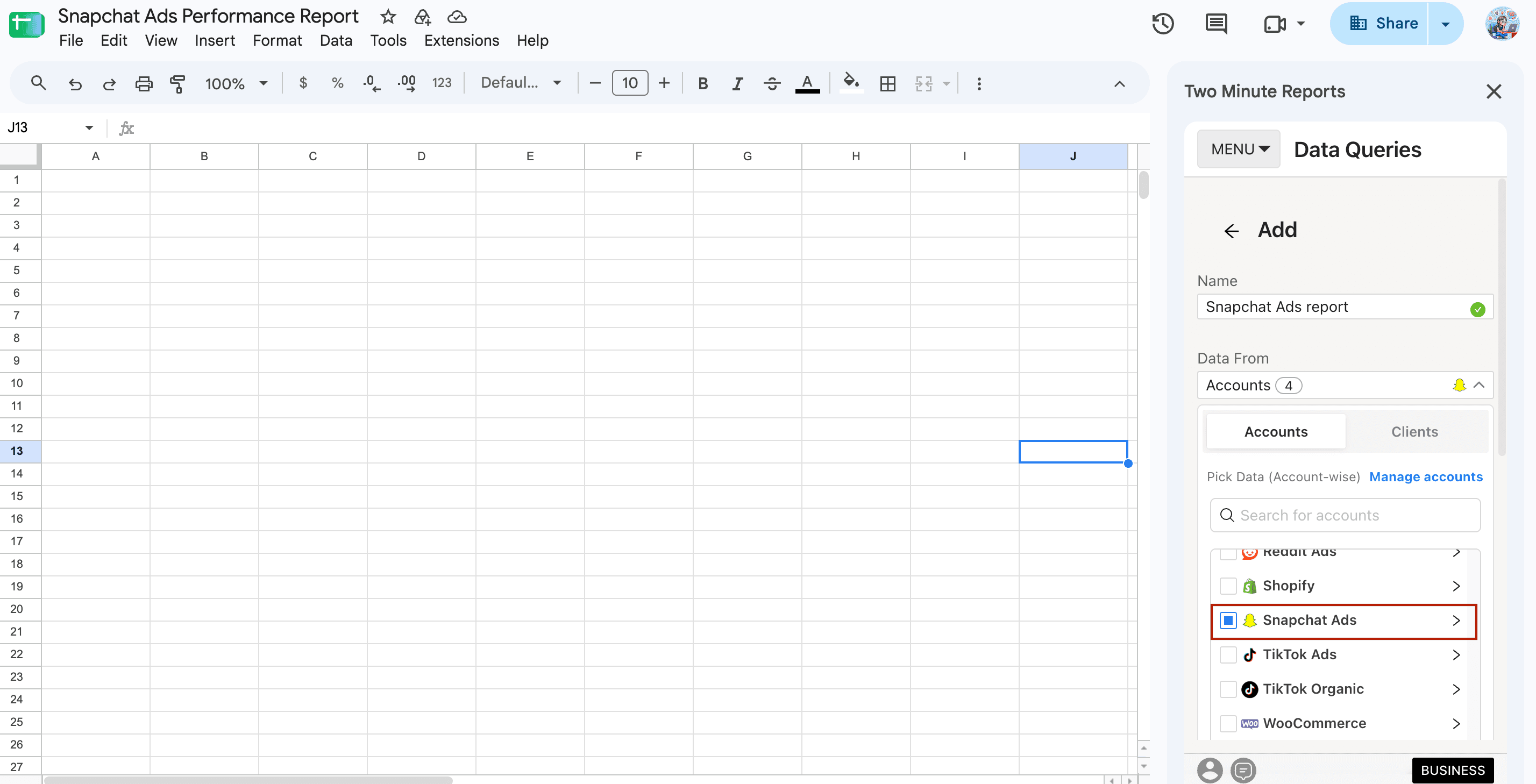
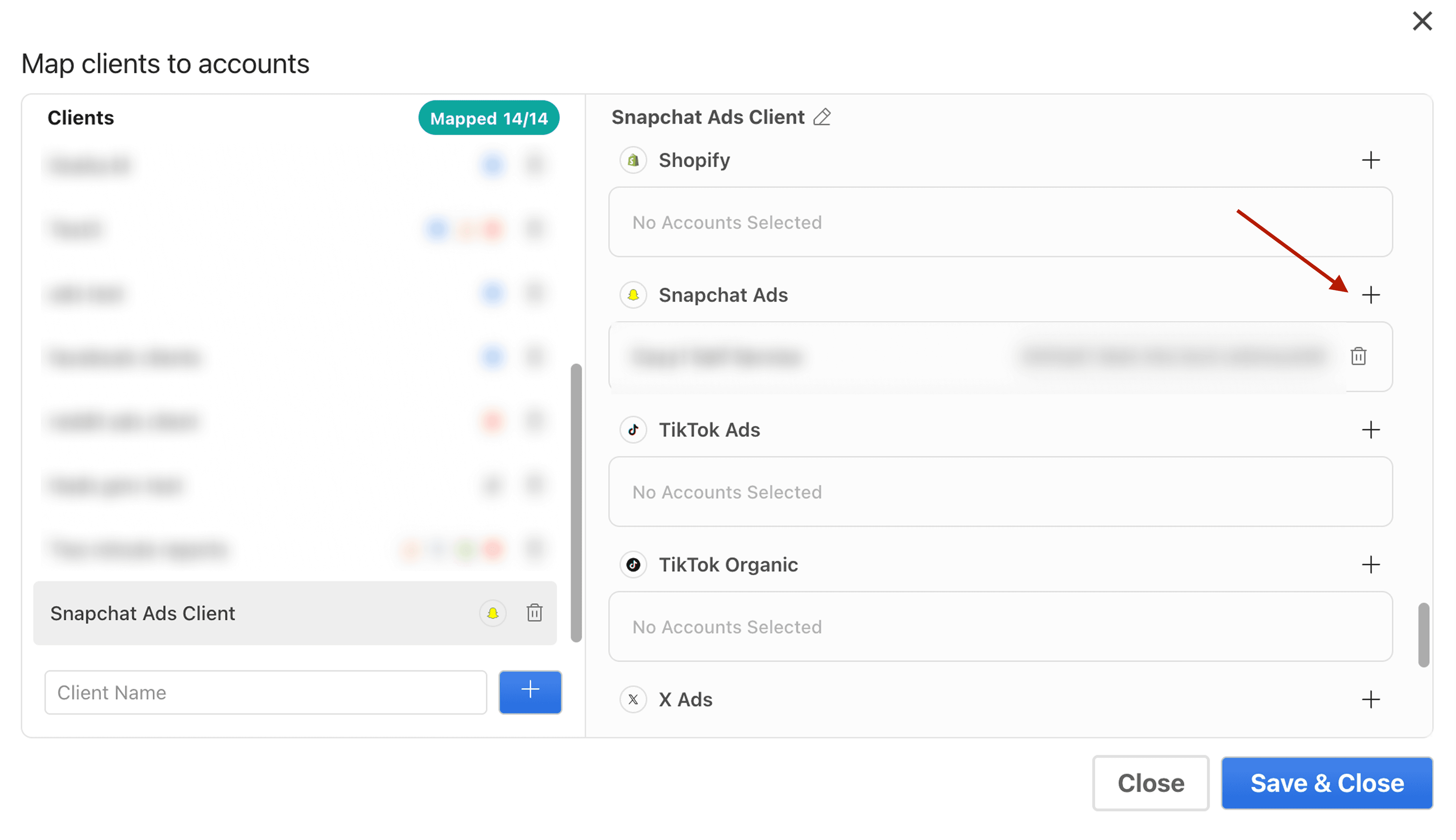
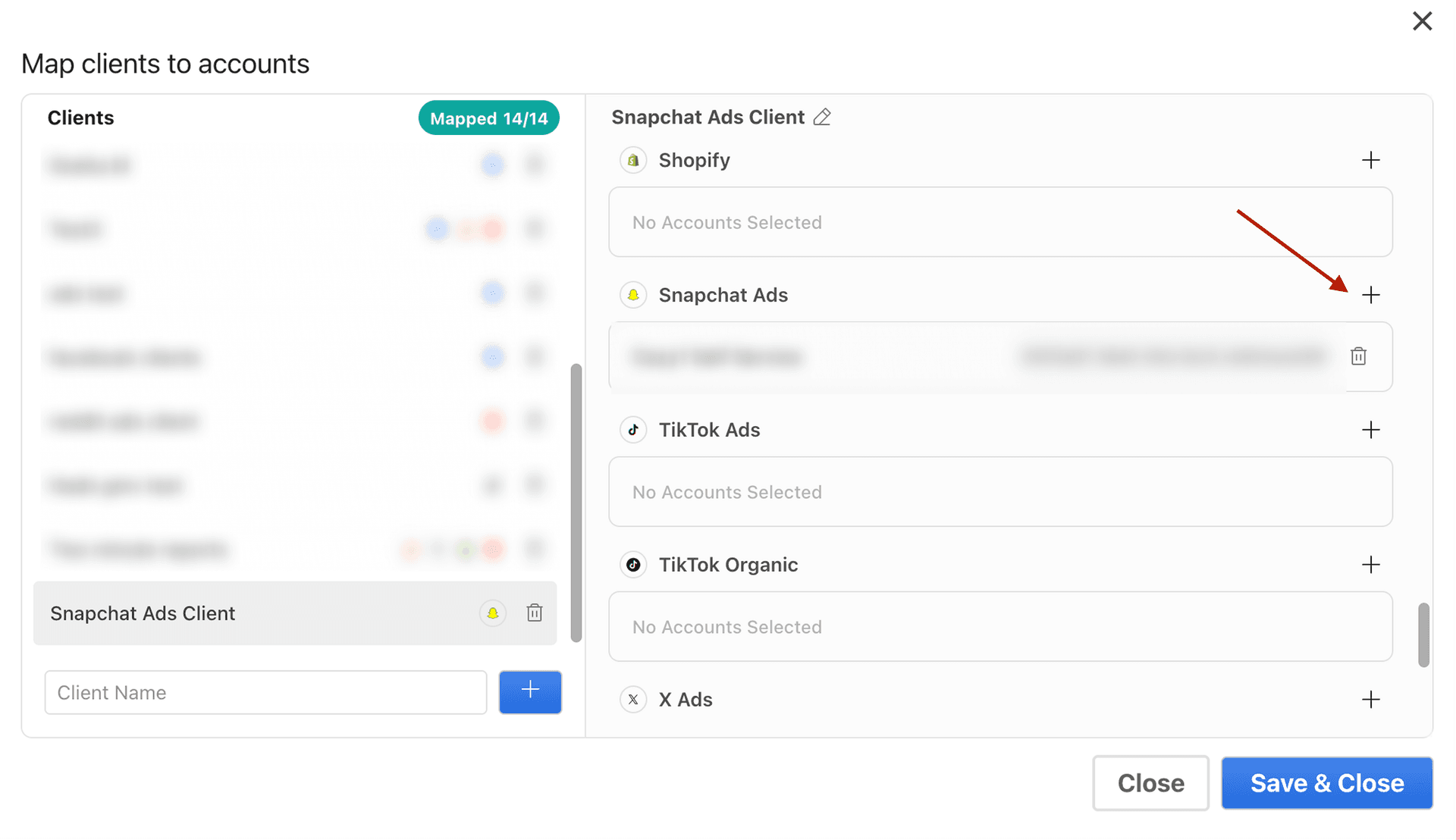
3. If you’re managing multiple clients, go to Clients → Manage Clients (in the sidebar), map your Snapchat Ads accounts to the relevant clients and click Save & Close.
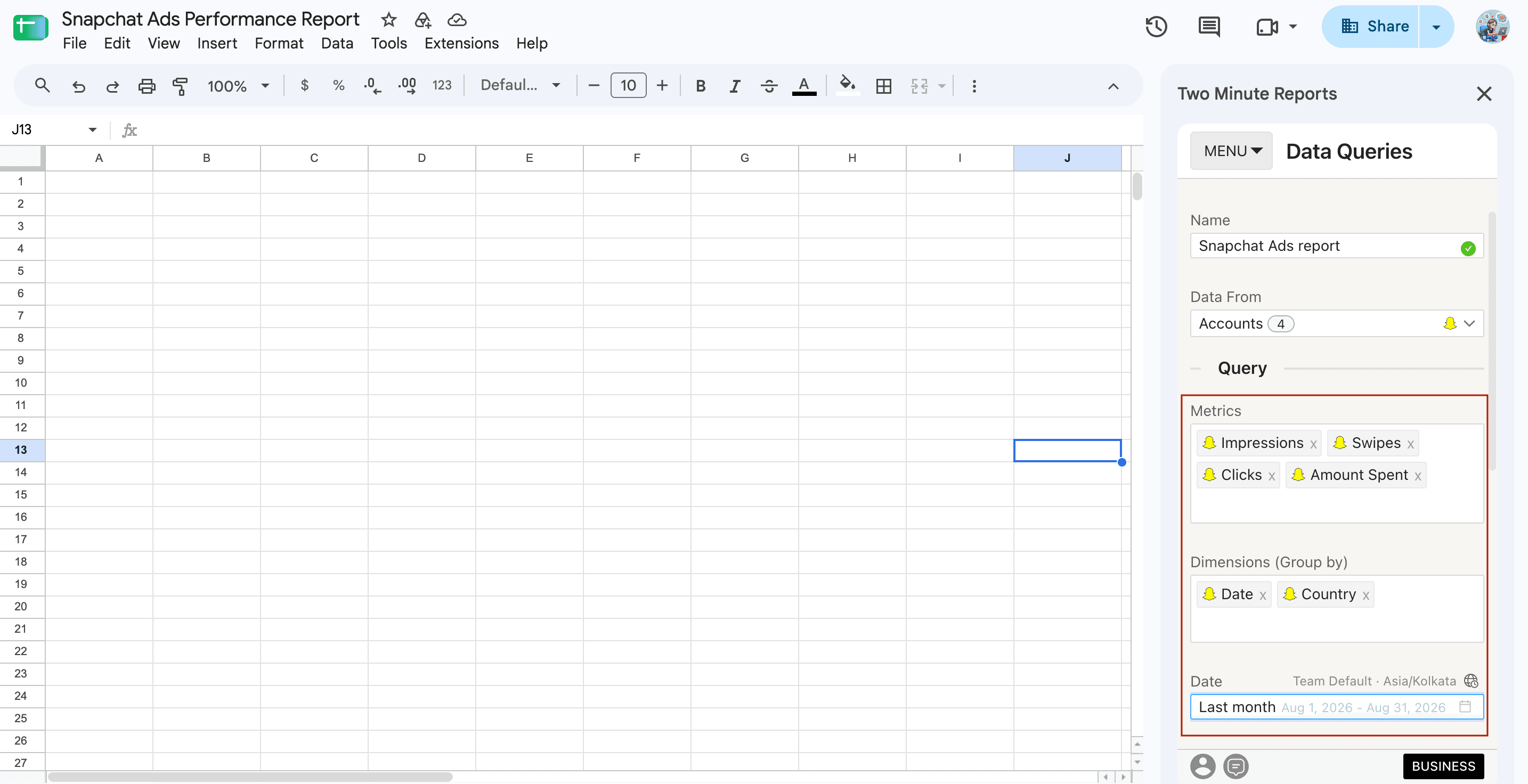
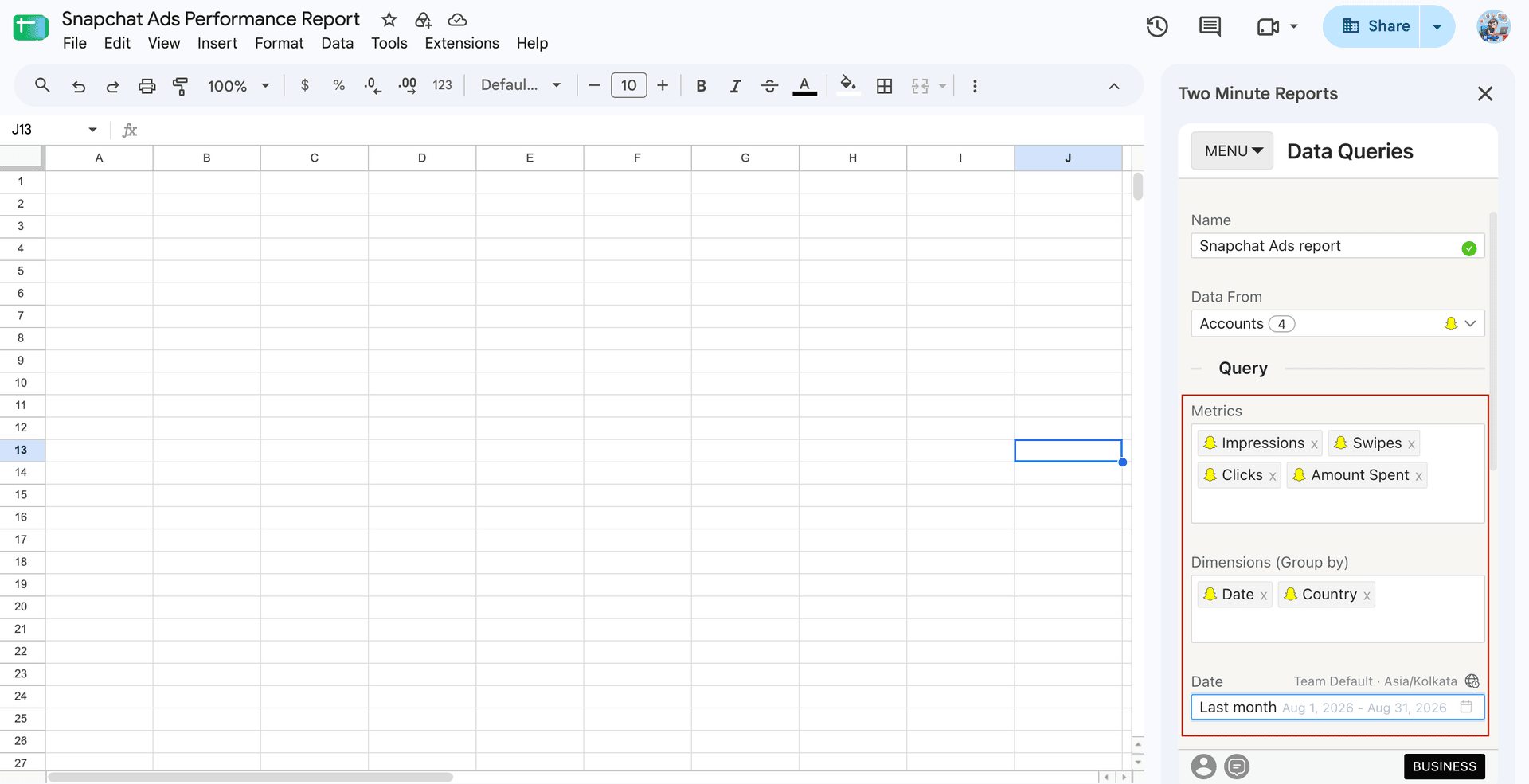
4. Next, choose relevant Snapchat Ads metrics and dimensions you want to track and select your date range.
5. Click Run Query to pull your data into the chosen sheet and cell. You can now see the insights populated in your Google Sheets dashboard.
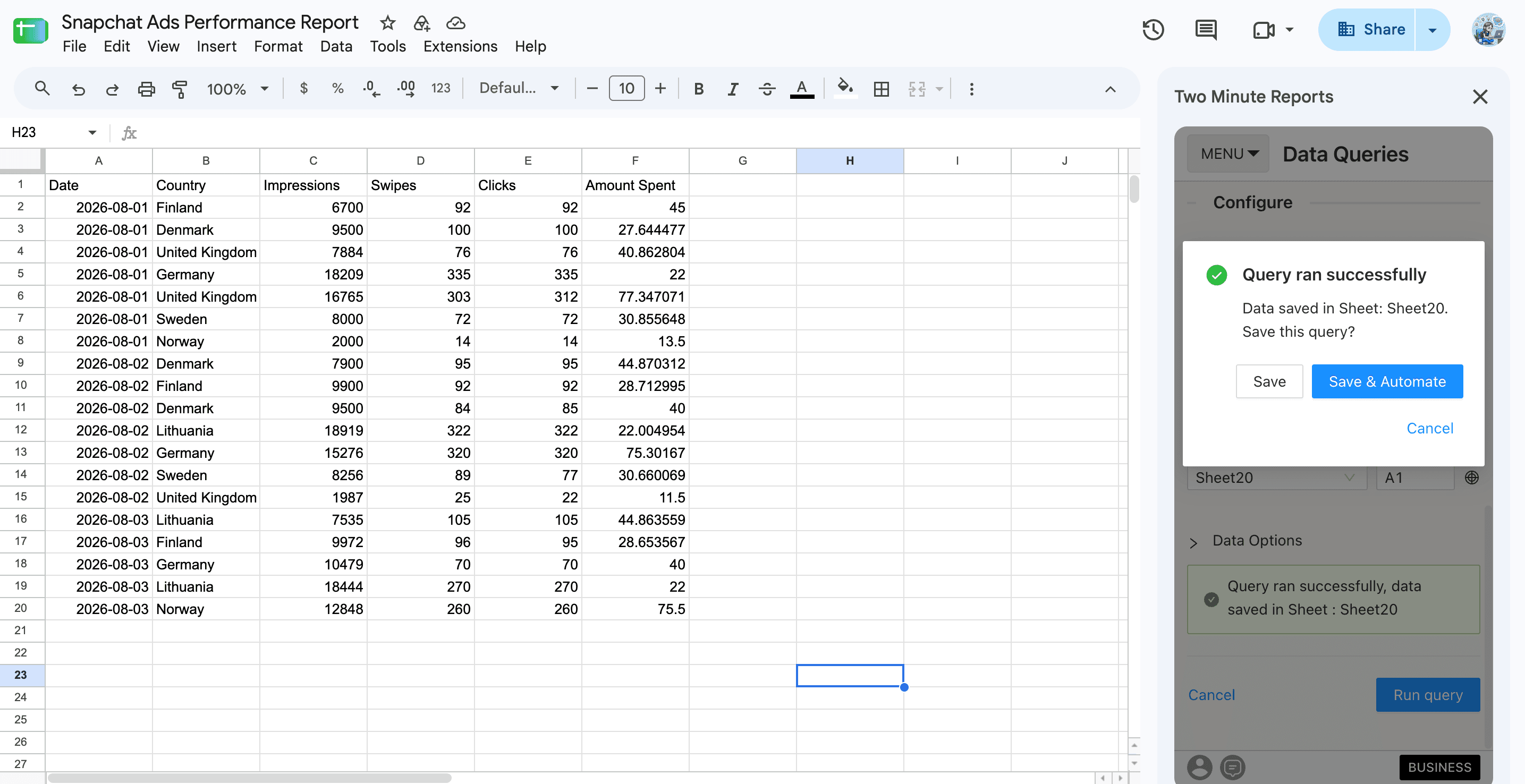
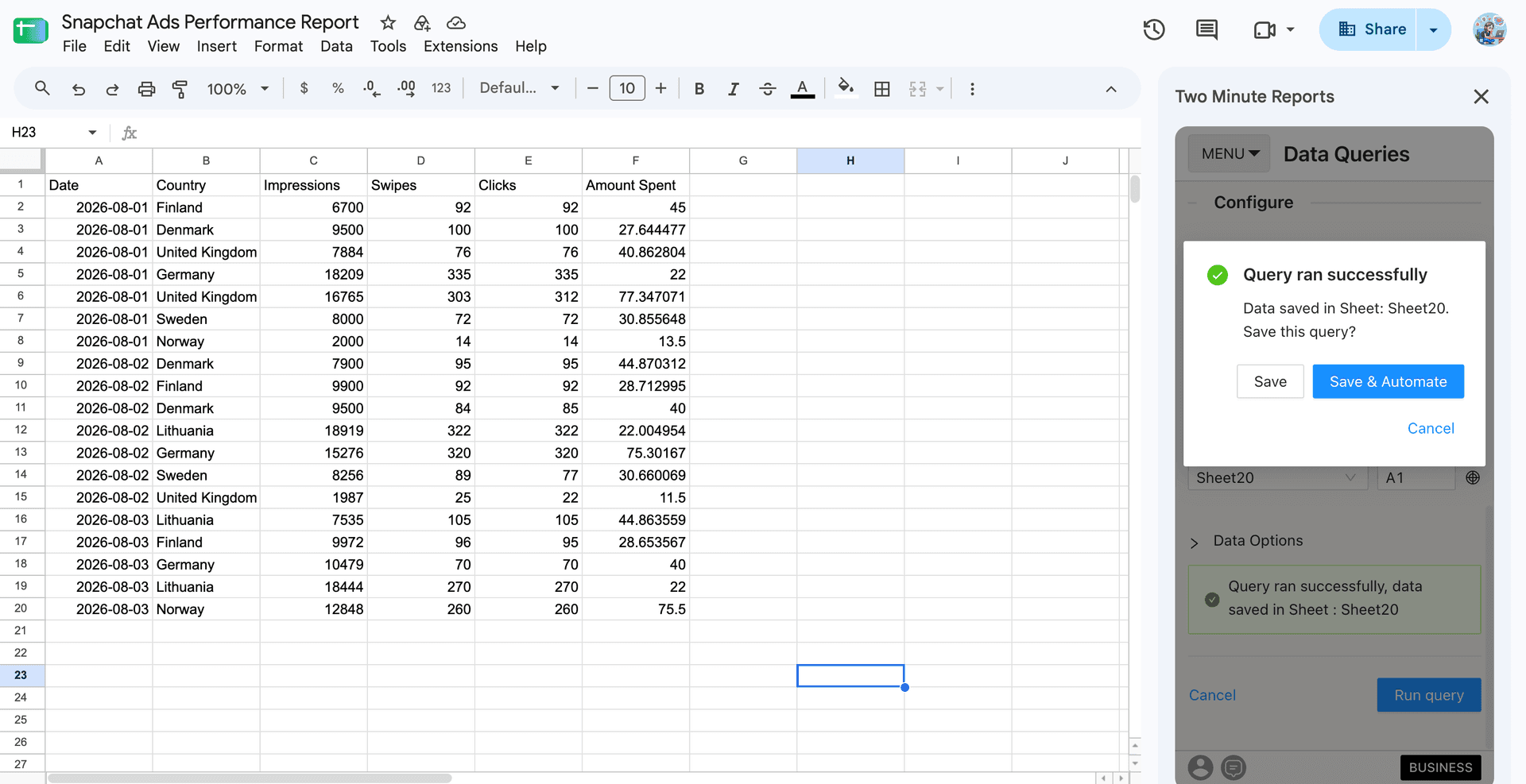
The next step is to automate your query. In this way, you can set up predefined schedules so your clients will receive updated insights at defined intervals.
You can either click ‘Save & Automate’ or navigate to Menu → Schedule Refresh. Either way, the steps remain the same. For now, let’s click ‘Save & Automate’. Then, follow the steps below:
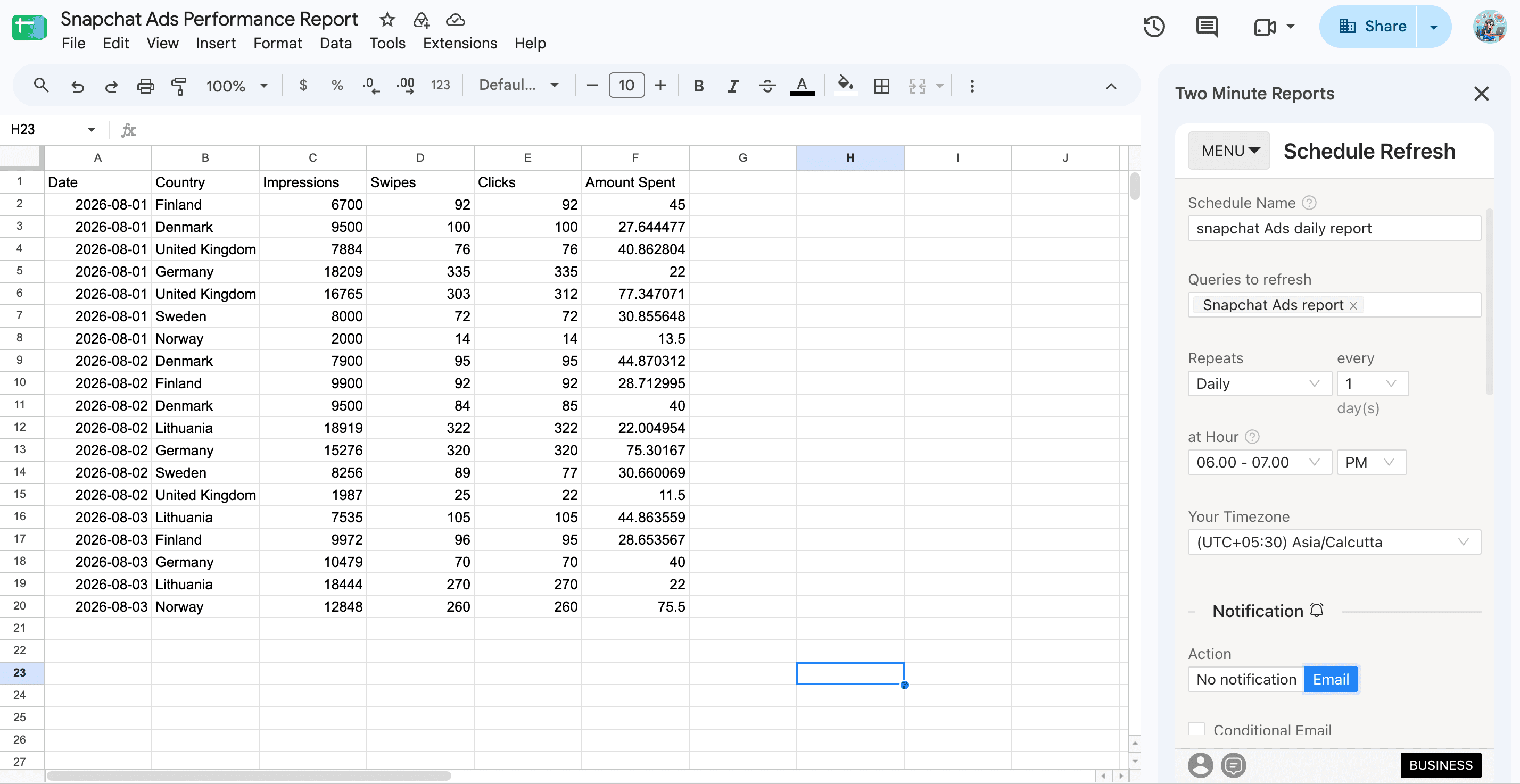
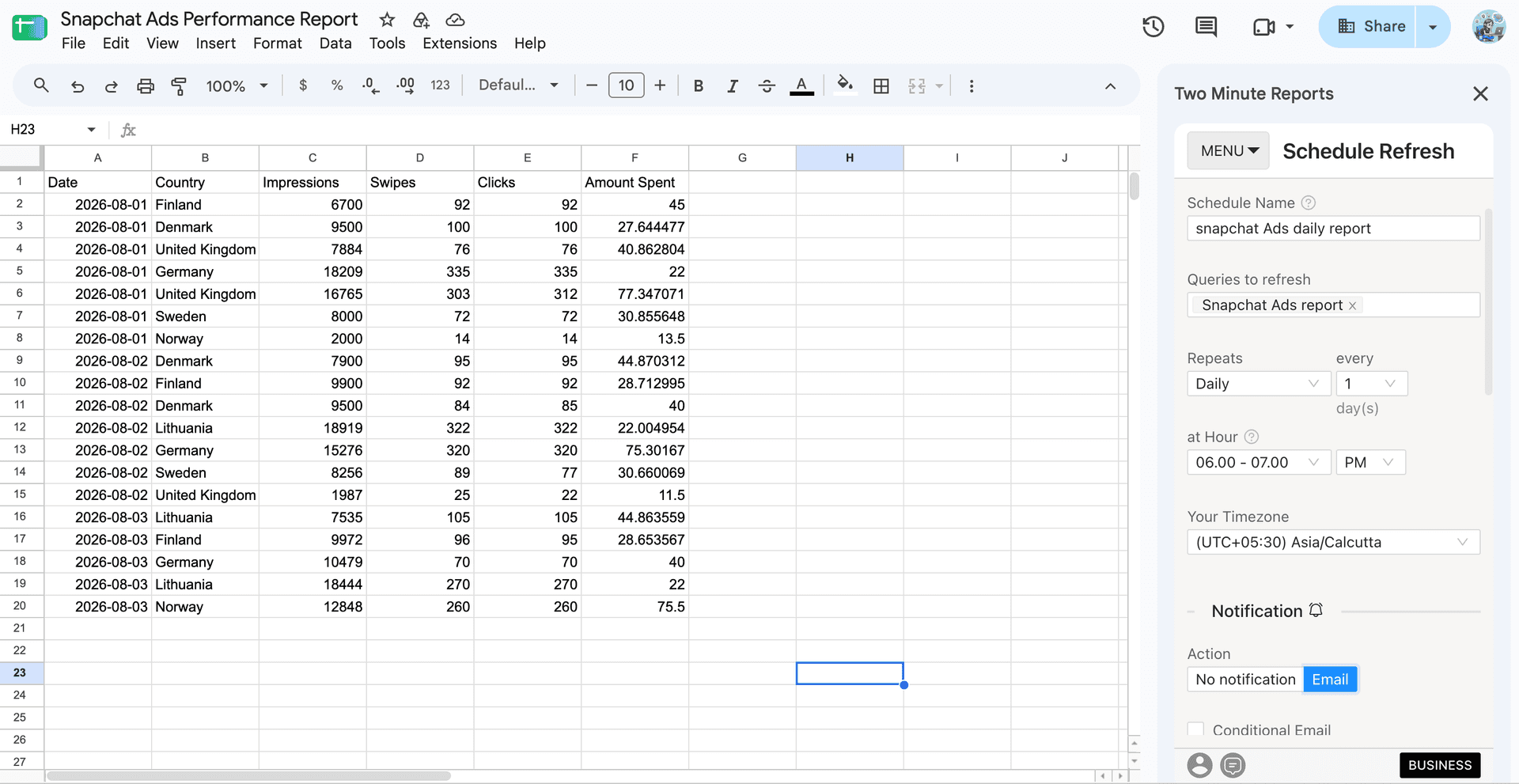
- First, enter your schedule name.
- Next, select the queries to include in this schedule. You can choose multiple queries if you want them to refresh on the same schedule.
- Then, choose how often you want to refresh: hourly, daily, weekly and monthly.
- Specify the exact time and timezone for the refreshes to occur.
Once you are done with the above steps, you can set up your Snapchat Ads reports to be delivered via email. Here’s how you can:
- To enable email delivery, move the toggle to ‘Email’.
- Next, select the Sheet to report.
- Enter the email addresses of your recipients – your clients, team members or stakeholders.
- Select whether you need to attach the report as a PDF, Excel/CSV or both.
- Write a customized email subject and body message to include with each report.
And that’s it. Your schedule is now saved. From here on, your clients will receive the latest campaign performance insights delivered to their inbox automatically.
Method 2: Connect Snapchat Ads to Google Sheets using pre-built templates
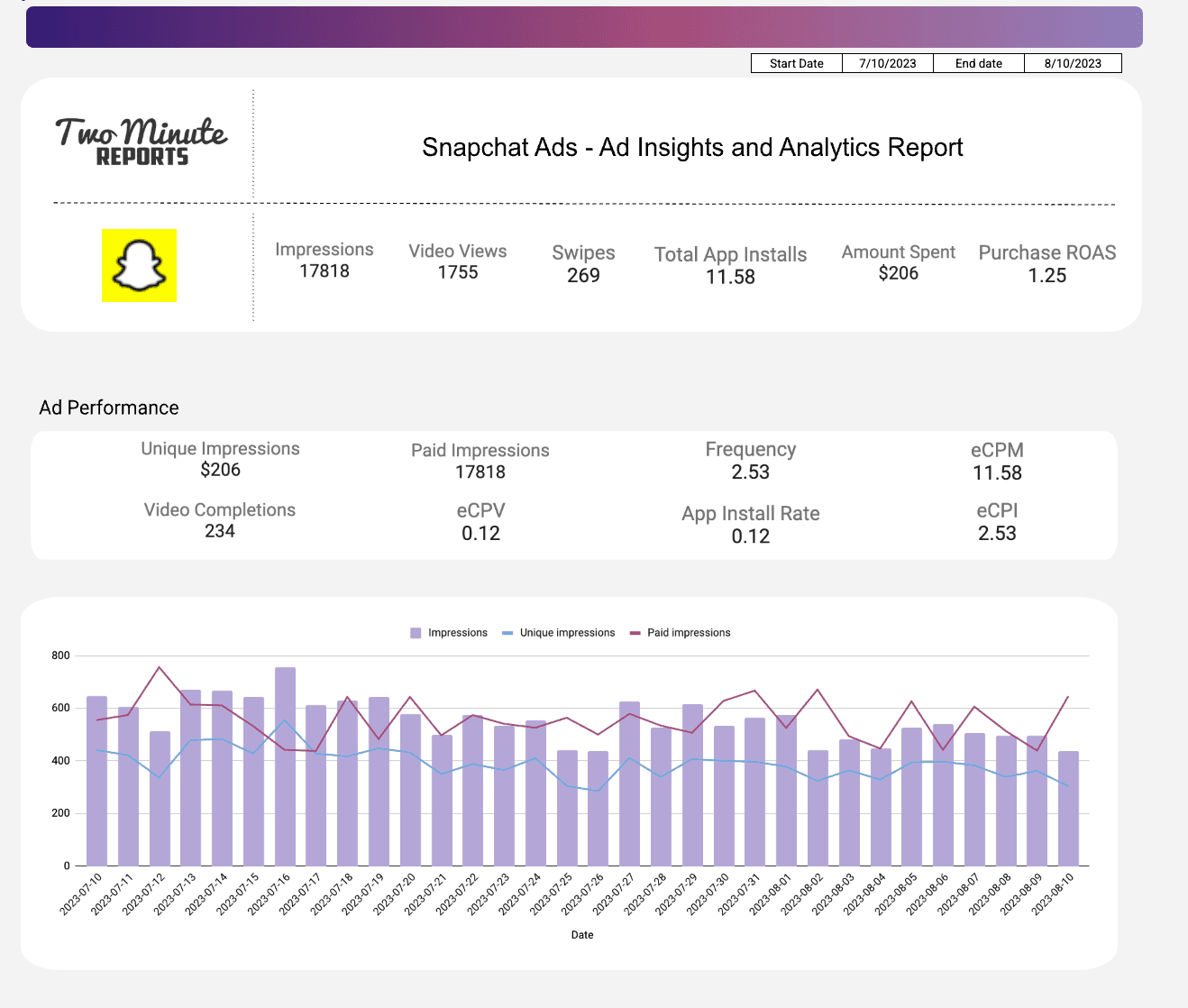
With Two Minute Reports’ pre-built Snapchat Ads templates for Google Sheets, you can create custom Snapchat Ads reports and dashboards within minutes. Here’s how you can:
1. In the template gallery, select the Snapchat Ads - Ad insights and Analytics reports for Google Sheets.
2. Next, click ‘Get Template for Free’ to open the Google Sheets template.
3. Then, click Use Template. You’ll land on the Google Sheets dashboard.
4. Click Use to launch the Two Minute Reports sidebar in your spreadsheet.
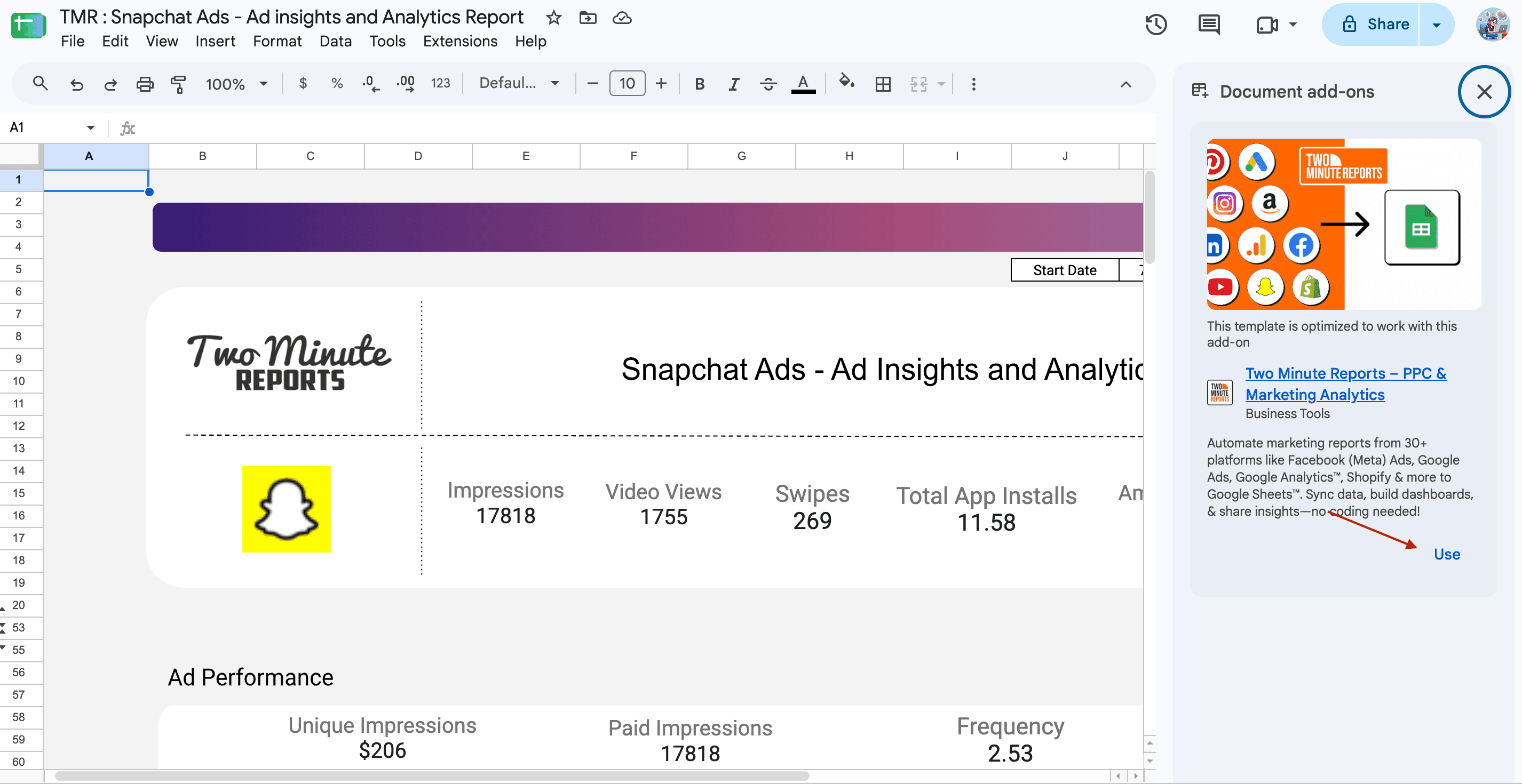
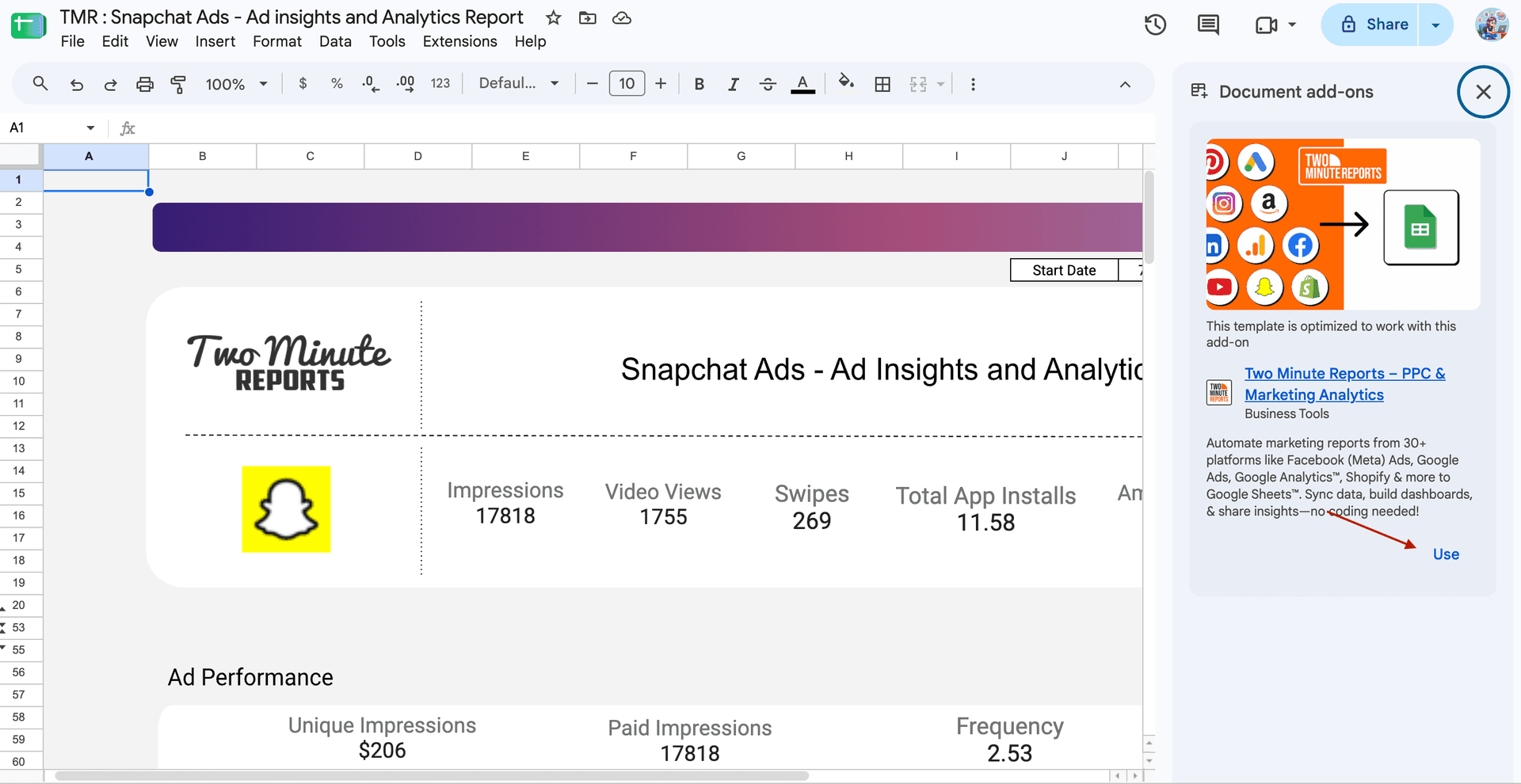
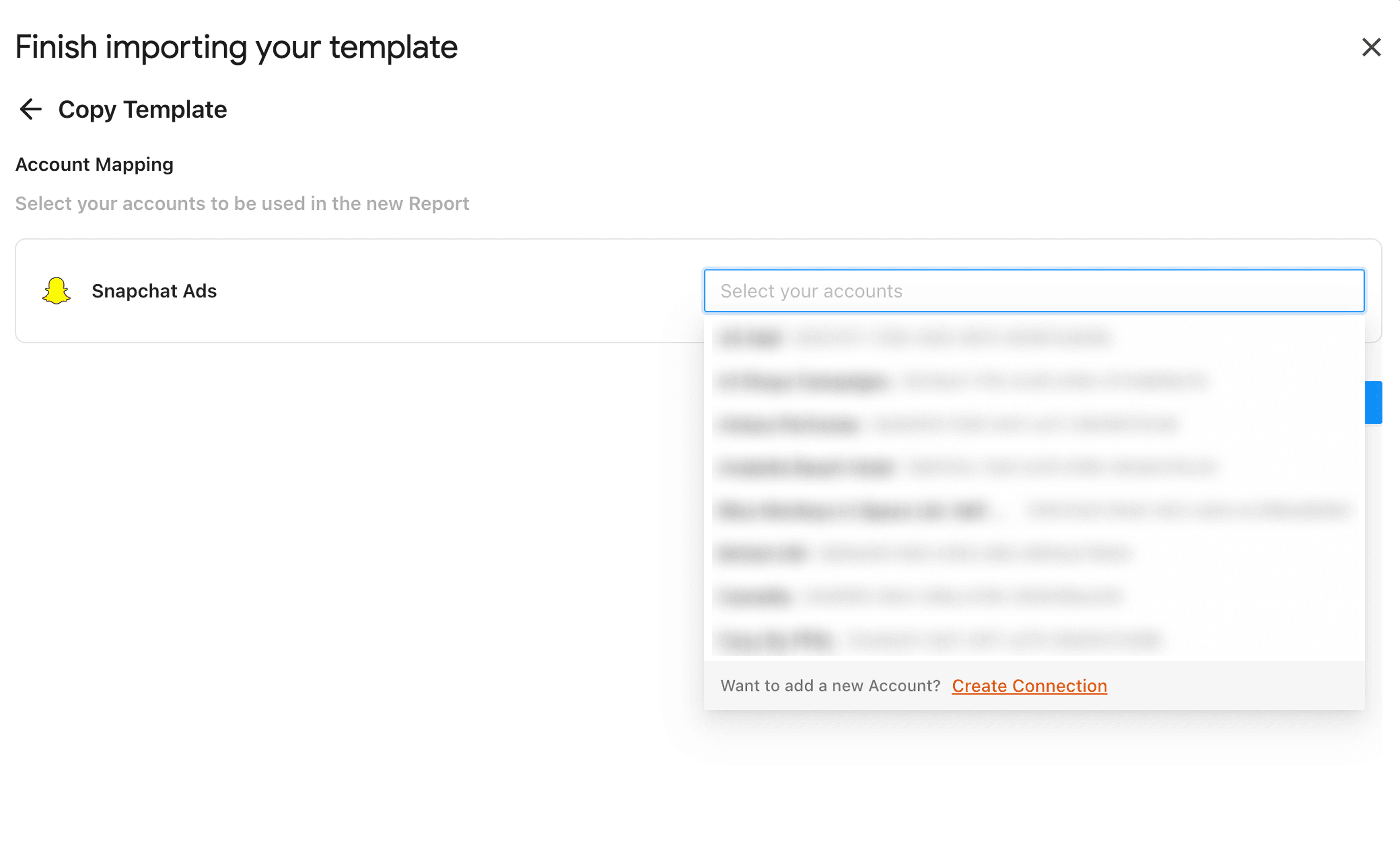
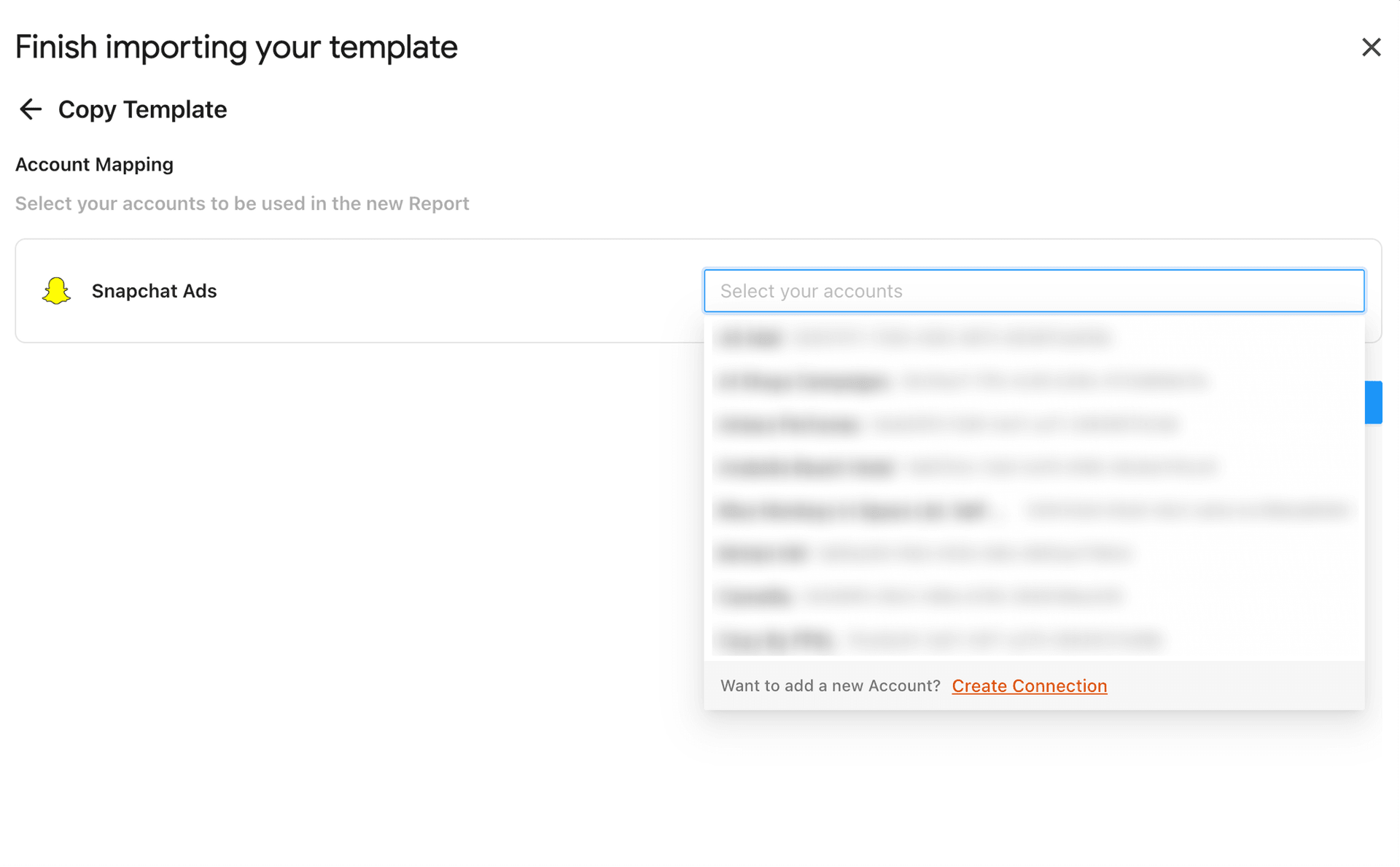
5. Finish importing your Snapchat Ads template by selecting the required ad accounts from the dropdown. Once done, click Submit to create your report.
6. Click Run Query to fill this template with the necessary data.
7. And that’s it. Your Snapchat Ads data is populated across relevant sections, helping you give a detailed overview of what’s happening and what needs to be improved.
Click the template link below to get started.
Common mistakes to avoid when pulling data from Snapchat Ads
When connecting Snapchat Ads to Google Sheets, marketers can encounter pitfalls that lead to misinterpretation or inefficient reporting. Here’s a list of common mistakes to avoid, along with reliable solutions for enhanced data handling.
1. Overlooking data limitations
Issue: Snapchat retains only lead generation data for the last 90 days. Many marketers forget this and attempt to analyze long-term performance without adequate historical data.
Solution: Regularly export your Snapchat leads ads data to Google Sheets to maintain a historical record. You can also automate this process by setting up refresh schedules, so you can analyze trends without losing critical insights.
2. Neglecting proper query configuration
Issue: Failing to configure the query effectively can result in incomplete or irrelevant data being pulled into reports.
Solution: With Two Minute Reports, you can run a structured query (consisting of metrics and dimensions) that aligns with your campaign objectives. You can then set up dashboards to auto-update, eliminating manual data overload.
3. Ignoring data context
Issue: It’s easy to get caught up in the numbers and overlook their context, such as seasonal trends or campaign-specific factors.
Solution: Use a notes column in Google Sheets to document insights related to specific data points. This added context can be invaluable when interpreting results later.
4. Assuming all metrics are easily comparable
Issue: Many marketers compare metrics from different campaigns or timeframes without accounting for variables like budget, creative differences, or audience shifts.
Solution: Establish a consistent metric framework in Google Sheets to categorize and compare similar campaigns for a fair analysis.
5. Neglecting updates and iteration
Issue: Marketers may set up their reports once and neglect to review or update them regularly.
Solution: Set up automated refresh schedules based on your client reporting frequency. With real-time updates, you can ensure continuous performance monitoring and improve next steps based on iteration and feedback.
Which metrics from Snapchat Ads analytics should you track?
Here are the top metrics you can track and visualize to optimize your campaign performance.
Ready to connect Snapchat Ads to Google Sheets?
With Two Minute Reports, you can bring your Snapchat Ads data directly into Google Sheets and build reports around the metrics that matter to your campaigns. Track ad spend, impressions, swipes, conversions and other key metrics across 100+ campaigns in one place. Stay on top of campaign performance with automated, real-time insights that help you spot what needs attention and identify what to do next.
Try Two Minute Reports free for 14 days and experience faster, smarter Snapchat Ads reporting.
Frequently Asked Questions
Snapchat Ads offers various KPIs, including performance metrics like impressions, CTR, conversions and eCPV. Other important metrics include eCPM, spends, swipe up rate and lens views.
Here's how you can connect Snapchat Ads data to Google Sheets within minutes:
- Download Two Minute Reports (add-on) to Google Sheets
- Connect your Snapchat Ads account to Two Minute Reports
- Create a query with the required metrics and dimensions for your reports
- Run the query and get real-time data in the spreadsheet.
You can access our free, ready-to-share Snapchat Ads Google Sheets templates to streamline campaign tracking. Once you click “Use Template”, you can launch the Two Minute Reports add-on, import your client’s Snapchat ad accounts, run queries and auto-populate the dashboard with meaningful insights.
With data blending, you can compare Snapchat Ads with other advertising platforms, such as Meta, Google Ads, etc, into a single dashboard and unlock cross-channel ROI. No need to toggle between platforms or struggle with broken reports.
With the Two Minute Reports' Snapchat Ads reporting tool, you can select your client’s Snapchat Ads accounts and consolidate key KPIs in one place. Alternatively, you can also reuse the existing reports across multiple clients, ensuring you focus more on strategy and accomplish your campaign ROI.

Meet the Author
Shalini MuruganShalini is driven by ideas that create a tangible impact. At Two Minute Reports, she specializes in content that helps marketers optimize their reporting workflows. When she's not transforming complex data into meaningful insights, you might find her lost in a book, jotting down ideas in her notebook, or connecting the dots others overlook.