Connectors
HubSpot
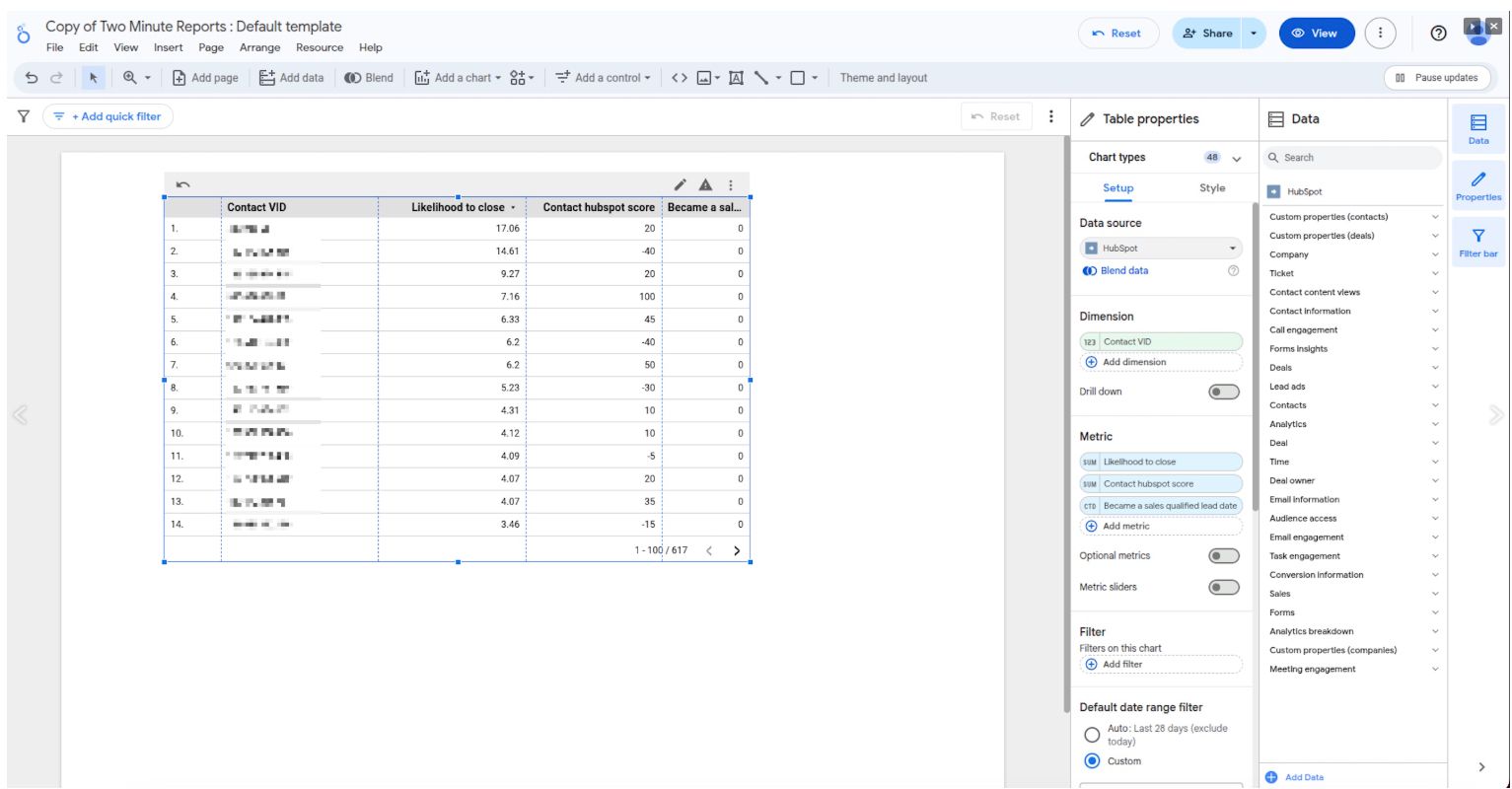
Connect HubSpot to Google Sheets or Google Data Studio

The HubSpot connector gets your HubSpot data into Google Sheets and Google Data Studio. Use it to track your key metrics in a spreadsheet or a Google Data Studio report.
What you can report on
- Contact, company, and deal pipeline data
- Sales activity and rep performance metrics
- Email campaign open rates, clicks, and unsubscribes
- Revenue by deal stage, close rate, and deal velocity
- Marketing funnel performance and lead source attribution
Prerequisites
- A HubSpot account (Marketing Hub, Sales Hub, or CRM)
- Super Admin or Report access to pull CRM and marketing data
How to create a connection
- In the Hub, open Connections & accounts.
- Select Create connection.
- Select HubSpot in the connector list.
- Select Next.
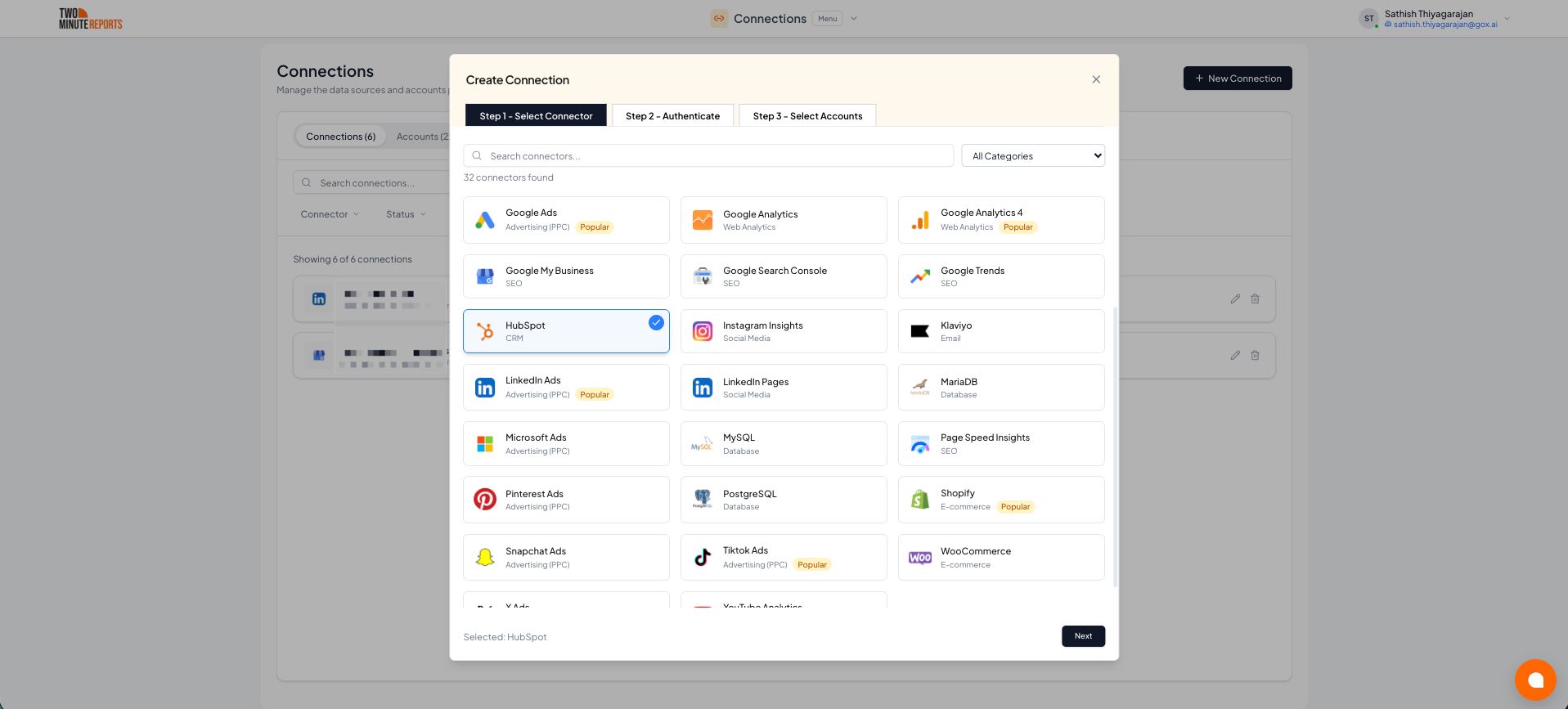
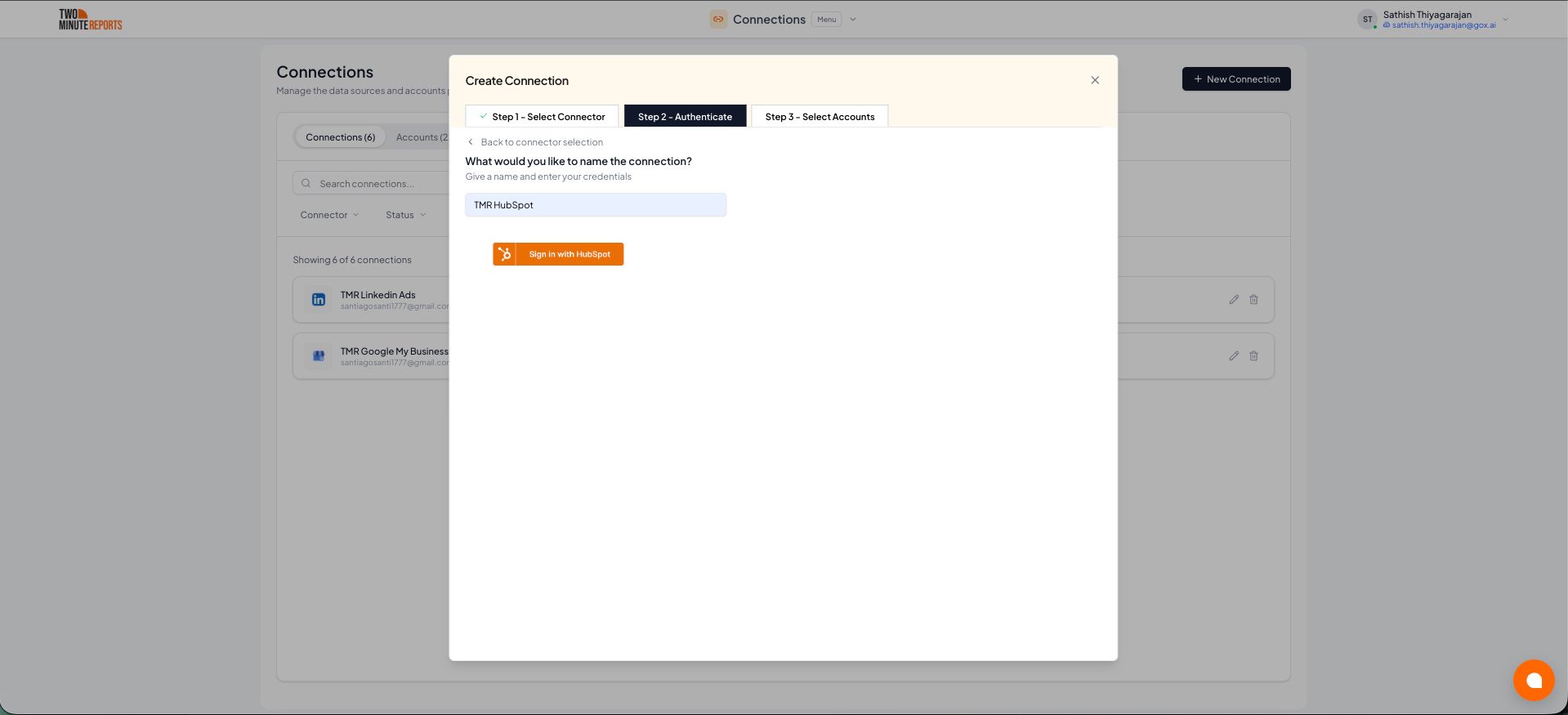
- In Name the connection, enter a name.
- Sign in with HubSpot. Then allow Two Minute Reports access.
- Enable the accounts you want to report on.
- Select Done.
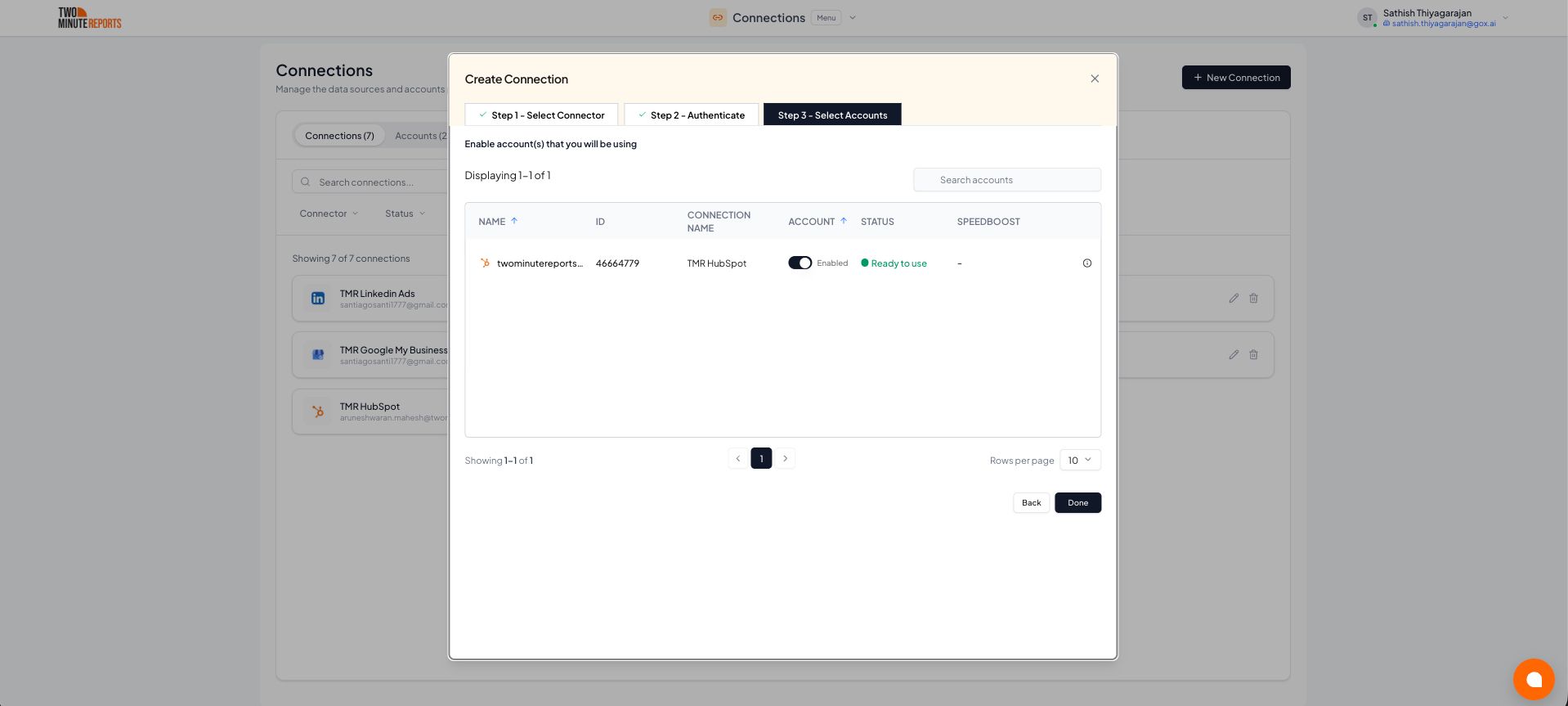
Only enabled accounts fetch data, and only enabled accounts count toward your plan. You can enable or disable accounts at any time on the Connections & accounts page.
How to get HubSpot data into Google Sheets or Google Data Studio
To get HubSpot data into Google Sheets:
- In the Two Minute Reports sidebar, open Data Queries.
- Select Add.
- Select the accounts you want to report on. You can select more than one.
- Select your metrics and dimensions.
- Select the date range.
- Set sorting and filters if you need them.
- Select Run query. Two Minute Reports adds the data to your sheet.
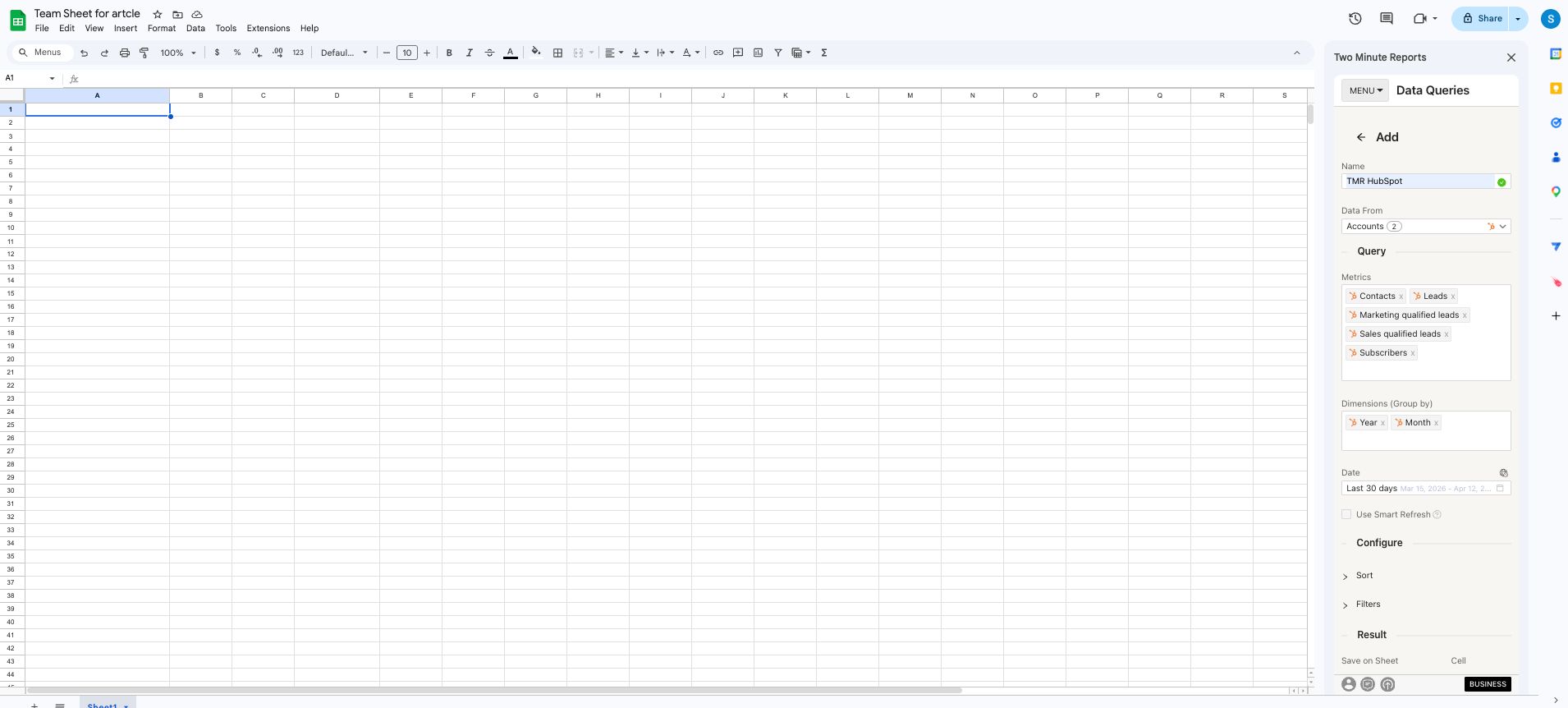
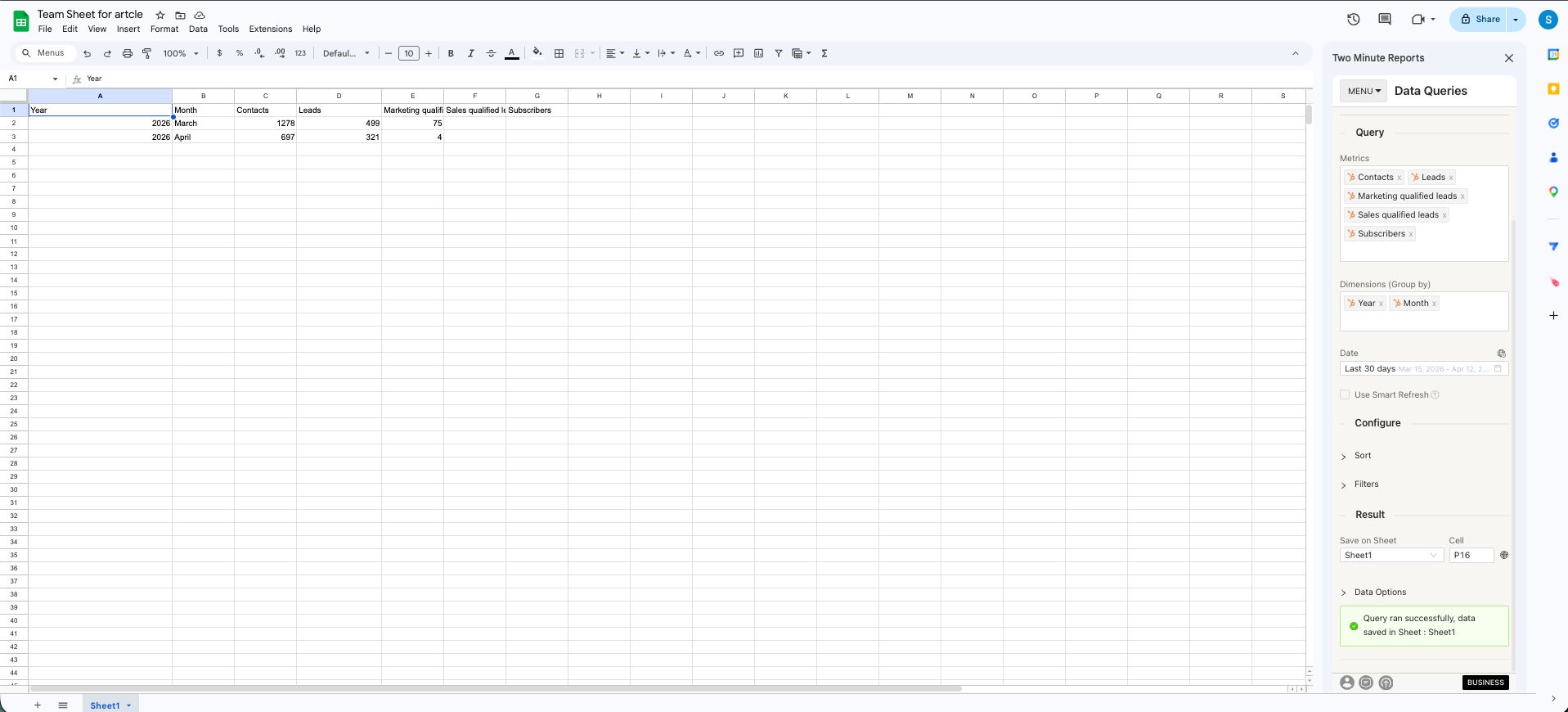
To get HubSpot data into Google Data Studio:
- In the Hub, open Google Data Studio › HubSpot.
- Select Create report.
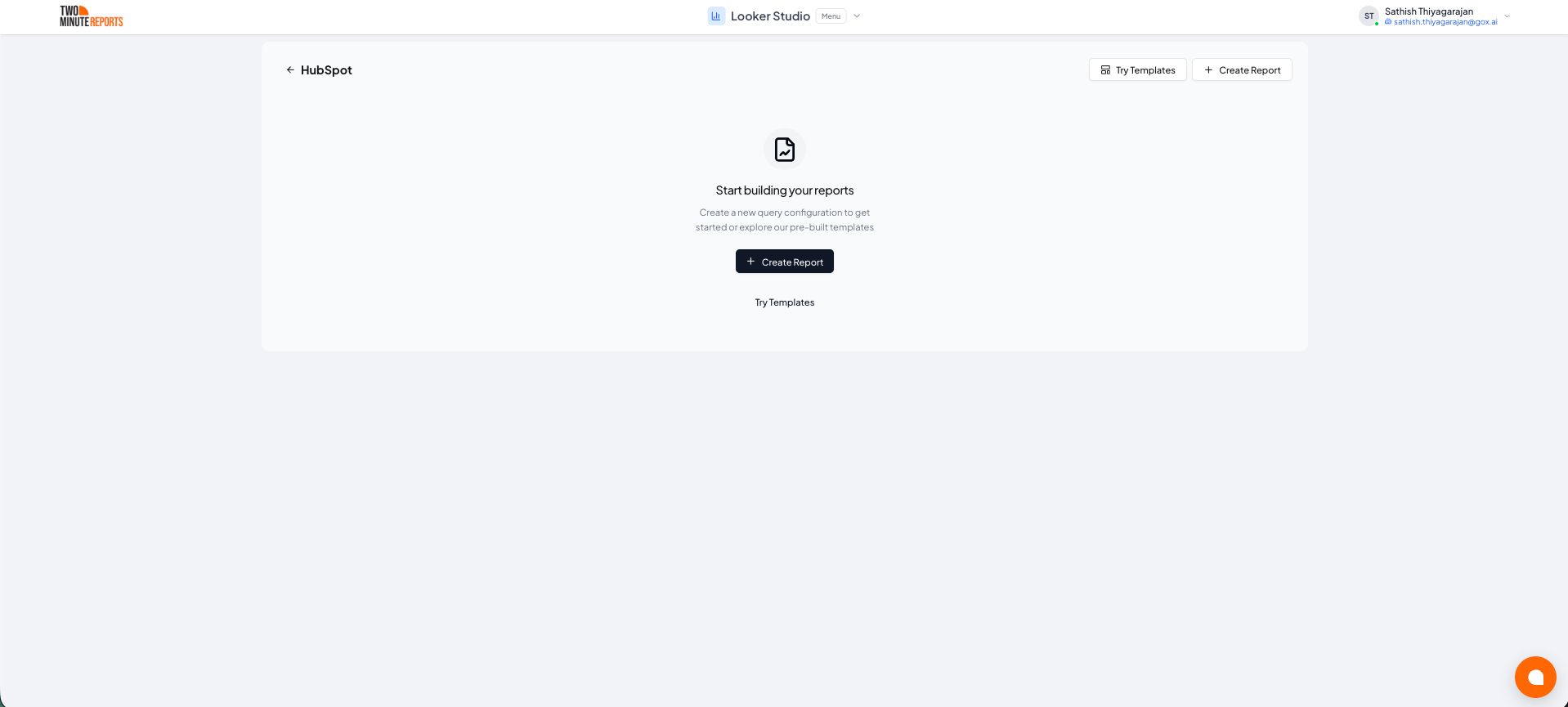
- Select or create a query config:
- To use a query config you have: select it in Choose your query config. Then select Save.
- To create a query config: if you already have one, first select Create new query config in the list. Enter a name in Name your query config, and select the accounts in Select your accounts. Select Save.
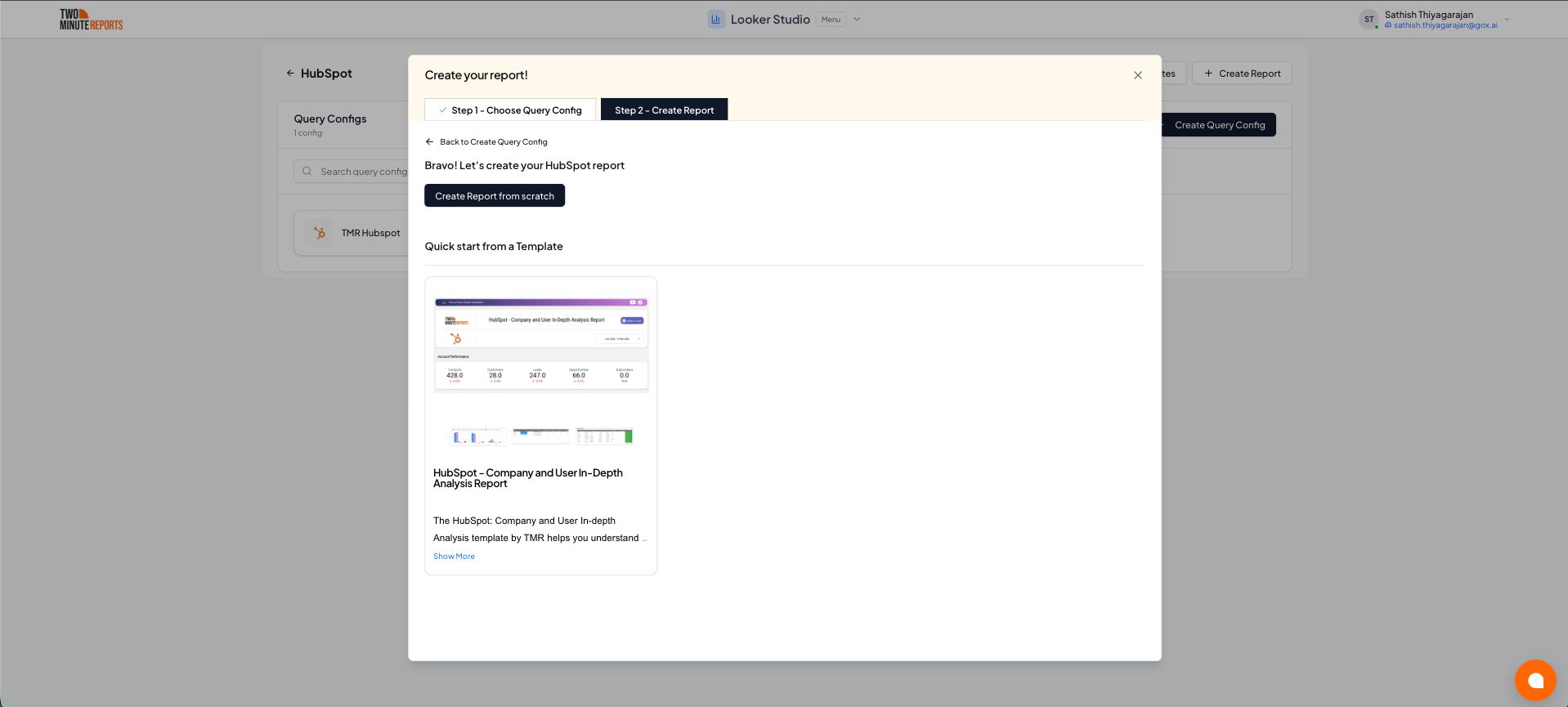
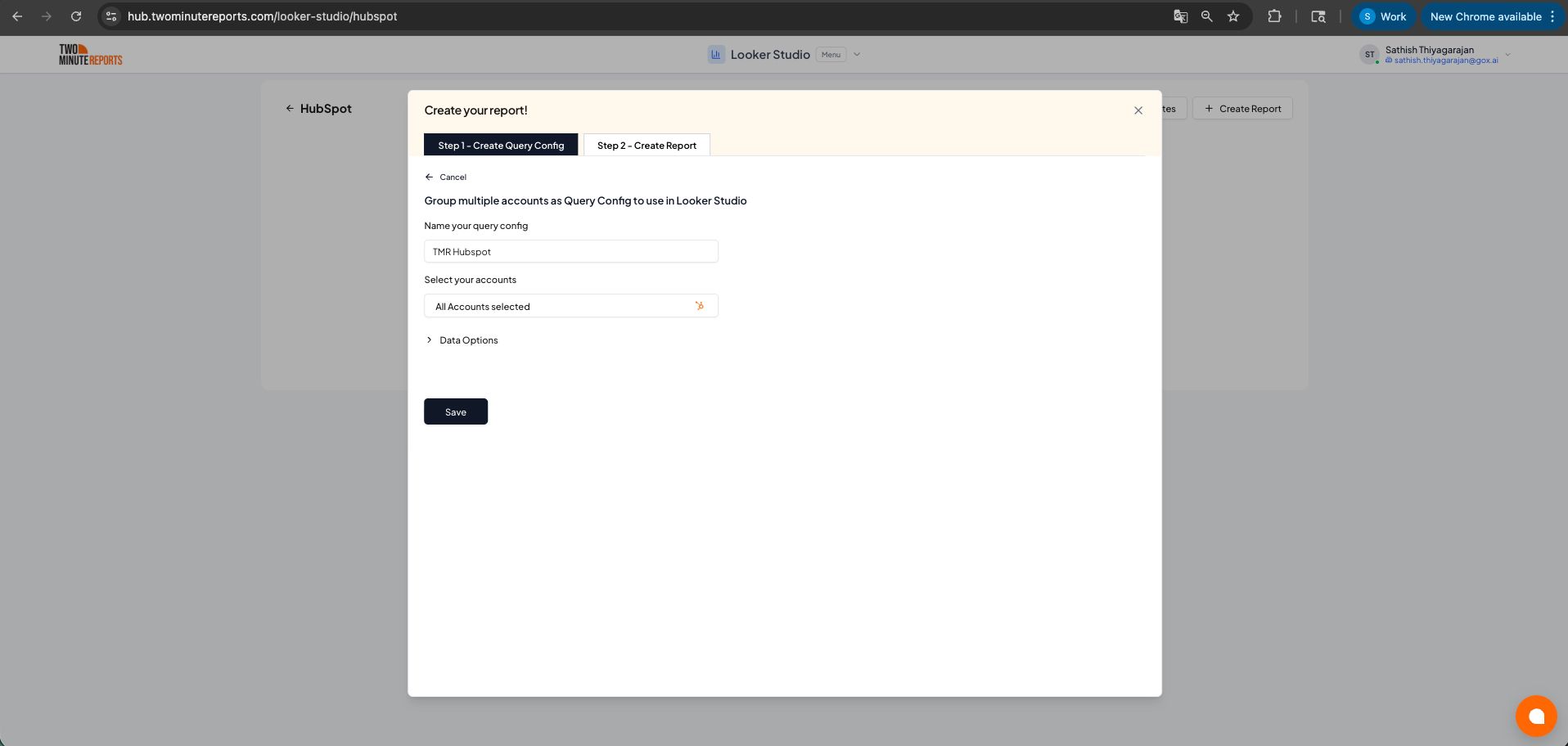
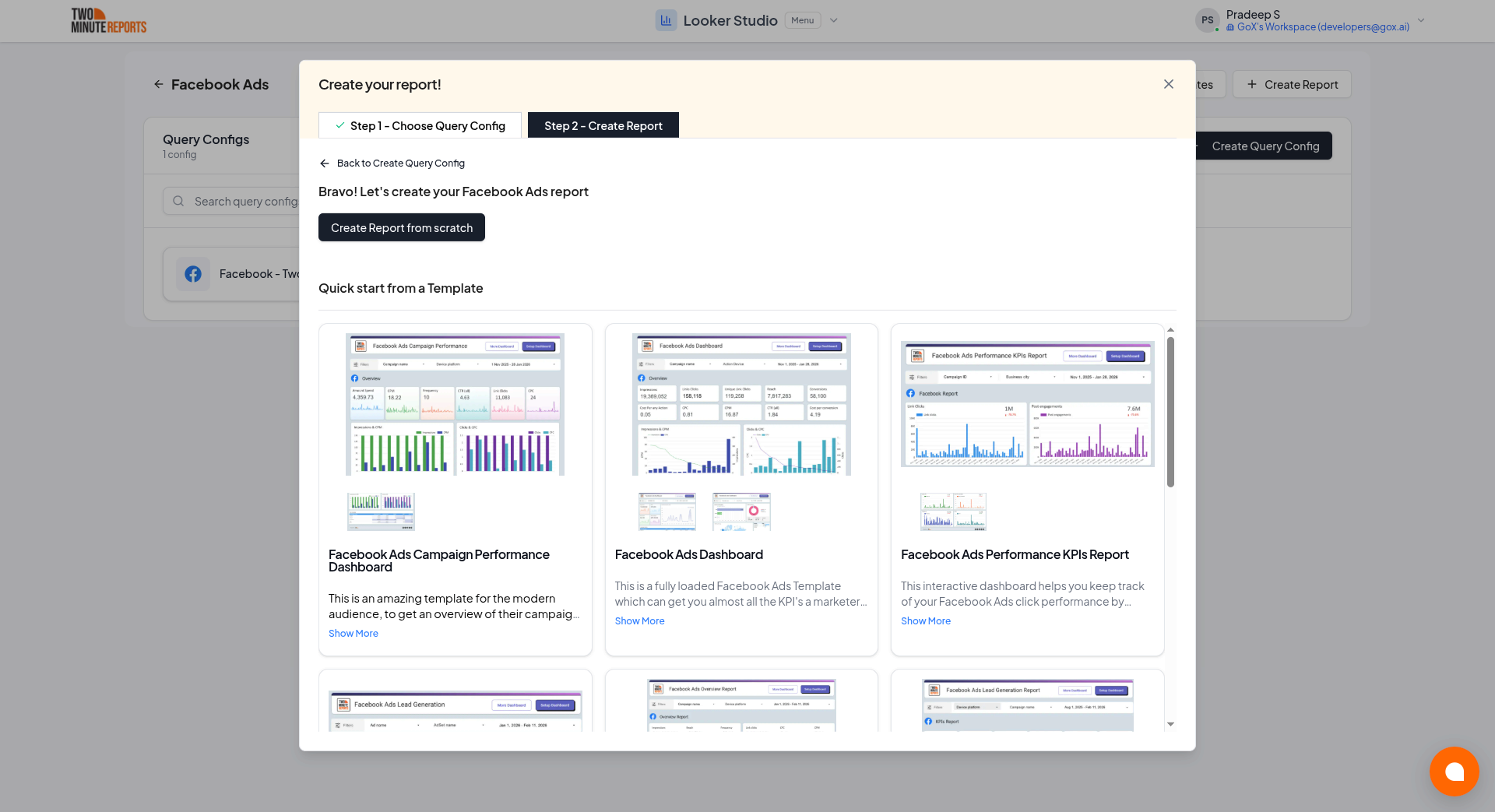
- Select Create from scratch. If templates show under Quick start from a template, you can select one instead.
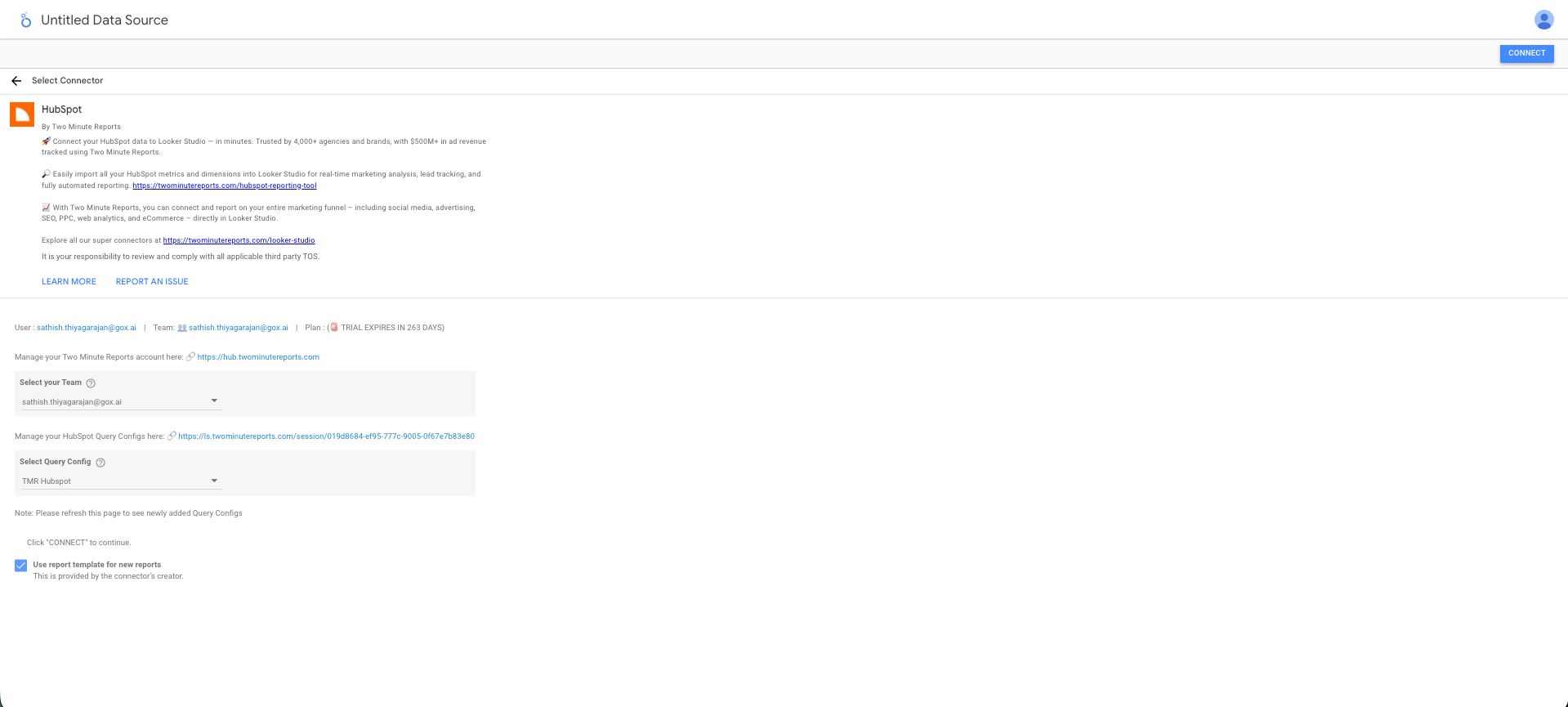
- Looker Studio (formerly Google Data Studio) opens in a new tab, with the Two Minute Reports connector. If you are in more than one team, select your team in Select your Team.
- In Select Query Config, select your query config.
- Select Connect in the top-right corner.
- In your new report, add HubSpot metrics and dimensions to the canvas.