

Schedule refreshes
A schedule runs your queries again at the times that you choose, so you do not have to update the data by hand. A schedule can also email the sheet to people after each refresh.
Create a schedule
Open Schedule Refresh
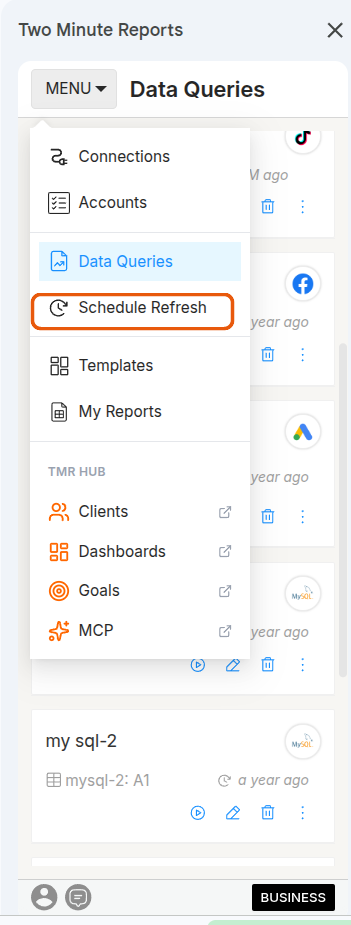
In the Two Minute Reports sidebar, select Menu, then select Schedule Refresh.
Add a schedule
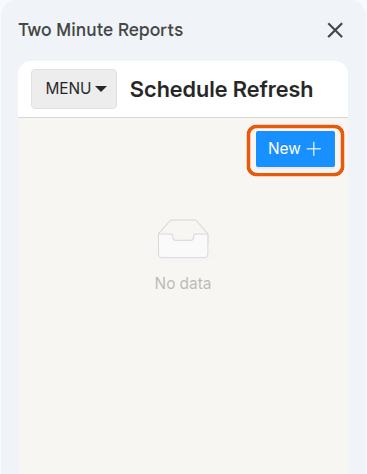
Select New. In the form, you set:
- The queries to refresh
- When to refresh them
- Who gets an email after each refresh (optional)
Select queries
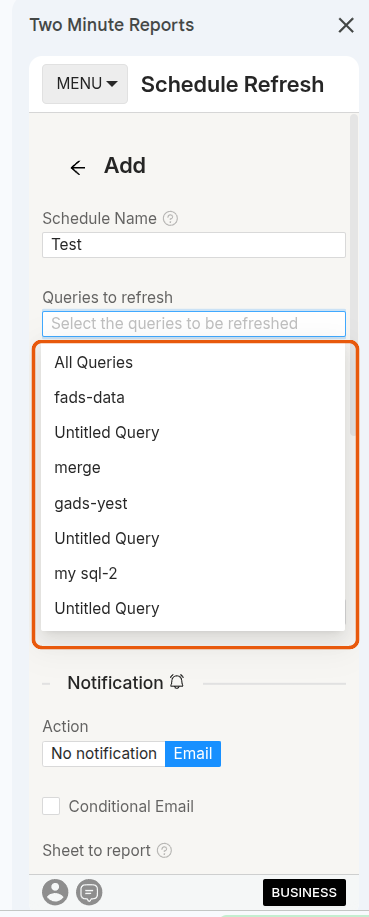
In Queries to refresh, select the queries for this schedule. You can select more than one query, or All Queries.
Set how often
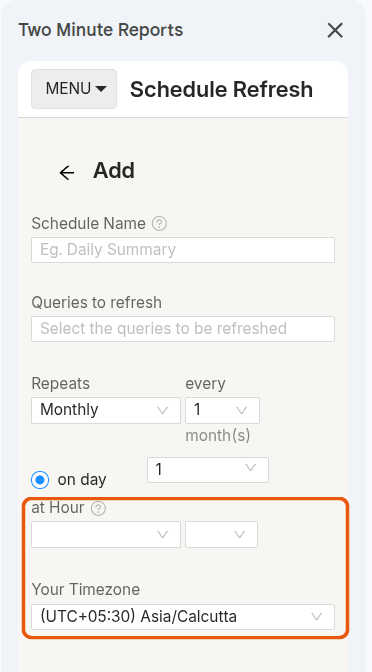
In Repeats, select how often the queries refresh:
- Hourly: every N hours, from a start date that you choose
- Daily: every N days, at an hour that you choose
- Weekly: on the days of the week that you choose, at an hour that you choose
- Monthly: on a day of the month, at an hour that you choose
Set the time
For Daily, Weekly, and Monthly schedules, select the hour in at Hour, and the time zone in Your Timezone. If your data requests are large, think about a time outside working hours.
Hourly schedules have no time setting. You set the interval and a start date only. See Choosing the minute of the hour.
Choosing the minute of the hour
You set refresh times to the hour, not to the minute. No frequency lets you choose a minute, such as "run at :55 past the hour".
For Hourly schedules, the add-on picks a minute in the hour for you, and does not show it. This is on purpose. If every hourly schedule ran at :00, they would all call the ad platforms at the same moment, and rate limits would stop many of them. Spreading schedules across the hour keeps them reliable.
What this means for you:
- The minute is random, and it changes each time that you edit the schedule. A schedule that ran at :12 can run at :47 after you change its recipients.
- Two hourly schedules in the same sheet usually run at different minutes.
- Daily, Weekly, and Monthly schedules keep the hour that you pick. The minute in that hour is picked in the same way.
Email the sheet (optional)
You can send the sheet by email after each refresh, to your team or your clients:
Turn on email
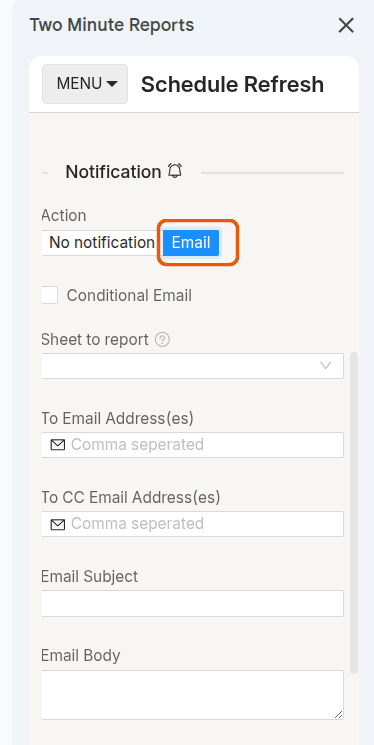
In the Notification section, set Action to Email.
Add recipients
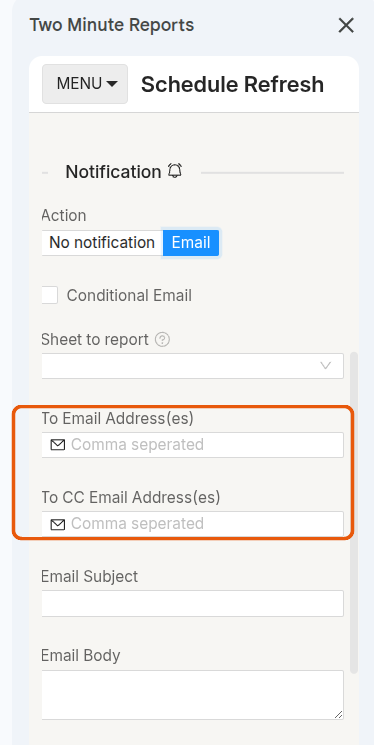
Type email addresses in To Email Address(es). You can also type addresses in To CC Email Address(es). Separate addresses with commas.
Write the subject and message
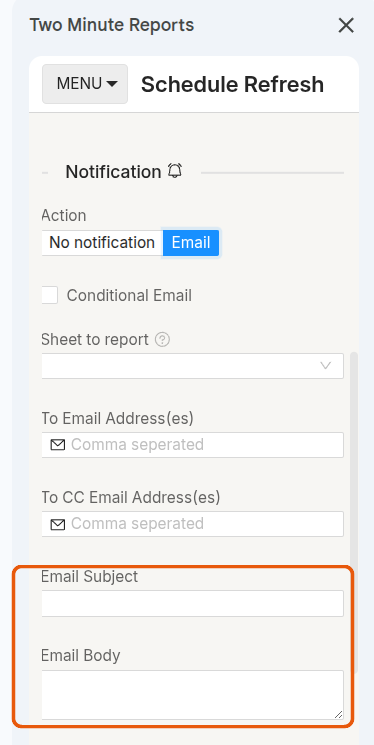
Type an Email Subject. You can also type an Email Body.
Choose the format
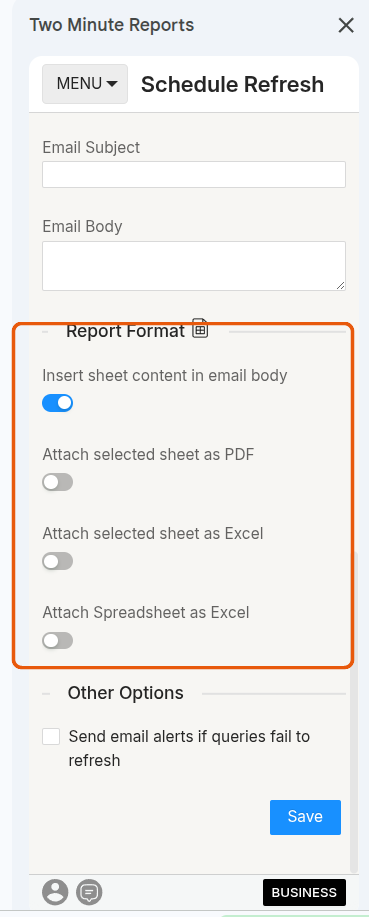
Under Report Format, choose how the data gets to the recipients:
- Insert sheet content in email body: the sheet's contents appear in the email
- Attach selected sheet as PDF
- Attach selected sheet as Excel
- Attach Spreadsheet as Excel: the whole spreadsheet, not only the selected sheet
You can turn on more than one option.
Smart Refresh
Use Smart Refresh is a query option, under Date in the query form. When it is on, later runs of the query get only the most recent days of data, and merge them with the data already in the sheet. You set how many days in Refresh the last. This makes runs on long date ranges faster, and less likely to fail. The add-on suggests it for queries of more than 30 days.
To use Smart Refresh:
- Your team must have Advanced Scheduler turned on. See Data options.
- The query must include the Date dimension.
- The date range must allow Smart Refresh. If it does not, the checkbox is off, and its tooltip tells you why.
- Append new data and Merge new data with old must be off.
Manage your schedules
Schedule Refresh lists the schedules in this spreadsheet. Each schedule has three buttons:
- The mail button (Report now) runs the schedule now.
- The edit button changes the queries, the frequency, the recipients, or other settings.
- The delete button removes the schedule.
Test your schedule
Before you depend on a schedule:
- Run your query by hand, and check the data.
- Set up a test schedule that runs soon.
- Check that the email arrives.
- Check the data after the next refreshes.
Time zones
Each schedule has its own time zone, in Your Timezone. You can select Team Timezone to copy your team's time zone into the schedule. A later change to the team's time zone does not move schedules that already exist.
If a schedule does not run at the time that you expect:
- Open the schedule and check Your Timezone.
- Check the time zone of your spreadsheet in Google Sheets.
- If the problem continues, contact support.
Troubleshooting
A refresh ran at an unexpected minute
- This is expected. The add-on picks the minute, and it changes when you edit the schedule. See Choosing the minute of the hour.
A schedule did not run
- Check that your connections still have access to their accounts.
- Check that no connection needs reconnecting.
- Check the frequency in the schedule settings.
An email did not arrive
- Check the recipient email addresses.
- Check spam and junk folders.
- Check that your email settings let outside services send mail.
The data looks wrong
- Run the query by hand, and compare the results.
- Check whether the data in the platform changed recently.
- Check the filters and the date range of the query.
If the problem continues, email [email protected].
Next steps
- Manage your spreadsheets: find and copy the spreadsheets that use the add-on
- Troubleshoot Google Sheets issues: fix common schedule and email problems