

Amazon Seller

The Amazon Seller connector gets your Amazon Seller data into Google Sheets and Google Data Studio. Use it to track your key metrics in a spreadsheet or a Google Data Studio report.
What you can report on
- Product sales, revenue, and units ordered
- Order counts, returns, and refunds
- Order-level product breakdown: units and revenue by SKU or ASIN, taken from your orders
- Inventory levels and stock health
- Buy Box win rate and pricing data
- Traffic, conversion rates, and listing performance
Prerequisites
- An Amazon Seller Central account
- Admin access to the marketplace you want to report on
How to create a connection
- In the Hub, open Connections & accounts.
- Select Create connection.
- Select Amazon Seller in the connector list.
- Select Next.
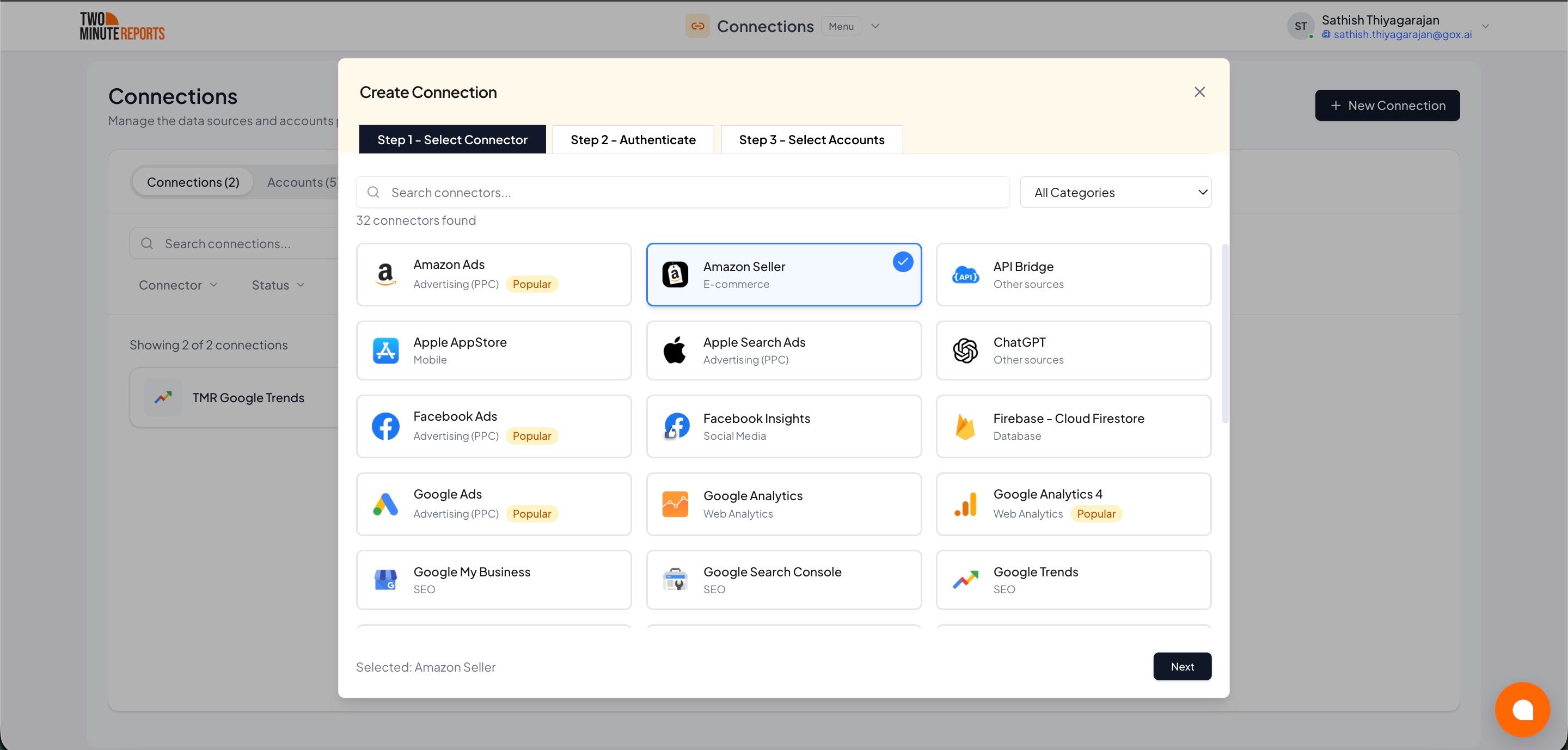
- In Name the connection, enter a name.
- In Seller region, select your region.
- Sign in with Amazon. Then allow Two Minute Reports access.
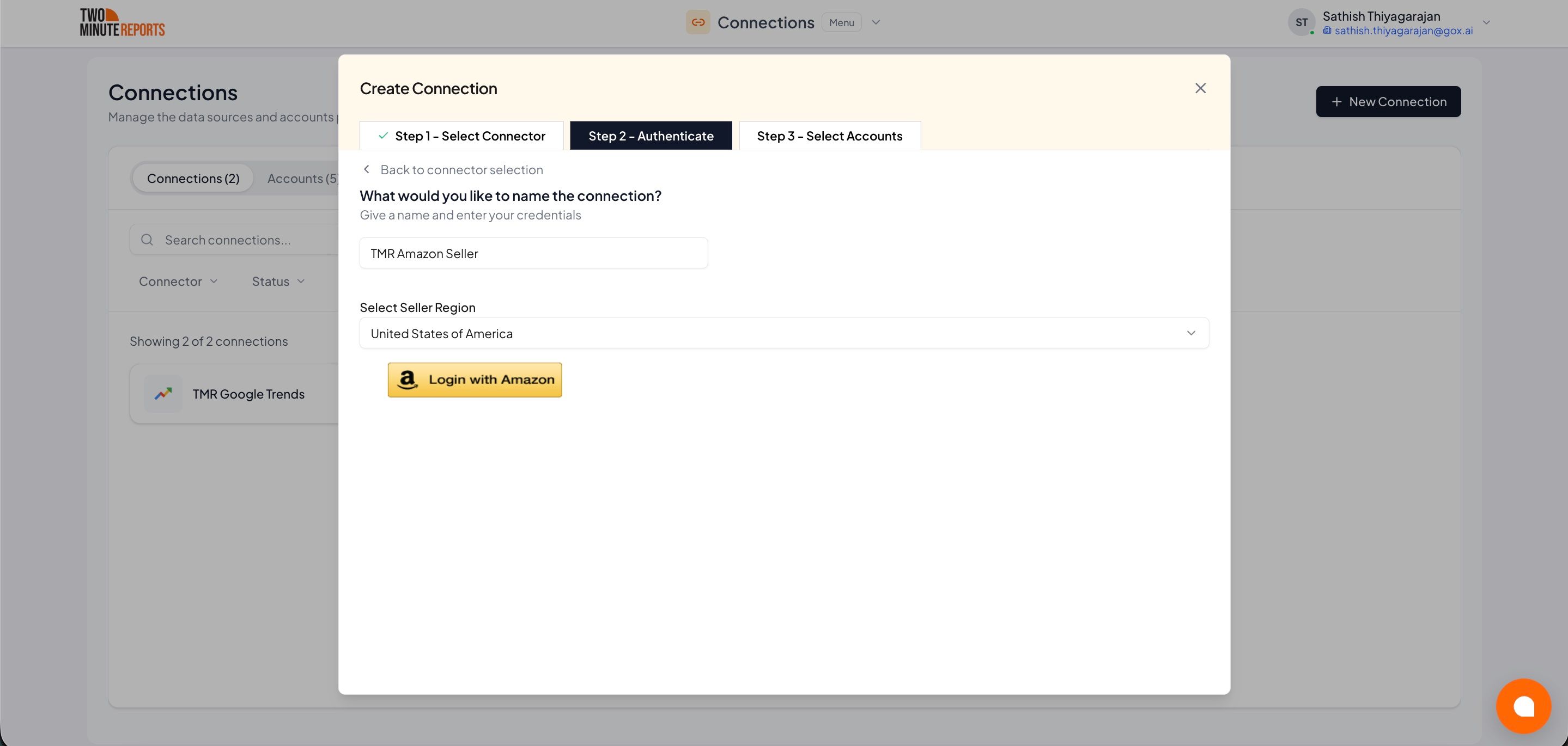
- Enable the accounts you want to report on.
- Select Done.
How to get Amazon Seller data into Google Sheets or Google Data Studio
To get Amazon Seller data into Google Sheets:
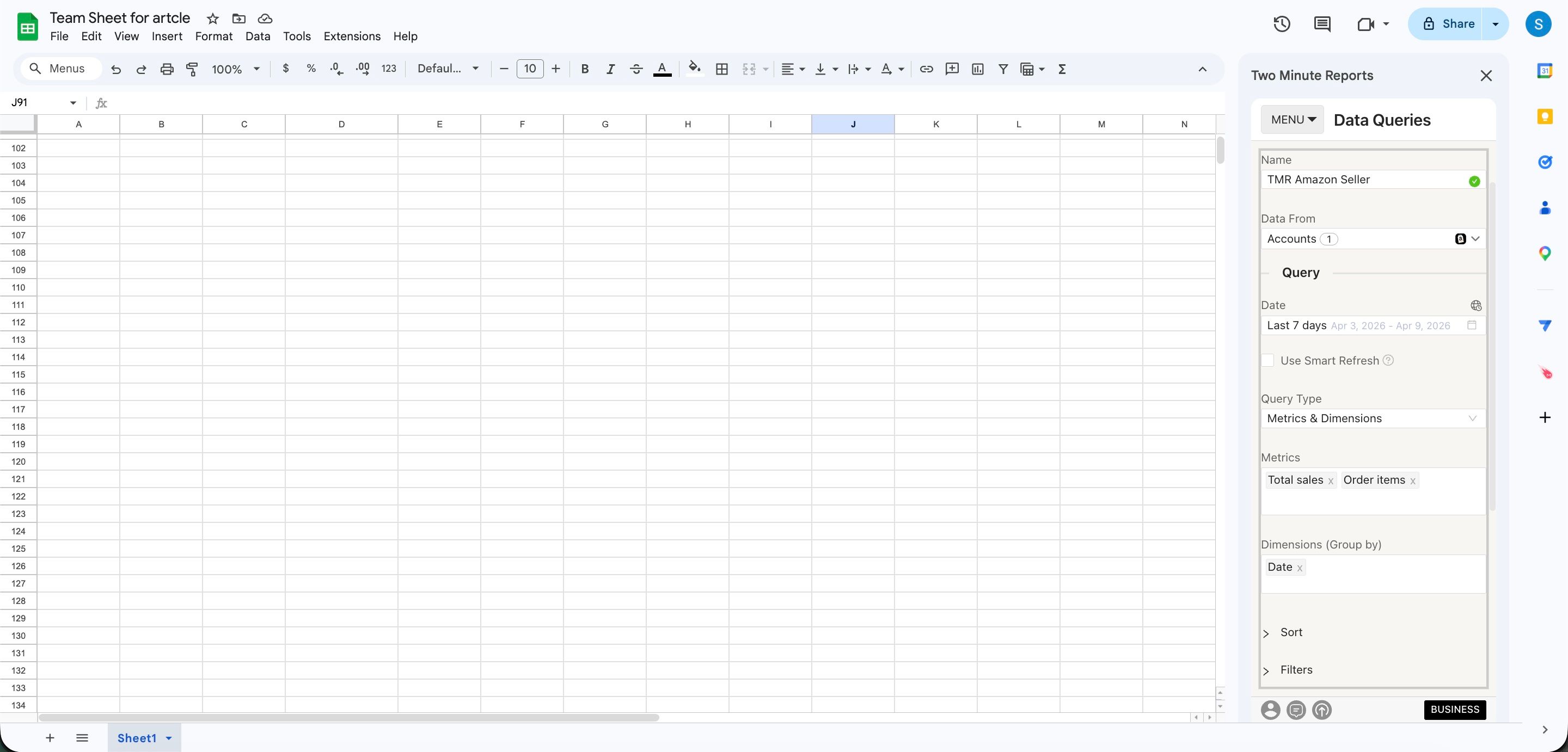
- In the Two Minute Reports sidebar, open Data Queries.
- Select Add.
- Select the accounts you want to report on. You can select more than one.
- Select your metrics and dimensions.
- Select the date range.
- Set sorting and filters if you need them.
- Select Run query. Two Minute Reports adds the data to your sheet.
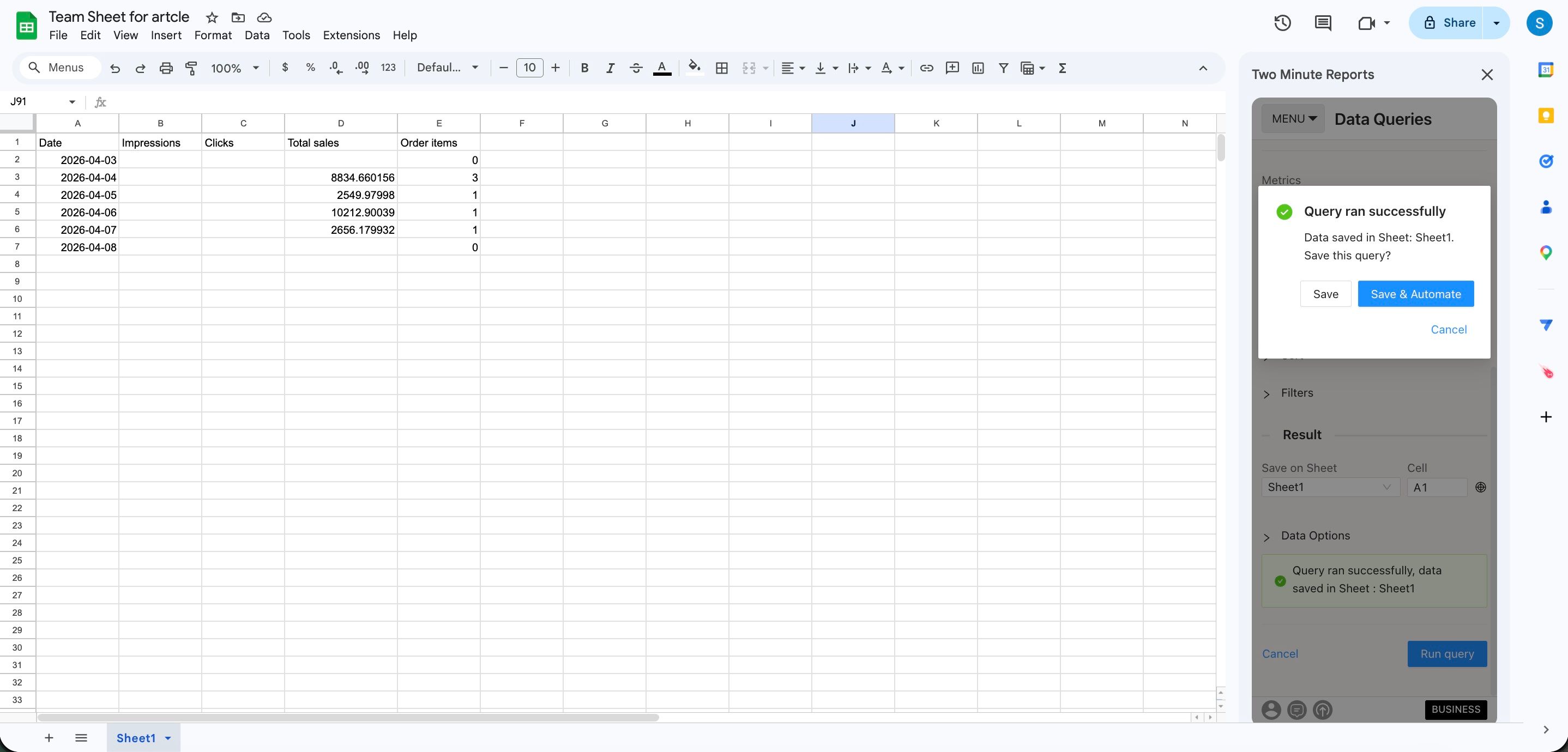
To get Amazon Seller data into Google Data Studio:
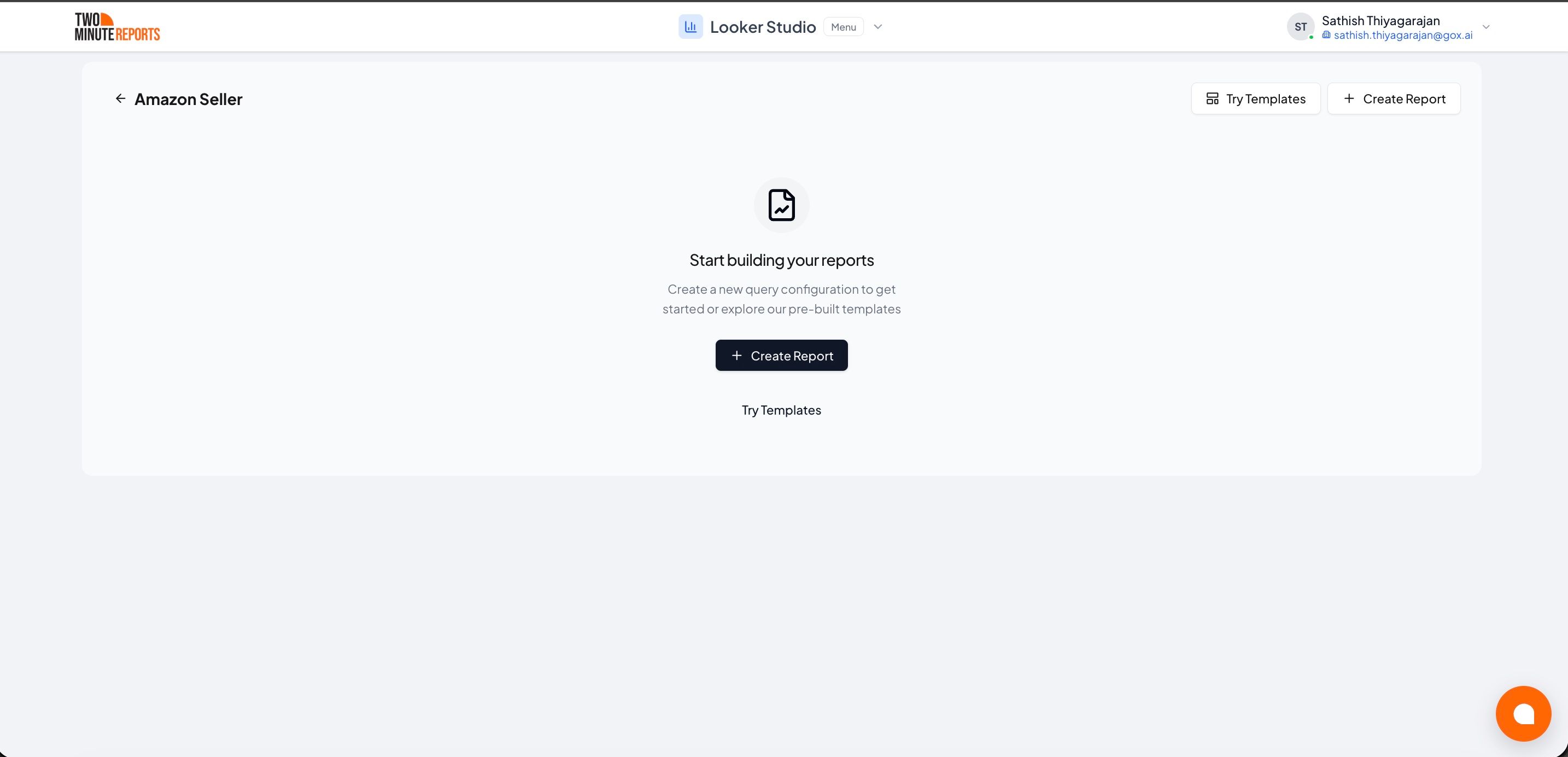
- In the Hub, open Google Data Studio › Amazon Seller.
- Select Create report.
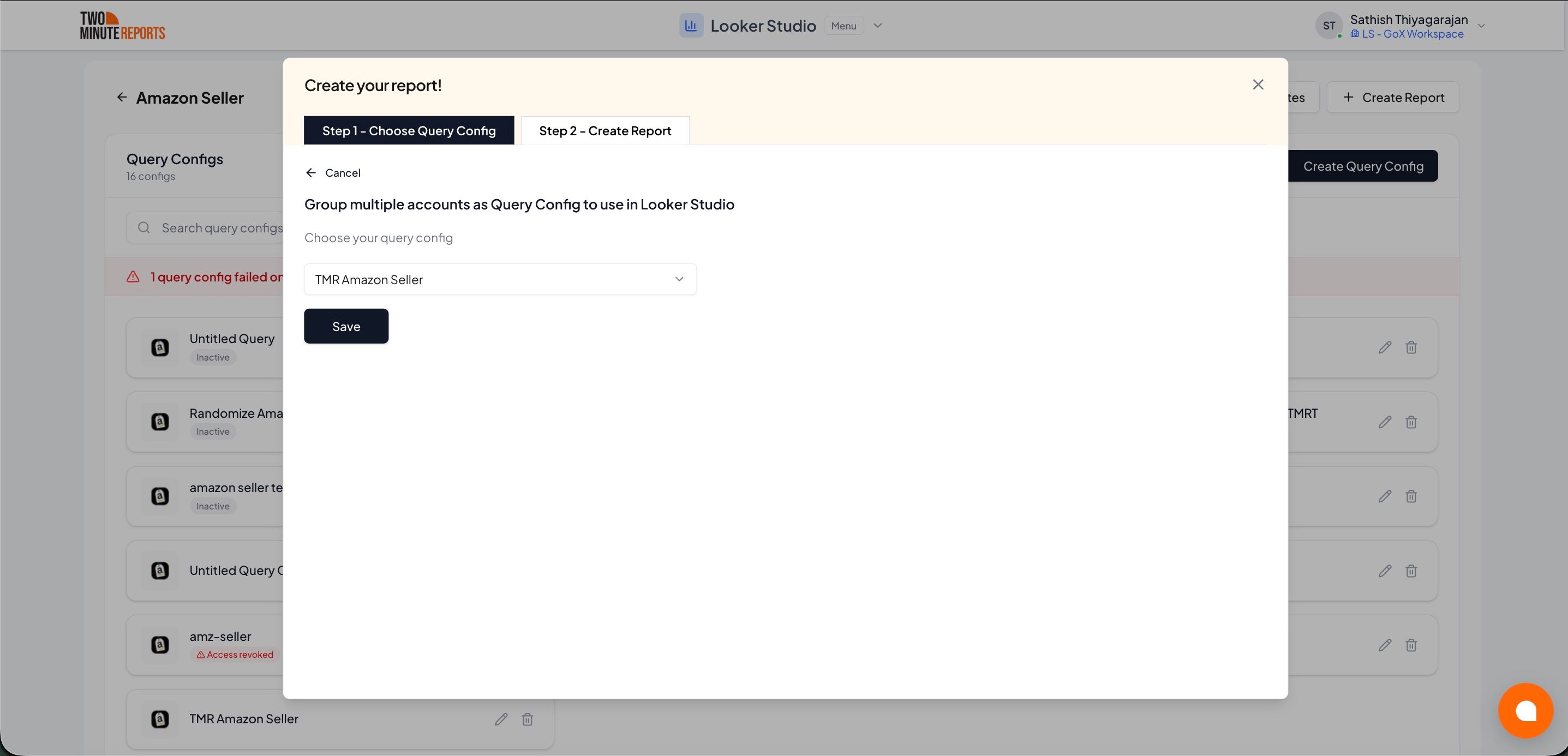
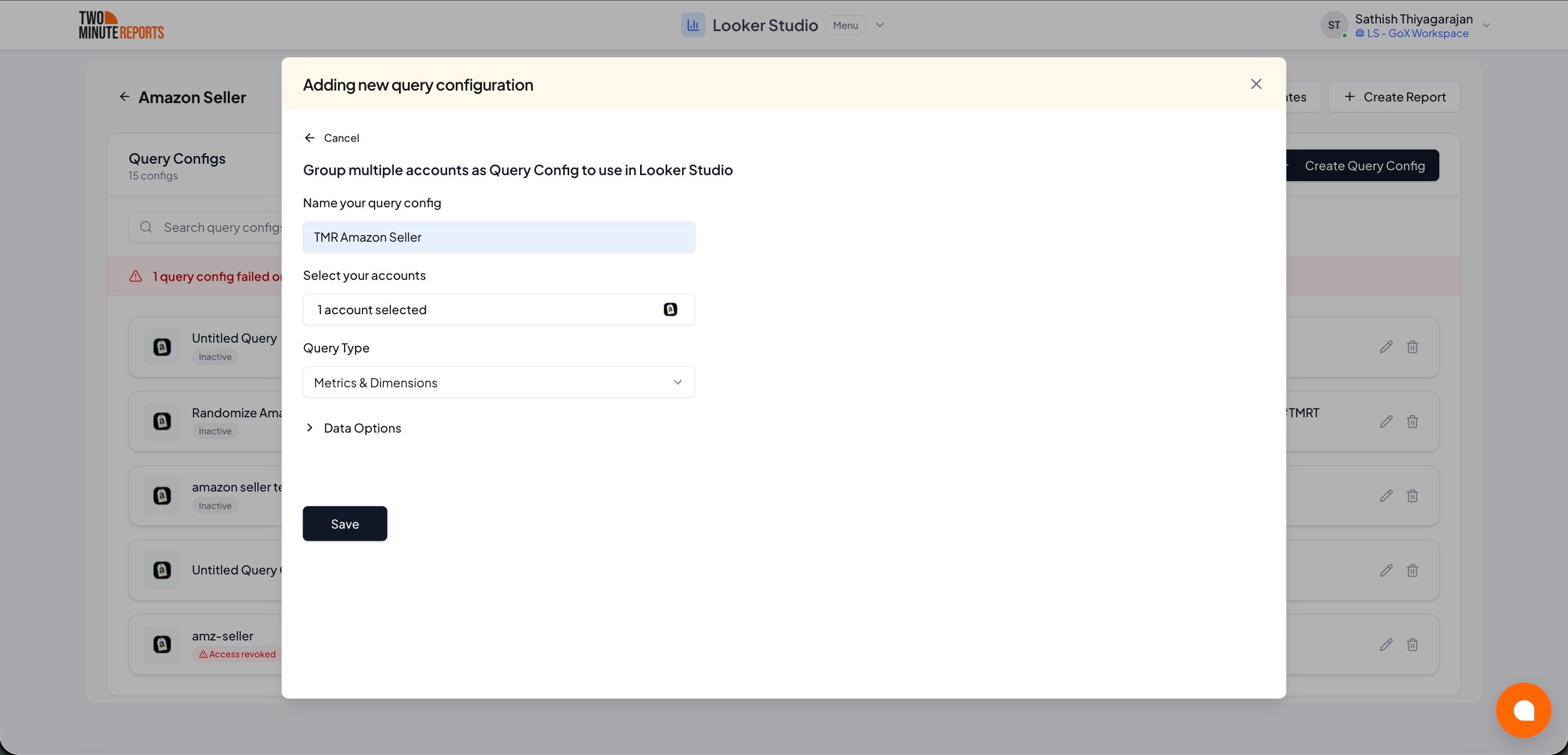
- Select or create a query config:
- To use a query config you have: select it in Choose your query config. Then select Save.
- To create a query config: if you already have one, first select Create new query config in the list. Enter a name in Name your query config, and select the accounts in Select your accounts. Select Save.
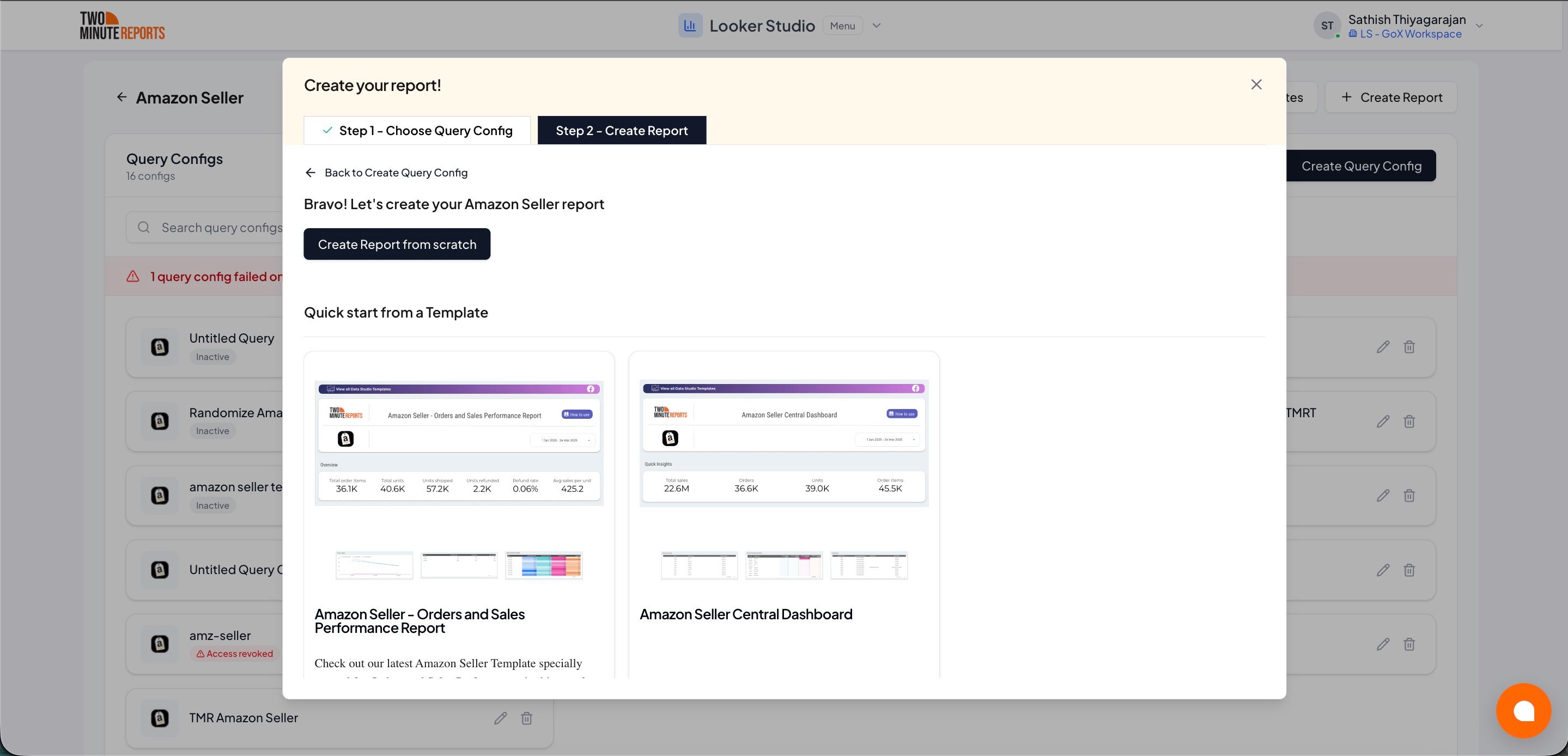
- Select Create from scratch. If templates show under Quick start from a template, you can select one instead.
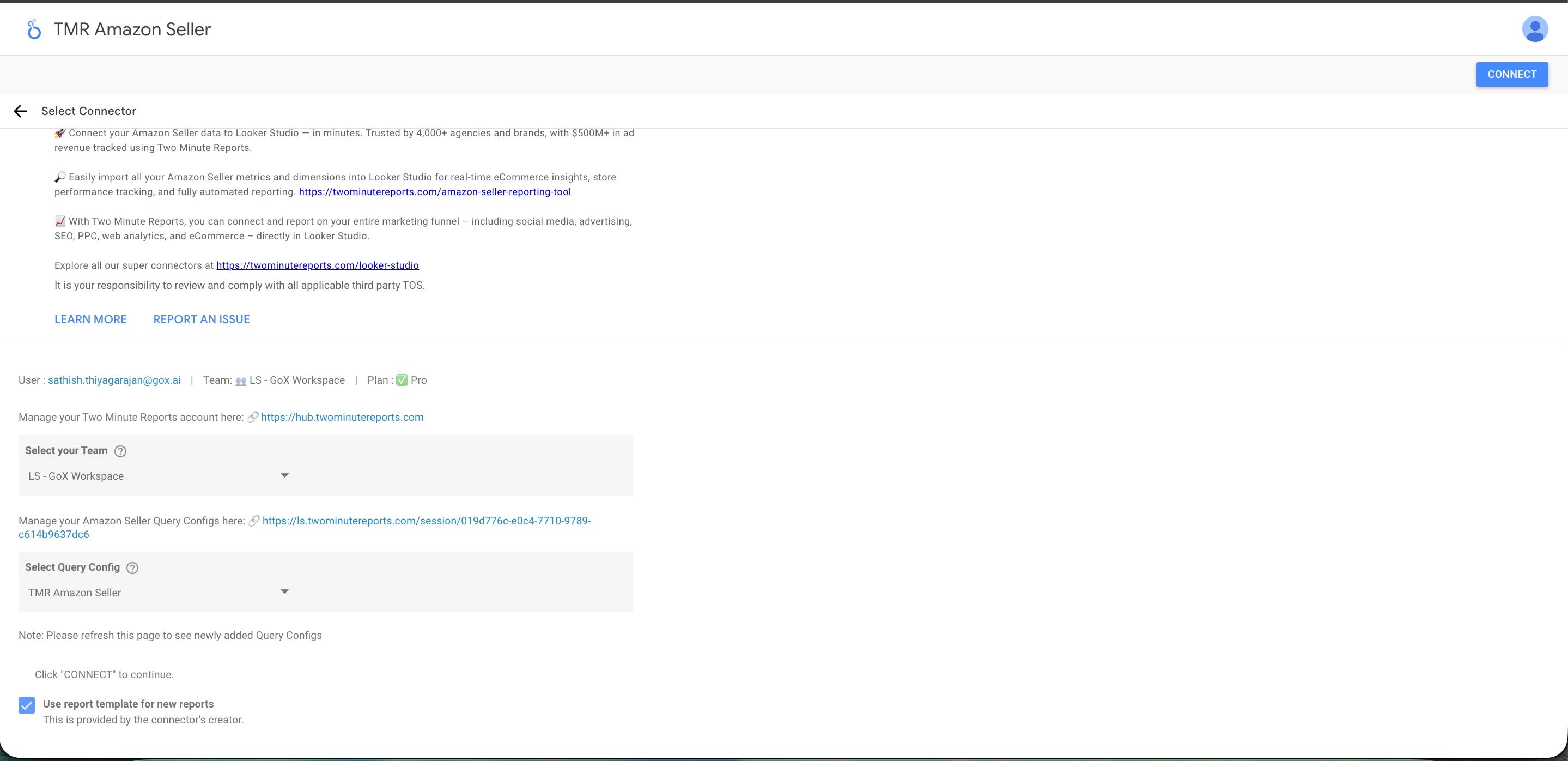
- Looker Studio (formerly Google Data Studio) opens in a new tab, with the Two Minute Reports connector. If you are in more than one team, select your team in Select your Team.
- In Select Query Config, select your query config.
- Select Connect in the top-right corner.
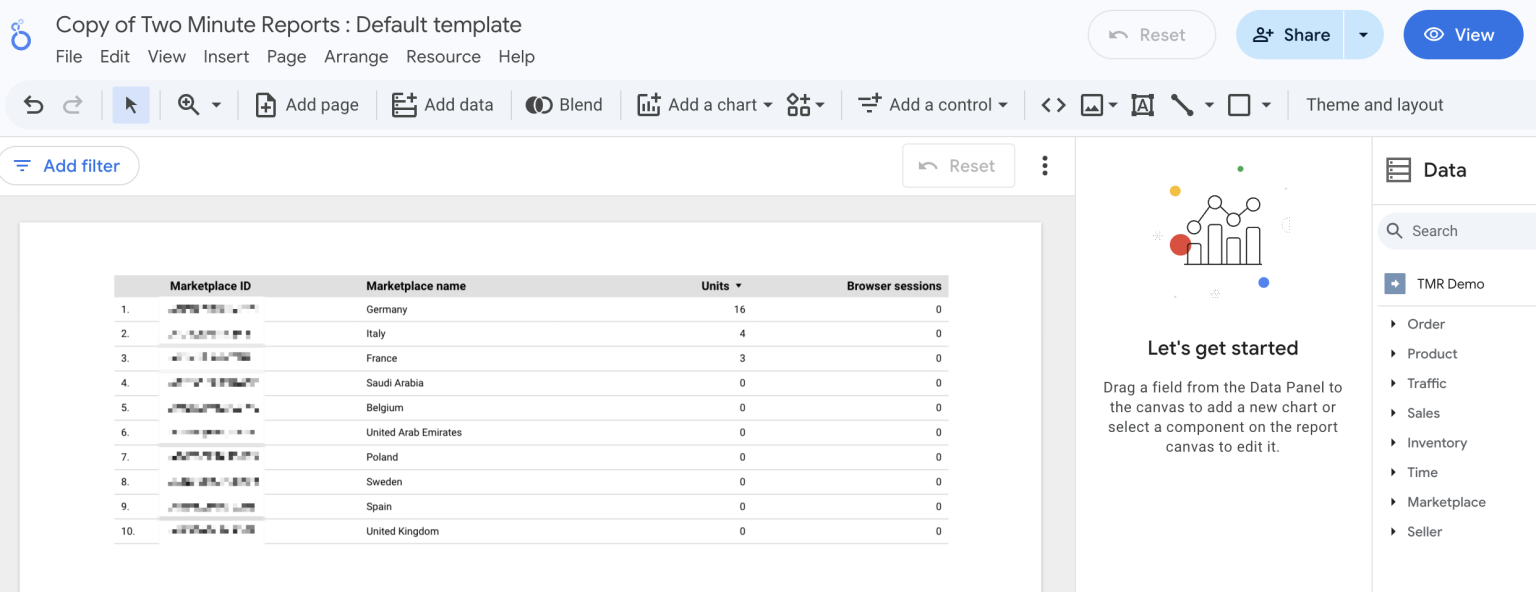
- In your new report, add Amazon Seller metrics and dimensions to the canvas.
ASIN, Child ASIN and SKU
On Amazon, one product can have variations, for example different sizes or colors. Amazon keeps these variations in one variation family. The family has one parent ASIN, and each variation has its own child ASIN.
The Product group has three fields that identify a product. Each field gives different rows:
| Field | One row is |
|---|---|
| ASIN | With Sales and Traffic metrics, one variation family. The field shows the parent ASIN, and Two Minute Reports adds the metrics of all the variations in the family together. |
| Child ASIN | One listing. Each variation has its own row. |
| SKU | One seller SKU. This is the most detailed level. |
If a product has no variations, its parent ASIN and its child ASIN are the same. For this product, ASIN and Child ASIN give the same rows.
The order fields Order ASIN and Order SKU come from your orders. Order ASIN shows the child ASIN of each item in an order, not the parent ASIN.
Data freshness by source
Amazon does not keep all of this data in one source, and the sources do not update at the same speed. Two Minute Reports selects the Amazon source from the fields in your query. Because of this, the fields that you select set how recent your data is.
| Fields you select | Amazon source | How recent the data is |
|---|---|---|
| Sales and Traffic metrics, also when grouped by SKU or ASIN | Sales and traffic business report | One to three days old. The delay changes by account and by day. |
| Order fields and metrics, including Order SKU and Order ASIN | Orders | Less than one hour old. Usually, the data for yesterday is complete. |
| Inventory metrics | FBA inventory | The current stock only. There is no history, so you cannot group these metrics by a date dimension. |
Troubleshooting
A query for yesterday is empty
Your query can show units by SKU or ASIN, with a metric such as Total units. These fields come from the sales and traffic business report. Amazon publishes this report one to three days late. Because of this, a query for yesterday can be empty, also when you had orders on that day.
To get the data for the most recent day, use the order fields:
- Replace Total units with Order quantity.
- Replace SKU or ASIN with Order SKU or Order ASIN.
- Run the query again.
The order fields come from your orders, which are less than one hour old. They do not give traffic or conversion data. For that data, keep Total units by SKU or ASIN, and use a date range that ends three or more days before today. See Data freshness by source.
You cannot use Sales fields with Order or Inventory fields
Sales fields come from a different Amazon source than Order fields and Inventory metrics. If you select Sales fields together with Order fields or Inventory metrics, an error shows. For example:
Cannot use Metric group 'Sales' along with Dimension group 'Order'
In Google Sheets, you cannot run the query until you remove one of the two groups. In a Hub dashboard, you cannot save the widget. If you need the data from the two groups, make one query for each group.
A report shows fewer ASINs than you have listings
With Sales and Traffic metrics, such as Sessions, Page views or Total units, the ASIN field shows the parent ASIN. All the variations of a product are in one row, and their metrics are added together. Because of this, your report can have fewer rows than you have listings.
To get one row for each listing, replace ASIN with Child ASIN. See ASIN, Child ASIN and SKU.